Sunday, July 15, 2007

Notes from Mega Conference

Here are some of the major ideas I gained from the Mega Conference held in Mobile this past week. The major thrust of the Mega Conference each year centers around Federal Programs and Special Education, although the sessions do extend into all areas of school life.

Response to Intervention
This term "Response to Intervention" is one which is probably unfamiliar to the majority of teachers, yet it's impact on general education is significant now and will continue to grow. "Federal law now prohibits labeling students as 'LD' unless the districts can prove that research-based instruction has been provided, for a lengthy period of time, in regular education classes, by highly-qualified teachers, using instructional programs 'with fidelity.' The process of gathering the required data is called 'Response to Intervention,' or 'RTI.'" This quote comes straight from Melinda Baird, a nationally-known attorney whose specialty is representing school systems in special education issues.

The good news for us is that the teacher who is using research-based reading and math materials, is implementing them "with fidelity" (That's not a term we dreamed up locally; that's the way the law reads.), and is progress monitoring students as prescribed in the program is going to be in good shape. As you read about RTI, you will see the terms "Tier 1," "Tier 2," and "Tier 3" As you review the reading programs up for adoption this year, you are going to see the same language. Easy translation:
  • Tier 1="Benchmark" or that vast majority of students (hopefully 80% or more) who are experiencing success. "Tier One" materials are those one would use with the entire class.
  • Tier 2="Strategic" or that group of students (probably around 15%) who need a "double dose." "Tier Two" materials or instruction would be used to help accelerate these students.
  • Tier 3="Intensive" or that very small percantage (5% or so) who are having severe difficulty and require intensive intervention. You will hear the terms "Tier Three" and "intervention program" used interchangeably.

To be honest, RTI is an area where there are more questions than answers. My suggestion is to keep "RTI" on your radar. When you see the term mentioned in a professional journal, read it. If you have an opportunity to attend a short workshop on it, go. In this last reauthorization of IDEA, Congress came very close to removing the discrepancy model (the way we currently determine eligibility for LD which measures the discrepancy between IQ and performance) and replacing it with RTI. Congress did not do that. They are allowing either method for now. With the the next reauthorization of IDEA, we may well see RTI become the sole way to determine LD.

Reading Adoption
The reading adoption is a huge topic and one that is sure to be the source of interest and controversy statewide. Earlier this summer, 11 textbook companies submitted their core reading programs to a large panel of reviewers. We will be receiving their report this fall. Each core reading program is rated in a variety of areas, much like one would see in the magazine Consumer Reports. In fact the instrument used to rate the programs is entitled A Consumer’s Guide to Evaluating a Core Reading Program Grades K-3.

We will begin receiving samples from the publishers in November. Dr. Morton's recommendation is going to be that school systems narrow their focus to three or four core programs using the results of the report and then make their own selection from there. The rationale is that school systems will not have time to adequately evaluate all 11 programs submitted for review.

Web 2.0
This buzzword got it's start in 2003 and has been gaining steam ever since, but most people still haven't the foggiest notion of what it means. In a nutshell, Web 1.0 was about you and I being consumers. Information on the web was put there by people in far-away places who knew lots about programs such as Deamwaver or FrontPage and had access to servers where they could host their stuff.

Web 2.0 is about creation and participation. What you are reading right now is an example of Web 2.0. It's about the average person being able to share knowledge with the whole word. It's blogs and wikis. It's MySpace and YouTube. It's the ability for you and me to have space on the internet absolutely free where we can post our pictures, our thoughts, and our very best ideas. It's the idea that we are givers as well as takers in a global exchange of ideas. It's the absurd notion that an encyclopedia could be constructed by simply letting anybody who wanted to write whatever they liked, a notion so absurd it's actually working.

To this point, our challenge has been to find what others have written. Our generation learned about the Readers’ Guide to Periodical Literature. This generation knows about Google. The challenge of Web 2.0 is not just in finding what others have created, but in making it easy for others to find what we have created. That, however, is another post for another time.

Free Technology Resources
Every one of the links on this list is worth your time to explore.

APTPlus and United Streaming
Many of our teachers are finding the value of the United Streaming videos. You can download short clips to play in class. You can store what you have downloaded in a folder on your computer so that you can find it the next time you teach that particular lesson. If you have not used this resource before, this blog post tells you what you need to know.

One of the points brought out was that rather than go directly to United Streaming, we should be encouraging you to go to APT Plus. At that site, you can search for resources available from United Streaming, but you will also be able to search other sources at the same time.

ACCESS
The final topic is the distance learning opportunities provided through ACCESS. This program is part of a dream to access to education a function of your aspirations rather than a function of where you happen to live. Extensive information is available at their website.

Friday, July 06, 2007

Weather alerts delivered to your e-mail

Your e-mail can be a handy source for the latest weather advisories. The National Weather Service provides RSS feeds for watches and warnings. To subscribe:
  1. Go to this page.
  2. Go to the column labeled "By County/Zone" and click on the orange "XML".
  3. Click on the county you desire.
  4. Copy the URL you see and paste it in your aggregator.

Sunday, June 24, 2007

"Shower" a new teacher with gifts

We all know what life can be like for the new teacher. He or she walks into a classroom that may be totally bare of even the basics. All-too-often, other teachers have divided up anything of value left by the last teacher. This "Dear Abby" letter from today's Birmingham News offers a wonderful way to endure that a new teacher begins a career with the essentials:

Dear Abby: I teach aspiring elementary school teachers in a credential program in California. The family of one of my students came up with a great way to celebrate her graduation from the program and help her prepare for her new career as a teacher. They threw her a "teacher shower."

To help her start her classroom library, each guest brought a hardback copy of his/her favourite children's book. She was also given baskets of teacher supplies such as Sharpie pens, Post-Its, stickers and coloured paper for the school copier.

I know the shower meant a lot to my student, and in states like California, where teachers often spend hundreds of their own dollars for classroom supplies, throwing a teacher shower can be a terrific way for families and friends to show their support for the new teacher.

Julie, a Teacher's Teacher

Dear Julie: Dedicated teachers are among the unsung heroes in our society. They guide and shape the members of future generations, and rarely receive the credit or the income they deserve for their efforts. I love the concept of a teacher shower to help young, idealistic educators get off to the start they need, and I hope the idea will be popularized not only for new teachers, but also more experienced educators who would find it helpful. I'm sure there are many.

Friday, June 22, 2007

When you teach, you learn

It never fails that when I teach a workshop, I wind up learning something new. Such is the case with the latest session I conducted Wednesday for the Jacksonville State University Inservice Center.

Thanks to Haylee Black for putting me on to a neat trick for opening multiple pages at once when you open your browser. After the workshop, she was sharing what she had learned with her husband when they stumbled upon this ability. She shared it with me in an e-mail, so I got busy researching it.

You probably know how to change your homepage. You probably also know how to open a new tab so that you can go back and forth between multiple websites. Suppose, however, that there are several sites you use every day and you would like all of them to come up at once (on separate tabs) when you open your browser. There is a way for this to happen:
  1. Open your browser.
  2. Create a new tab for each site that you want to open automatically.
  3. Go to Tools>Internet Options (or on Firefox, Tools>Options).
  4. Click the "General" tab in Explorer (or "Main" tab in Firefox).
  5. Click "Use Current" in Explorer (or "Use Current Pages" in Firefox)
  6. Click "Apply" and "OK" in Explorer (or simply "OK" in Firefox)
  7. To test it, close your browser and reopen it (or simply click the "Home" icon).
How would a teacher use this? Think about the sites you pull up every day on your computer:
  1. Your school webpage
  2. Your search engine (Google, Yahoo, etc.)
  3. Renaissance Learning (If you use the web version)
  4. STI Classroom
With this trick, you could have all 4 of those sites come up, in different tabs, each time you open your browser. Of course, you could have different computers configured to open different tabs. The computer you use for yourself might open STI Classroom but not Renaissance Learning while one for student use would have no need for STI Classroom but a huge need for Renaissance Learning.

When I teach, I always wind up learning. Isn't this a neat profession?

Thursday, June 21, 2007

Installing a counter on your blog

If you are creating a blog, you might be interested in having a counter. The most basic advantage is that you can see how many people visit your blog. You can go further and generate reports which show how many hits you have on any given day and how many are new visitors as opposed to returning visitors. You can also see what percentage of people viewed your blog for only a few seconds versus those who stayed for 20 minutes.

The counter I use is StatCounter. It is a free service. Clicking on the link will take you to that site. You will be asked to choose a login. The site will walk you through step-by-step as you select the style of counter you would like as well as numerous options.
In the final analysis, the StatCounter site will return a block of html code. You will highlight and copy it. StatCounter gives you step-by-step instructions on how to insert that code into your blog template. (Don't worry. It's not nearly as complicated as it sounds.)

If you have a blog, installing a counter is one of those little things that will make a big difference.

Wednesday, June 20, 2007

Great time at JSU!

If you are visiting for the first time as a result of the workshop at JSU, welcome! In the archives, you will find a great deal of information that I hope you will enjoy.

Thanks for coming to the workshop. I thoroughly enjoyed the day.

Monday, June 18, 2007

Increasing productivity with dual monitors

ImageChef.com - Custom comment codes

Microsoft has released an article regarding the benefits of multiple monitors. The story is located here.

My set-up at work includes two monitors. I have been using this configuration for a year and love it! Here is a post I wrote when I changed jobs/offices/computers and went to this arrangement.

Bob Rankin wrote a great article that provides the technical aspects for those those would like to pursue the idea further.

Sunday, June 17, 2007

Teacher blogs to communicate with students

During the session on blogging from AETC, several people asked about examples of teachers who are using blogs with their students. A quick Google search and a little "surfing" turned up several that I think are worth a look.

  • Brandi Caldwell, a teacher at Mountain Brook High School, composed Mrs. C's Senior English Blogs. From her last post there, it seems the school system began blocking Blogger, so you will see a link there to another venue she now uses. Here, you see Mrs. Caldwell composing the posts and her students responding with their comments.
  • On Mrs. Myrmel's Classroom Blog, we see a blog used as a tool for a 3rd grade teacher to communicate with parents.
  • At the Room 303 Blog, Mrs. Huff's students compose the posts. The most recent posts at present relate to student insights into The Adventures of Huckleberry Finn. Other students post comments where they respond to what their classmates have composed. This one is definitely worth a look.

Do you know of other examples that would benefit teachers who are interested in using a blog in their classes? If you do, please leave a comment.

Friday, June 15, 2007

Thanks for a great response!

The last couple of days have been a great experience for me. Thanks to those who came to the Outlook session, the blogging session, or the "It's About Time" session. It's good to hear from you that the message of using technology to make your life easier is one that is needed, and the things we are talking about are practical and doable.

I also want to thank The Daily Home, and in particular staff writer Samantha Corona, for the coverage they gave to my receiving the Chiquita Marbury Technology Innovation Award. The morning following the awards ceremony, this article appeared on the front page. This morning, The Daily Home included this editorial. I have been saying for a number of years that newspapers are eager to print the good that is happening in schools; however, we must take the initiative to keep them informed. Samantha and the entire staff serve as examples of writers who help us put our best foot forward.

Wednesday, June 13, 2007

Keeping little eyes away from inappropriate material

People can take just about any good thing and find a bad way to use it—the telephone, the automobile, prescription medicines. The list could go on and on, and the Internet is a candidate for that list. This post addresses the potential for someone reaching inappropriate material through a blog.

Sure, I realize that anyone sitting unsupervised at a computer and looking for inappropriate material will find it quickly without ever visiting my blog. I do, however, want to remove the possibility that by visiting my blog and clicking on link, a youngster could be seeing something he or she has no business seeing.

By far my biggest concern is the link at the top of Blogger blogs that says “Next Blog.” At first glance, it looks like a good feature. You can visit blog after blog you never knew existed, and you can find some real treasures. You can also find some real trash. You could be one click away from a blog featuring pornography, profanity, or hate speech.

You will notice this "Next Blog" option does not exist on this blog, or any of the other blogs I have composed (TalladegaCitySchools.blogspot.com, TeachTalladega.blogspot.com, or AlabamaArts.blogspot.com) One simple measure prevents someone reading your blog and being a couple of mouse clicks away from trouble.

I wrote about this same topic in November of 2005. Since that time, Blogger has gone through an upgrade. The instructions that worked before no longer work now. What follows is a set of directions which will work. Thanks to Rakesh for providing directions which will work with the new Blogger.

Removing the Navigation Bar
  1. You will probably want to print this page of my blog to reference during the process.
  2. To remove the Navigation Bar, you are actually going to edit the html code just a bit.
  3. Go to www.blogger.com and log into your blog.
  4. On the dashboard, click "Settings."
  5. Click the "Template" tab
  6. Click the "Edit html" tab
  7. Find the line of code that consists of the word "head" surrounded by the < > . It will be near the top.
  8. Click the mouse to insert the cursor at the end of the line. Hit "Enter" to give yourself a blank line.
  9. Highlight and copy the following text. Paste this text starting in that blank line:

!-- code to add --
style type="text/css"
#navbar-iframe
{
height:0px;
visibility:hidden;
display:none;
}
/style


You are going to enclose 3 of the lines you just added with "< >" signs (leaving off the quotation marks). You will add these "< >" signs to enclose the first, second, and last lines of code you pasted. These three lines are the ones that said "
!-- code to add --," "style type="text/css"" and "/style"

Once you have done this, click "Save Template." You can now click on "View Blog." If you have done it correctly, the navigation bar will be gone.


That’s it! I doubt the folks at Blogger would be happy about my doing this and even less happy about telling you about it. I am more concerned about being an accomplice to youngsters seeing stuff they shouldn’t than I am keeping folks happy.

Monday, June 11, 2007

Thanks for coming to the session!

If you are visiting here for the first time as a result of coming to one of my sessions at AETC, welcome! The reason I started this blog three years ago was for the sole purpose of continuing a line of communication with those who attend workshops.

You will find a great deal of material as you click the links for past months. I hope you enjoy what you read and will come back often.

Saturday, June 02, 2007

Analyzing data with spreadsheets

Over the years, spreadsheets have been one of the biggest times avers I have found. A few minutes spent thinking through what I want a spreadsheet to do and setting it up to do so saves hours of repetitive calculations.

If you are in the school business and want to learn how to use Excel to analyze your data, I have a recommendation for a great place to start. School Data Tutorials provides detailed instructions on setting up spreadsheets and writing formulas. The site uses Camtasia Studio to produce the tutorials, meaning you hear the instructor talking to you, view the instructor's screen, and see every move of the instructor's mouse. It's as if the instructor were sitting beside you. Best of all, the examples are germane to analyzing data in an educational setting.

P.S. Thanks to Jan Borelli for putting me onto this site. Jan is principal of Westwood Elementary (the Hippest School in America), located in Oklahoma City, Oklahoma. You can read some of her thoughts at Dr. Jan's Blog.

Sunday, May 13, 2007

Organizing credit card receipts

For many people, handling credit card receipts is an exercise in frustration. As in so many other areas, a good system is the answer to turning something frustrating into something extremely easy. Outlined here are the nuts-and-blots of the system we use at our home.

  1. Label a file folder for each credit card you have. Include store credit cards as well as major credit cards. These folders become part of your reference filing system.
  2. Label a file folder “Credit Card Receipts.” This folder will be placed in a tickler file folder. I like to use a colored folder so that it is easy to locate.
  3. Label a folder “Tax Deductible Receipts.” This file folder may go in your tickler file for the time of year you will be compiling your tax returns.
  4. In the evenings, empty you pockets, briefcase, etc. of any credit card receipts you have collected during the day.
  5. Take the loose receipts and put all of them in the back of the Credit Card Receipts folder. Filing to the back of the folder keeps the folder in chronological order and makes the job of matching items on the statement with their corresponding receipts much easier. Do not worry that receipts from different credit cards are being mixed together.
  6. When the credit card statement comes, throw it in the tickler file for the day you want to handle bills. Saturday is usually a good candidate. When Saturday comes, you will no doubt have several bills to pay, and you will handle them all at one time.
  7. Pull the Credit Card Receipts folder and begin with the first statement. For each line on the statement, pull the corresponding credit card receipt. You should have a receipt for each item on the statement. Any missing receipt is a red flag that you should take seriously. It is a sign of either holes in your system or fraudulent charges. If it is the first, shore up those holes. You will then have a reliable way of determining when you are being charged for something you did not purchase. Are there others in your family who also use credit cards? If so, they must be diligent about getting their receipts into the Credit Card Receipts folder.
  8. As you are matching items in the statement to the receipts, set aside any which will be tax deductible.
  9. Once you have matched all items to the receipts and the statement has been verified as being correct, write the check and tear off the portion to be returned.
  10. Take any of your tax deductible receipts and drop them into the Tax Deductible folder. If you need to write any explanation on any of them, now is the time to do that.
  11. Take the remaining receipts and staple them to the statement.
  12. File the statement in its folder in your reference files.

Should you need to go back and find a receipt, it can be in only one of two places. It can be stapled to the statement in the folder for that credit card. It can be in the Tax Deductible folder. It can be in no other place. Should you need to return an item and need the receipt, simply think in terms of the approximate time the purchase was made and with what card. It will take only a few seconds to scan the statement for that time period and locate the month when the purchase was made. Once you have the correct month, thumbing through the receipts to find the correct one takes only seconds.

Having a good system is almost as easy as having no system at all in terms of the time you will spend to maintain it. A good system is a huge time-saver for all the times you need to find a receipt and the money-saver when you need to dispute fraudulent charges.

Friday, May 11, 2007

Workshp on June 20--Jacksonville, Alabama

I will be conducting a session of "It's About Time" at the Jacksonville State University Inservice Center on June 20. The workshop will be held at the Fort McClellan Center. The workshop is free and is open to all Alabama teachers. To register online, simply click here.

The workshop includes:
  • How to use “tickler files” to keep your desktop clean and your paperwork under control.
  • How to use a daily planner as an effective tool to keep your organized and on top of your day.
  • How to document quickly and easily.
  • How to handle tasks which recur, whether each month or each year.
  • How to handle multiple projects easily.
  • How to organize the files on your computer in a logical manner.
  • How to back up your computer easily.
  • How to gain “chunks” of time by controlling interruptions.
  • How to “batch” similar activities.
  • How to establish priorities, delegate, and learn to just say “no.”
  • How to organize files and folders so you can find what you want.
  • How to back-up your data easily so that a hard drive crash won’t be a catastrophe.
  • How to handle tasks which recur monthly, quarterly, or annually.
  • How to handle documents you must “revisit” and update regularly.
  • How to use e-mail effectively.
  • How to organize correspondence so that you can find that memo in seconds.
  • How to use Google to put most any information at your fingertips quickly.

Sunday, May 06, 2007

The book of your life—Calendars from past years

One look at your calendar for the coming days provides all of the date and time-specific information on your life. This post focuses not on the days ahead, but on days gone by. What does your calendar from yesteryear tell you about the progress of your life?

If you look at your calendar from a year ago, what does it tell you? Of what value is to you? Do you even still have it at all? For many of us, last year’s calendar went into the trash can before the sun set on New Year’s Day. For those who do save their calendars, the pages are full of appointments which now hold little or no value. The events which are significant get lost amid all of the events which are now trivial.

I recommend one simple habit which for me has transformed my past calendars from trivial to significant. At the end of the day, I aim to spend a few moments thinking through the course of the day. My purpose is to identify those events which might be worthy of review months or years into the future. Did I come up with an idea which will make life easier for me or someone else? Did a conversation I had today have a potential impact on future opportunities for me? Did an event of lasting significance happen in national news?

If the answer is “yes,” I create a new all-day event on my BlackBerry and record the significant event. At the same time, I delete appointments and all-day events which pose no long-term significance.

Some many be reluctant to delete past appointments in the event they are asked to reconstruct a time line. In my case, I will have the notes from any meeting, complete with date and time recorded. This documentation is all I need.

Each month, I print a hard copy of the previous month from Outlook. On one sheet of paper, I see what is significant about the month without the noise of the insignificant. This calendar page is filed permanently.

I began this exercise about 4 years ago. It has been extremely rewarding in helping me see the high points in my life and the important events of the times in which I live. The process takes seconds a day. It is of value forever.

Friday, May 04, 2007

Hoaxes revisited

I have written about hoaxes we all receive in e-mails and how to separate fact from fiction in them using a quick Google search. PCWorld has published a list of the Top 25 hoaxes, which I think makes for enjoyable reading. You can read it here.

How many of these have made their way to your in-box?

Monday, April 30, 2007

Handling reading material

Staying on top of things in our field means we must stay on top of professional reading. In addition, to professional journals, we all have the things we simply like to read for pleasure. How can we manage it all?

My last post talked about listening to books on tape as a substitute for some of print material. That still leaves me with a great deal of reading material.

I have a section of my briefcase devoted to reading material. As I am going through the mail at work or at home, magazines go straight into the briefcase. That one simple act keeps all of my awaiting reading material in one place. There is no doubt between what has been read and what has not. Anything in the briefcase is either unread or partially read.

When I have down time, I simply pull out something from the briefcase. That means if I am waiting to see the doctor or dentist or if I am waiting to get my hair cut, I pull out some of my reading material. On the way home, I am frequently stopped by a train—so, out comes reading material. I tend to get to appointments early, and while I am waiting, I have reading material.

In short, I match reading material with time that would otherwise be wasted. It keeps the reading material from building up and keeping me from getting bored.

Saturday, April 28, 2007

Commute time

Like many of you, I have a bit of a commute to work. Mine is 23 minutes, small in comparison to many people, but gargantuan compared to the 3 minute drive to work from my early days in teaching. For the last year, I have turned what had been wasted time into an enjoyable and productive daily experience.

For the past year, I have never been without a book on tape or CD from the public library. The number of books I have experienced during that time numbers several dozen, and that is a conservative estimate. The latest has been The World is Flat. Listening to all 15 or 16 CDs kept me busy for quite a while, and proved to be fastinating listening. Of course, I have always been aware of the availability of audiobooks. Up until the last year, I had simply never made regular trips to the library for them a priority.

In today's world, lifelong learning is essential. Books are the shortcut to that learning. Their authors have carefully honed and summarized a body of knowledge into a coherent message. At the same type, the pace of today's world makes time for reading hard to find. Making commute time do double-duty has been a simple answer, and easy enough I will actually do it.

Thursday, April 12, 2007

Office update: the problem and the fix

I ran the Office Update earlier this week, a good thing. Afterwards, I realized I could not open my saved searches. Each time, I would get an error message. I also could not re-create them. They would not save.

A Google search put me onto this explanation and the solution.

The workaround presented in the article is as follows:

Warning Serious problems might occur if you modify the registry incorrectly by using Registry Editor or by using another method. These problems might require that you reinstall the operating system. Microsoft cannot guarantee that these problems can be solved. Modify the registry at your own risk.

To work around this problem, re-enable the Office Saved Searches feature. To do this, follow these steps:

Exit Outlook.

Click Start, click Run, type regedit, and then click OK.

Locate and then click one of the following registry subkeys:

HKEY_CURRENT_USER\Software\Microsoft\Office\11.0\Outlook\Options\General

HKEY_CURRENT_USER\Software\Microsoft\Office\10.0\Outlook\Options\General

HKEY_CURRENT_USER\Software\Microsoft\Office\9.0\Outlook\Options\General

Note If the General subkey does not exist, follow these steps to create the subkey:

Click the Options subkey, point to New on the Edit menu, and then click Key.

Type General, and then press ENTER

On the Edit menu, point to New, and then click DWORD Value.

Type EnableOfficeSavedSearch, and then press ENTER.

Right-click EnableOfficeSavedSearch, and then click Modify.

In the Value data box, type 1, and then click OK.
Note To disable this feature, type 0 in the Value data box. Or, delete the registry key that is mentioned in step 3.

On the File menu, click Exit.

I followed the directions, and my searches were working again!

I was wondering if this problem was just a bug or if Microsoft did this on purpose. I posed the question to an Outlook discussion group and was directed to this explanation. When you reach that site, Expand Vulnerability Details>Microsoft Outlook Advanced Find Vulnerability. I hope a future patch fixed the security problem while still allowing saved searches. Explaining to someone fairly new to Outlook how to set up a saved search is challenge enough. Having to explain how to change the registry is too much!

Wednesday, April 11, 2007

Creating Outlook Saved Searches

I have three “saved searches” which I have created in Outlook

Task has not been completed and information I am looking for is in the subject line

  • Create a new “Advanced Find.” (Ctrl+Shift+F).
  • Change the “Look for” drop-down box to read “Tasks.”
  • On the “In” drop-down box, choose “subject field only.”
  • Click the “Advanced” tab.
  • On the “Field” drop-down box, choose “Frequently-used fields” and then “Complete.”
  • The “Condition” drop-down box should read “equals” and “Value” should be “No.”
  • Click “Add to List.”
  • From the “File” menu, select “Save Search.”
  • Assign a name to the search.
  • Select a place to save it. Since I use these searches often, I save them to the desktop. Since I use this particular one the most of all, I drug mine to the taskbar at the bottom of the screen so that it is always visible.

    Task has not been completed and information I am looking for is in the note section
    Create a new “Advanced Find.” (Ctrl+Shift+F).
  • Change the “Look for” drop-down box to read “Tasks.”
  • On the “In” drop-down box, choose “subject and notes field.”
  • Click the “Advanced” tab.
  • On the “Field” drop-down box, choose “Frequently-used fields” and then “Complete.”
  • The “Condition” drop-down box should read “equals” and “Value” should be “No.”
  • Click “Add to List.”
  • From the “File” menu, select “Save Search.”
  • Assign a name to the search.
  • Save to the desktop.


    Task has been completed
  • Create a new “Advanced Find.” (Ctrl+Shift+F).
  • Change the “Look for” drop-down box to read “Tasks.”
  • On the “In” drop-down box, choose “subject and notes field.”
  • Click the “Advanced” tab.
  • On the “Field” drop-down box, choose “Frequently-used fields” and then “Complete.”
  • The “Condition” drop-down box should read “equals” and “Value” should be “Yes.”
  • Click “Add to List.”
  • From the “File” menu, select “Save Search.”
  • Assign a name to the search.
  • Save to the desktop.

    The search I use by far the most often is the first one. If someone walks in my office or calls my on the phone, I can click the icon on the taskbar for that saved search, type the person’s name in the “Search for the words(s)” line, and click “Find Now.” Everything I need to talk to that person about, regardless of when it is due, is not displayed.

    With these three saved searches and using the appropriate one for the information I am trying to find, I get my results much more quickly. When we compare the advantage/disadvantages of organizing digitally versus paper/pencil, one area where the digital system wins out is the ability to search data. We need to maximize that capability, and the “saved search” is one of those ways.

Tuesday, April 10, 2007

Outlook Saved Searches

Sometimes, we do not fully appreciate something until we face the prospects of not having it anymore. Such is the case of the “saved searches” I created on Outlook. For about 20 minutes yesterday, I could not access them and could not re-create them. I was able to determine the problem and the fix. In my two posts, I will share how to create saved searches, tehe prolem I encountered, and the solution.

The prospect of not having them and realizing how valuable they are to me prompts me to write this post. If you organize with Outlook, they such might be as valuable to you.

I use several “saved searches” to search my Outlook Task list. Why would I need to search the task list?

  1. To satisfy myself that I had indeed put a particular task on the list, even if the start date was not to occur for months.
  2. To find a particular item that I just know I put on the list but somehow don’t see it.
  3. To find a piece of information that I know I put in the note section of a Task but may not remember how I had worked the subject of the Task.
  4. To find a piece of information either in the subject line or note section of Task that I had completed sometime in the past.

We can at anytime perform a search (Tools>Find>Advanced Find or Ctrl+Shift+F) So, why do I need special “saved searches”? The answers might sound trivial, but when you use this valuable tool as much as I do, saving a few keystrokes and 30 seconds a shot adds up. Before I begin a search, there are generally a few things I know about that search. Having a “saved search” allows me to narrow the search from the beginning, this saving me considerable time. This example should make the explanation clearer.

When I go to search for a piece of information that is somewhere in Tasks, I have a good idea of the following:

  1. Whether it is a piece of information in a task completed in the past or whether the information is contained in a Task not yet completed. Since searching all Tasks takes longer than searching Tasks not yet completed, it would be nice to have a “saved search” that searches for Tasks which have been completed and another for Tasks which have not been completed.
  2. Whether the information is in the subject line of the Task or in the attached note. Searching just the subject line is much quicker. Searching just the subject line of the Tasks not completed really saves time over searching every Task in Outlook.

In my next post, I will discuss how to construct saved searches. In the post which follows that, I will describe the problem caused by an Office Update and how to fix it.

Monday, April 02, 2007

Gone Phishing!

A couple of posts ago, I talked about how easy it is to tell whether an e-mail you are getting is for real or a hoax. Just highlight and copy a hunk of text from the message and paste it into Google. A couple of days ago, I received the message pasted below. My first thought was that I was going to be spending some time trying to figure out who had charged something to my account.

I saved myself quite a bit of time and frustration by taking a couple of seconds to simply practice what I preach. The text I chose to highlight and copy was the "Transcation ID"--which was "2LC956793J776333Y." Pasted that string into Google gave me a whole page of hits , each one making it obvious that the whole thing was not only a hoax, but a phishing scheme. What the culprit wanted was for me to click on a certain link as quickly as possible to "report" the false charge to PayPals. The result would have been I would have been asked for information that would then have resulted in identity theft.


Dear PayPal Member,
This email confirms that you have sent an eBay payment of $43.78 USD to
andrew2091 <mailto:andrew2091@aol.com&YY=24663&order=down&sort=date&pos=0&view=a&amp;head=f> @aol.com <mailto:andrew2091@aol.com&YY=24663&order=down&sort=date&pos=0&view=a&head=f> for an eBay item.
-----------------------------------
Payment Details
-----------------------------------
Amount: $43.78 USD
Transaction ID: 2LC956793J776333Y
Subject: Digimax 130
Note:
If you haven't authorized this charge ,click the link below to dispute transaction
and get full refund
Dispute transaction <http://www.purehavok.com/us/> (Encrypted Link )
*SSL connection:
PayPal automatically encrypts your confidential information
in transit from your computer to ours using the Secure
Sockets Layer protocol (SSL) with an encryption key length
of 128-bits (the highest level commercially available)
-----------------------------------
Item Information
-----------------------------------
eBay User ID: scratchandgnaw2
----------------------------------------------------------------
Andrew Harrell's UNCONFIRMED Address
----------------------------------------------------------------
Andrew Harrell
211 David St.
Springtown, TX 76082
United States
Important Note: Edward Harrell has provided an Unconfirmed Address. If
you are planning on shipping items to Edward Harrell, please check the
TransactioYn Details page of this payment to find out whether you will
be covered by the PayPal Seller Protection Policy.
----------------------------------------------------------------
This payment was sent using your bank account.
By using your bank account to send money, you just:
- Paid easily and securely
- Sent money faster than writing and mailing paper checks
- Paid instantly -- your purchase won't show up on bills at the end of
the month.
Thanks for using your bank account!
------------------------Y----------------------------------------
Thank you for using PayPal!
The PayPal Team
PayPal Email ID PP127

Monday, March 26, 2007

Bless are they who “bcc”

Today I received yet one more of those one-line e-mail messages that was sent to 130 other people. Of course, you know what happens when you print that message or forward that message to someone else, right? The one-line message is preceded by 130 e-mail addresses.

The solution to this problem is so simple. When sending to a message to a large number of people, instead of putting them in the “To” line, put them in the “Bcc” line. Everyone still gets the message, only they will not get the e-mail addresses of everyone else to whom the e-mail was sent. Just a quick solution to another one of life’s little annoyances.

Saturday, March 17, 2007

Run for your life! It's a hoax!

"Want a free computer? Just forward this e-mail to 8 people." Not only did someone send me that e-mail this week, but it's the third time in the last few weeks I have gotten the same one. Shouldn't I forward it to my entire address book just in case it's for real? Well...no. It's a hoax. Two things tell me that:
  1. Common sense. (Come on. Why in the world would anybody be giving away free computers for just forwarding an e-mail?)
  2. A quick little copy and paste into Google. It takes all of five seconds, and armed with this simple technique, you can figure out which e-mails are on the up-and-up and which are hoaxes.

Here is all you need to do:
  1. Highlight a hunk of text from the e-mail and use the Copy command (Control-C).
  2. Go to Google.
  3. Click in the search line and use the paste command (Control-V).
  4. Hit enter.
  5. Sit back and watch the fireworks. You are going to get hits that tell you instantly whether or not you have hooked a hoax.

Aren't Hoaxes Just Simple, Harmless Fun?
If you call wasting your own work time, contributing the problem of junk e-mail in everyone's in-box, and clogging up your employer's server simple, harmless fun, I guess you have a good point.

Other hoaxes are actually more harmful. Take, for example, the Teddy Bear Hoax. Readers were warned about a virus and told how to search for a particular file. If the file was present, the computer was infected. The e-mail would go on to explain how to get rid of the infected file. Finally, the e-mail would ask that people forward the e-mail to everyone else.

It seemed everyone receiving the e-mail was finding that yes indeed, they did have this suspect file on their computer. Well, there was good reason everyone was finding they have that file...everyone is supposed to have that file! It's a part of Windows and serves a very good function! (Now the problem was figuring out how to get the deleted file back again.)

One particular school system found that the Teddy Bear Hoax had been circulated widely before it came to the attention of it's tech support folks. Pretty frantic notices went out for people to stop forwarding the hoax and not to delete the file described in the e-mail.

Being Part of the Solution
Whenever I get one of these suspect e-mails, the drill I follow is:
  1. Under no circumstances add to the problem by forwarding the thing
  2. Use the "copy-Google-paste" routine I described earlier.
  3. Copy the URL of one of the sites that explains the hoax.
  4. Go back to the e-mail and hit "Reply."
  5. Paste the URL into the message.
  6. Just above the link, I generally include the message, "Run for your life! It's a hoax!"
  7. Hit "Send."
By the way, I have some shares of the Brooklyn Bridge I would be willing to sell if anyone is interested.

Wednesday, March 14, 2007

High School Heroes

Mary Paramore is a retired English teacher who taught for many years at Enterprise High School. From time to time, her editorials have been published in the Birmingham News. I have always thought the depth of her thought and expertise with the written word to be true credits to the teaching profession. Of all that she has written, probably nothing is as touching as what appeared in this past Sunday's Birmingham News. She begins as follows:

More than 2,000 years ago, Plato recorded for posterity these words spoken by his teacher Socrates: "a man who is good for anything ought not to calculate the chance of living or dying; he ought only to consider whether in doing anything he is doing right or wrong - acting the part of a good man or of a bad.

Those words give definition for all time to the greatness of soul which lies within the good man and woman. On the first day of March 2007, the teachers, administrators and students of Enterprise High School performed acts which illustrate for all time that they, too, are the possessors of that greatness of soul.

The read the article in its entirety, click here.

Friday, March 02, 2007

Daylight Saving Time Patch and the BlackBerry

The Daylight Saving Time problem is for real! A couple of days ago, I noticed that an appointment I had entered on my BlackBerry for March 11 was showing up an hour too late on Outlook! As I started looking at other appointments, and found that every one of them between March 11 and April 1 was one hour later on Outlook than on the BlackBerry.

If you are syncing your handheld (BlackBerry, Palm, or whaetver) to your computer, you might want to take a look at appointments during that little three-week window. Also, you might want to simply add an appointment for a day in mid-March and see what happens when you sync.

If you find you are a victim of "DST," the first thing to do is look at the appointments from March 11 through April 1 and decide which one is correct. If in doubt, one thing that will help is if you can remember whether you entered a particular appointment on your handheld or on your desktop. Everything I entered on my BlackBerry was correct on the BlackBerry and an hour late on Outlook. Everything I had entered on Outlook was correct on Outlook and an hour too early on the BlackBerry.

Once you know where the errors are, you can download a patch. For BlackBerry users, do this:

  1. Close BlackBerry Desktop software
  2. Disconnect Blackberry from computer.
  3. Go to http://www.blackberry.com/DST2007/patch/index2.shtml
  4. Scroll down until you come to a link labeled "DST Patch Loader" and click the link.
  5. You will get a message asking you to install an Active X Control. Click on the yellow strip at the top of the page to allow this to happen.
  6. Connect your BlackBerry to your computer.
  7. A button will appear that says "Install DST Patch." Click on it.
  8. The patch will download. Be patient. The process will take several minutes and the little "progress bar" may appear to be frozen, but do not worry. Just give it some time.
  9. When the process finishes, you are returned to the the screen that has the button asking you to install the DST Patch. It sure would be nice if you got some sort of message telling you that you were finished, but you don't. I am sure there are going to be many people who hit the button again, but at least YOU won't be doing that.
  10. You can now disconnect your BlackBerry from the computer. You will find that a little hour glass is spinning on the screen. It may spin for 15 minutes. Don't worry. When it finally stops spinning, you are done!

At this point, the appointments on your BlackBerry and those on Outlook will at the least be the same. It does not mean they are correct. You will need to look at each one to determine if it is correct or an hour off. Make corrections as needed. The next time you sync, the corrections will transfer.

Thursday, March 01, 2007

Where do we go from here?

Where do we go from here?

What functions do you want to use on the Blackberry?

Just E-mail and cell phone?

OR

Keep your calendar, tasks, contacts, and memos?

If the answer is the later, you will want to sync your Blackberry to Outlook.

Steps in Syncing Your Blackberry to Outlook

  • Set up an e-mail account in Outlook if you are not already using Outlook.
  • If you had been using Outlook Express, import your addresses and e-mails from Outlook Express to Outlook.
  • Install the Blackberry software.
  • Obtain and follow step-by-step instructions for the Blackberry desktop software.

Tuesday, February 27, 2007

Using the status field


Use the “Status” and “Priority” settings to tell you where you will do the task.

To scroll through the selections, use the “Space” key

Friday, February 23, 2007

Sorting your tasks


Click on “Options” and choose “Due Date” as the way you want to sort your tasks.

Monday, February 19, 2007

Hide Completed Items


Click the track wheel and select “Hide Completed.” This will keep all of your completed tasks from continuing to show in your task list.

Sunday, February 11, 2007

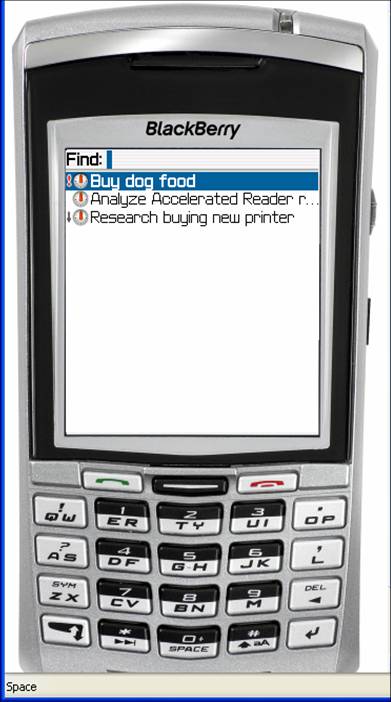
The search function of the Tasks


I have found the task list to be the weakest element of the BlackBerry. With a little thought, however, I have been able to make it work quite well for me. The strength I do find in the task list is its easy search capabilities.

When you go to Tasks and simply start keying in a word, you are automatically searching. With each keystroke, your list grows shorter. Finding any task on the list in a few seconds is a breeze.

Saturday, February 03, 2007

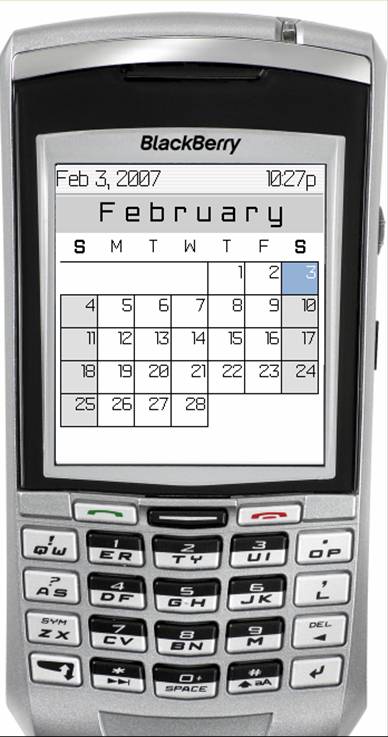
Set the calendar view to "monthly"


After quite a bit of experimentation, I am sold on the "monthly" view. The main reason is that I can see the "big" picture. Even though a cannot see the text of any appointment, I can get a idea of how free or packed any day or week is with a single look at the monthly calendar.

Any day which has an "all-day appointment" is going to appear in bold. A series of dots just to the left of the calendar day lets me know if I have appointments and whether any particular appointment is near the beginning, middle, or end of the day.

When I am looking at the monthly calendar, I am exactly one click away from looking at today's daily view. By default, the cursor is going to be resting on today's square of the monthly calendar. By pressing the return key, I am now looking at today's "day view."

Navigating while looking at the monthly calendar is a breeze. If I roll the track wheel back and forth, I move through the month a day at a time. Here is the neat part--If I hold the "alt" key (lower left corner) and roll the track wheel, I go forward or back a week at a time. This trick makes it easy to move from month to month.

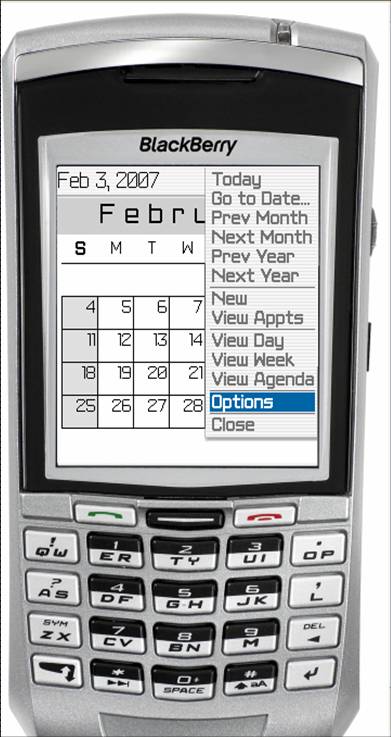
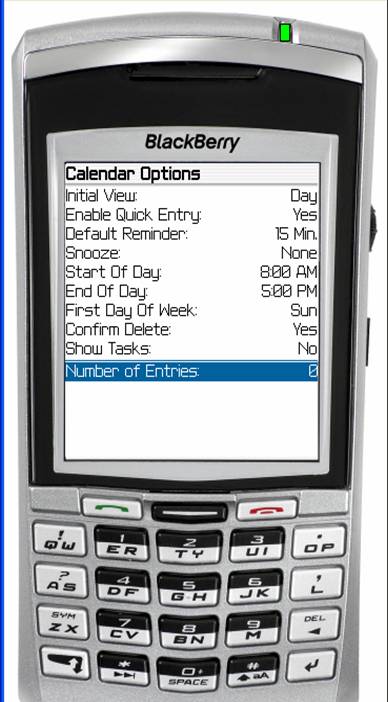
You can make the monthly calendar the default view. While you are looking at the calendar, click the trackwheel and choose "Options." For "Initial View," choose "Month."

Saturday, January 27, 2007

Calendar Tips


Go to “Options” by clicking the track wheel and scrolling down.

“Enable Quick Entry” should be set to “Yes.”

You probably want to change the “Start of Day” to an early time.

Sunday, January 21, 2007

Setting up a second profile


Set up a second profile:

  1. Set the BlackBerry to “vibrate” during for phone calls, calendar events, and direct connect.
  2. Set the BlackBerry to do nothing for e-mails.
  3. If the BlackBerry vibrates, look at it.

When you are in meetings or other places where you do not want the BlackBerry to "ring," set this one as your active profile. Your BlackBerry will vibrate when you truly need to at least look at it. E-mail will not vibrate when you are using this profile. You will be able to trust that if the BlackBerry vibrates, you truly need to look at it.

Saturday, January 20, 2007

Continuing with profiles

If the Blackberry gives the same alert for an important call and junk e-mail, you cannot trust the alert feature.

Tuesday, January 16, 2007

What’s the strategy here?


What’s the strategy here?

E-mail should be handled as a group several times a day—not every time one comes rolling in.

Tuesday, January 09, 2007

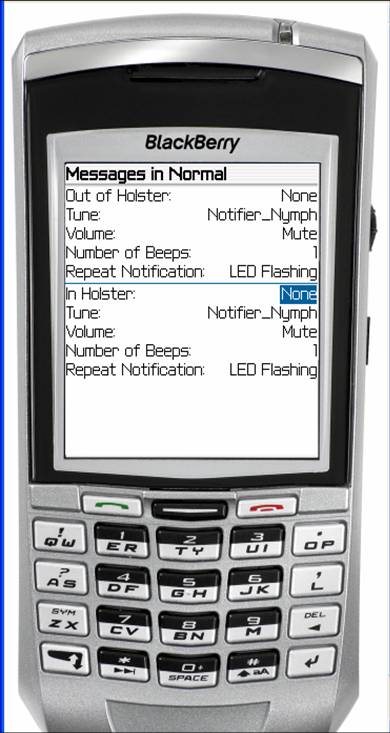
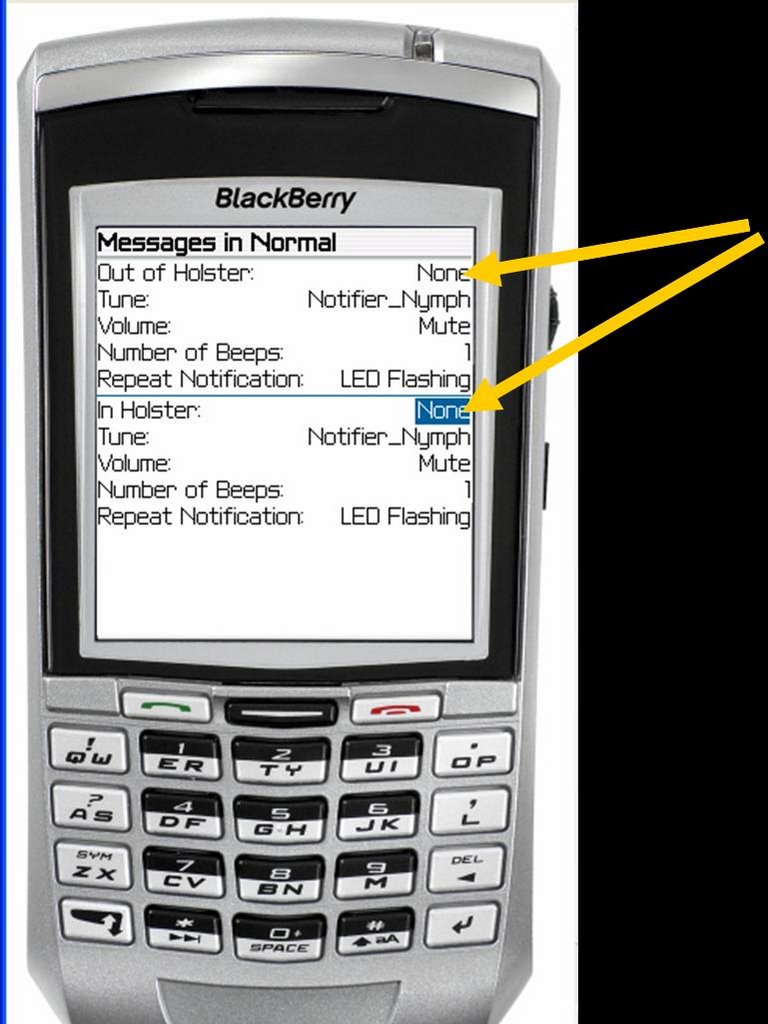
Profile Settings--Messages


“Messages” and “Level 1 Messages” will be set to “Vibrate.”

Sunday, January 07, 2007

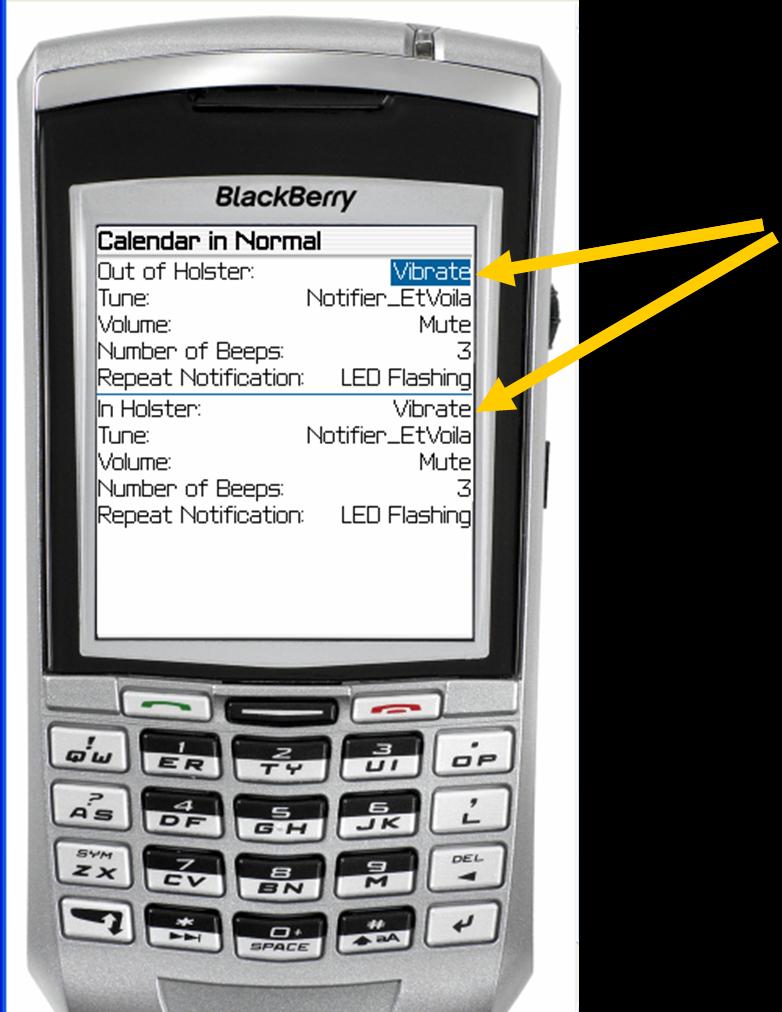
Profile Settings--The Calendar


Select “Calendar” and change the notice to “Vibrate+Tone.”
The phone and any other “real time” communications should also be set to “Vibrate+Tone.”

Saturday, December 30, 2006

Working with profiles


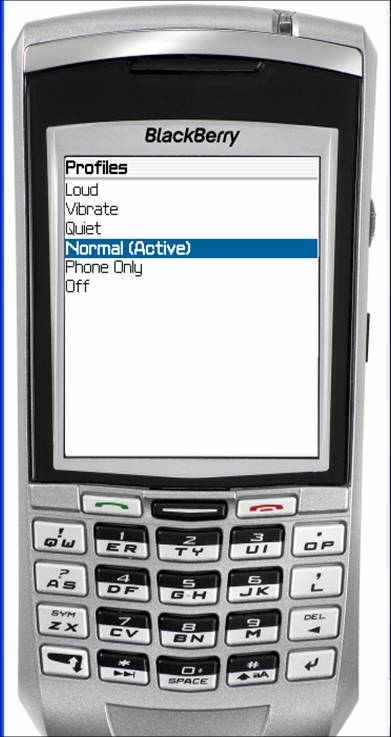
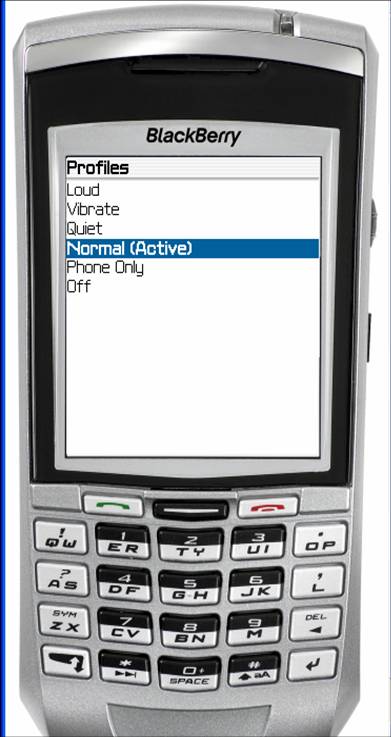
Profiles controls ringing, sounds, and vibrating for e-mails, phone calls, direct connect, and appointments.

Press the “Enter” key to open the “Active” profile.

The strategy is for the Blackberry to do the following:

Phone—Vibrate+Tone
Direct Connect—Vibrate+Tone
Appointment—Vibrate+Tone (different tone)
E-mail—Vibrate only

You can tell by the sound what is happening

Thursday, December 28, 2006

Don’t let your Blackberry cry “Wolf!”

Do you really want your BlackBerry to ring every time an e-mail rolls in?


Over the next several posts, we will look at how to set your "profile" so that you BlackBerry alerts you the way you wish.

Monday, December 25, 2006

Programming the "convenience key"

The “Convenience Key” can be programmed. I want to be able to get to my task list quickly, so I have programmed the convenience key to take me to the task list.

You do that in “Tools” or “Options.”

  1. Go to “Screen/Keyboard.”
  2. Scroll down to “Convenience Key Opens.”
  3. Press the “Space” key until it says “Tasks.”

Pressing the Convenience Key from anywhere now takes you straight to your task list.

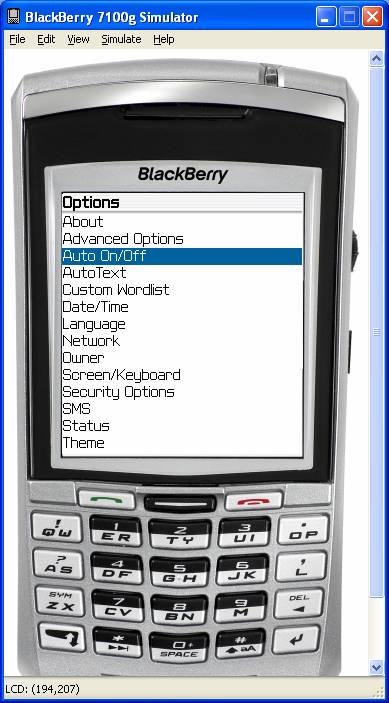
The post below gives several screen shots from this process.

Programming the "convenience key"


Sunday, December 24, 2006

Let the BlackBerry turn itself on and off


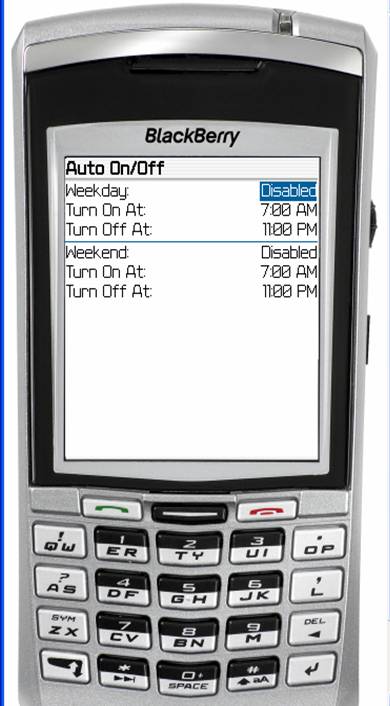
You can have the Blackberry turn itself on and off automatically. Go to "Tools" or "Options" on the home screen. Select "Auto On/Off."


Change “Disabled” to “Enabled.” Select on and off times.

Wednesday, December 20, 2006

Substitutes for the track wheel


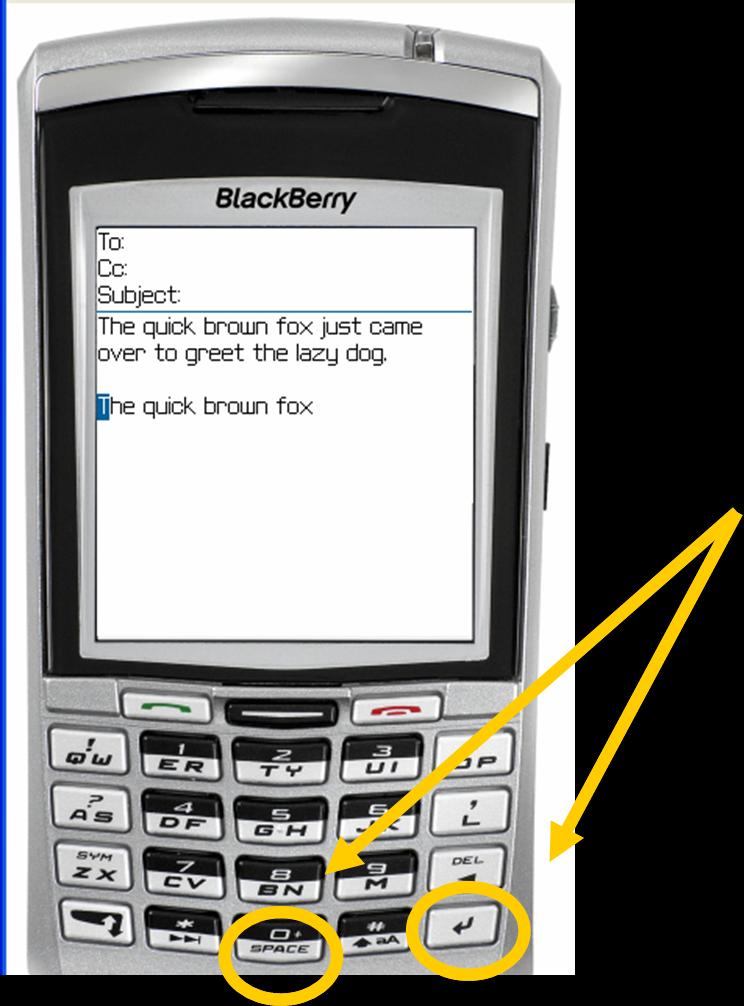
In general, try using either the “Enter” or “Space” key as a substitute for clicking the tracking wheel.

Tuesday, December 19, 2006

Other shortcuts

Holding a key for a moment will capitalize that letter.

Hitting the "Space" key twice will insert a period.

Friday, December 15, 2006

E-mail addresses

Here is a shortcut when you are composing a new e-mail and have to key the e-mail address. When you get to the spot in the e-mail address where you should insert the "@", simply hit the space bar. When you get to the spot where you would insert the dot, also hit the space bar. The blackberry will automatically format your e-mail address.

Tuesday, December 12, 2006

Troubleshooting the BlackBerry--the soft reset

I have run across a couple of problems since I started using the BlackBerry in August, and both have been fixed by the "soft reset."

One problem I was seeing was an error message that would prevent me from accessing the task list. I have not seen that problem since the first week I was using the device.

The other is a problem that not only has happened to me, but also to one of my co-workers. The BlackBerry was not making the correct sounds that the Profile was saying they should make. Instead of the phone using the ringer or sound we had selected, it either would not ring (but would only vibrate) or would use the default ring tone. Any alerts that had been attached to appointments or tasks would only vibrate even though the profile specified they would ring.

If you are seeing anything like this, the soft reset is a good first step. Simply hold down the ALT key, the CAP key, and press the DEL key. Another way to accomplish the same thing is to take the battery out and put it back in again. In either case, you do not lose any data. You will find it may take the BlackBerry several minutes to restart, so just be patient.

Monday, December 11, 2006

E-Mail best practice

Scan the e-mails on your Blackberry for urgent messages and those you can respond to quickly.

Wait and handle the bulk of your e-mail on your computer.

Now, dump all of the e-mails from your Blackberry.

Thursday, December 07, 2006

Deleting a group of messages at one time


Want to get rid of a whole bunch of messages at one time?
Hold the “Shift” key and roll the track wheel.
Now, hit the “Del” key.

Deleting messages easily


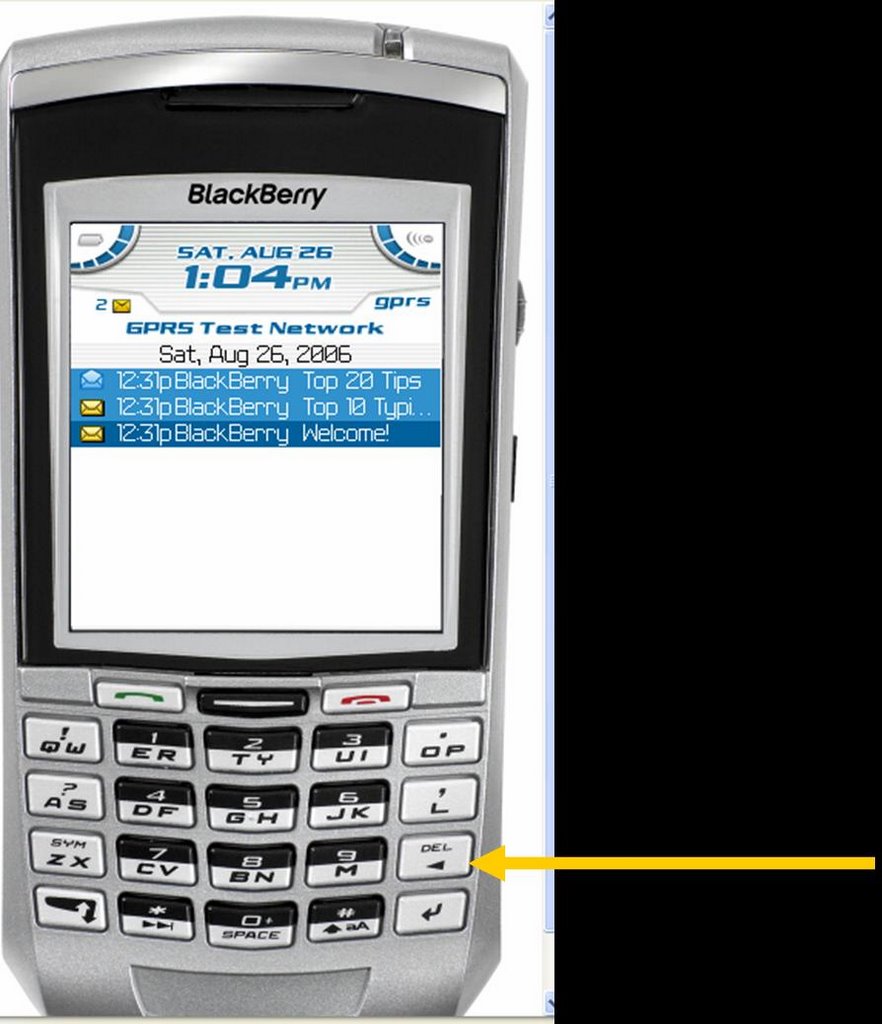
Done with the message? You can delete it by hitting the “Del” key.

There is no need to click the trackwheel and choose the delete option from there.

In fact, many of the tricks you will see here involve ways around using the trackwheel.

Sunday, November 26, 2006

E-mail--scrolling a screen at a time


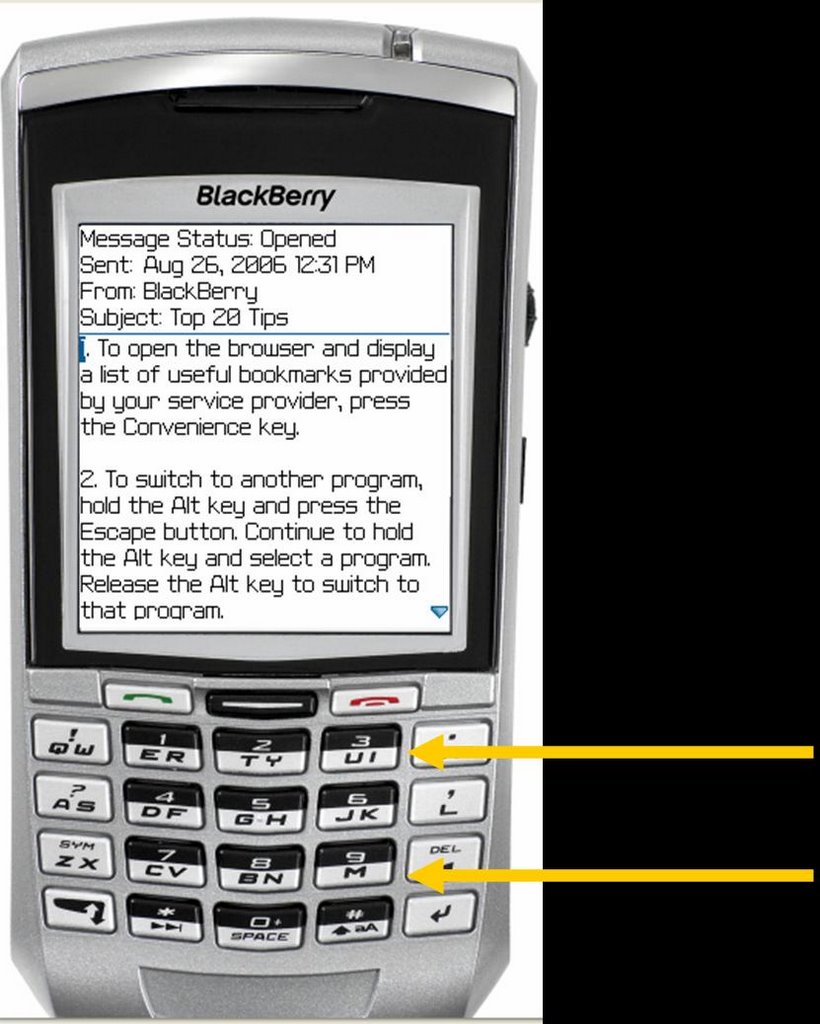
As you read the e-mail, you can scroll the track wheel OR you can hit “M” to jump down a screen or “U” to jump up a screen.

Saturday, November 25, 2006

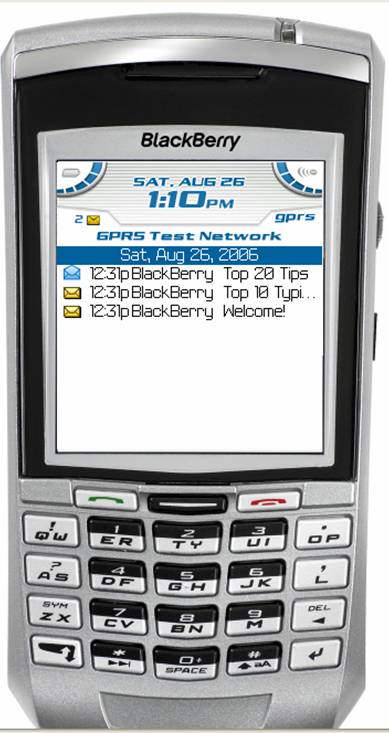
BlackBerry Tricks and Tips--An Introduction


At the beginning of the school year, each administrator in our school system was issued a BlackBerry. I had been a Palm user for about 5 years, so I was looking forward to what I thought might be a learning curve. Yes, there are differences between how I organize with the BlackBerry versus what I did with my Palm.

Over the last several months, I have become keenly interested in 1) how many people I see on a day-to-day basis who are using a BlackBerry; 2) the growing number of questions I see posed about how to organize (especially tasks) with the BlackBerry; 3) the little I see written that specifically addresses how to use the task list effectively.

This post starts a series of outlining tricks, shortcuts, and strategy I have learned along the way. I will begin with the track wheel, or more specifically, how to get around using it. Using keyboard shortcuts instead of the track wheel eliminates many steps.

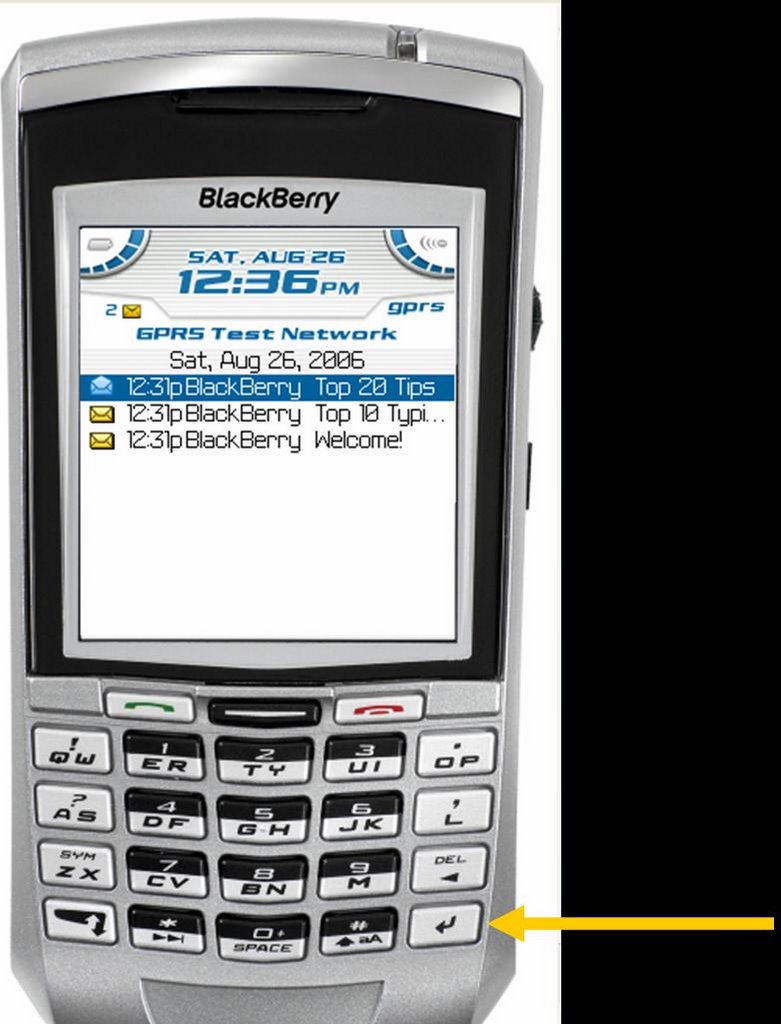
Let's start with opening an e-mail message. You could click the track wheel, scroll the wheel to "Open," and click the wheel. An easier way is to simply hit the “Enter” key
.

Tuesday, November 21, 2006

Translating your blog

People often ask me how I am able to have my blog translated into the various languages just by clicking a link. The process is surprisingly easy:
  1. Go to Google.
  2. Click on the small link that says "Language Tools."
  3. Scroll down the page until you see a heading that says "Translate a web page."
  4. In the box, enter the URL for the page you wish to translate.
  5. Just below the box, select the language to translate from and to and click on "Translate."
  6. You will be taken to your page, and you will be viewing that page in the new language.
  7. Look at the URL at the top of that page. That is the URL for that page in that language.
  8. Highlight and copy that URL.
  9. Create a link and paste that URL as the address for that link.

Saturday, November 18, 2006

What good is a blog? Yet another answer

I have previously written about two blogs that I created for our school system. Little by little, we are seeing the benefits of this form of communication. This past Wednesday provided an excellent example of how a blog can be the quickest and most effective way to communicate a detailed message to a large body of people.

Early into the school day, weather reports were indicating severe weather for the early afternoon, and the decision was made that we would dismiss school at mid-day. Surrounding schools systems were doing the same. As usual, we called radio and TV stations. At best, however, we could only count of them to announce an abbreviated message. Because of our bus routes, our elementary schools, junior high, and high school would dismiss at three different times. Asking the media to announce three different dismissal times was asking too much. As you can imagine, phones were ringing off the hook at each school and the central office asking if we were going to dismiss and at what time.

Within two minutes of word getting to me that we were closing, the complete announce was on our school system blog. Any parent who thought to check our blog got the information, got it completely and accurately, and got it before any radio or TV station had the information.

What good is blog? We just found one more answer.

Monday, October 16, 2006

How do I keep up with the blogs I like?

Often, one must experience the problem before appreciating the solution. As we look find blogs that we want to visit often, we will invariably find we need some efficient way to manage them. How do we know when new posts have been added? Where can we keep up with the URL for each one?

RSS
The answer is something called “Really Simple Syndication” (“RRS” for short). How simple is it? When I find a blog I like, I “subscribe” to it. From that point on, any time there is a new post in that blog, the post appears as simply another e-mail message. The act of checking my e-mail also checks every one of those blogs for new posts.

How do I get started?
You will need an “RSS reader.” The one I use is called intraVnews. It is free for personal use, charities, and non-profit organizations. You can download it from here.

The system requirements are:
  • Microsoft .Net Framework 1.1. (Click the link to download it)
  • Operating Systems: Microsoft© Windows© 98 SE or higher.
  • Microsoft© Outlook© versions: 2002/XP (10.0), 2003 (11.0).

Tuesday, October 03, 2006

What's not working? What would it take to fix it?

Conveniences are all around us. From microwave ovens to electric pencil sharpeners, we have an abundance of tools that make our lives easier—provided they work. What a handy tool we have in that electric stapler—only it doesn’t work because it’s out of staples. How about that empty tape dispenser in your desk drawer?

This week, I challenge you to look at what’s not working in your world and do something about it. The electric stapler sits unused because it’s out of staples and you haven’t refilled it because you are out of (or can’t find) more. You have been meaning to order more but you keep forgetting. The next time you think about needing staples is—you guessed it—when you go to use that stapler and find it’s still empty.

As you come across these little annoyances, take a second to decide what needs to be done to fix it, and jot it in your planner. Don’t put getting staples on the list for today. Instead pick a day about a week out and start a list of little items to get. A week from now, you can handle that whole list at once.

Fixing the problem is the first step. The second step is deciding how to avoid the problem in the future. Think about this one—at your house, when do you decide you need to buy toothpaste? Is it when the tube runs out and you realize there are no more under the counter? Or, is it when you take the last one from under the counter. In the first case, you have a minor crisis—you need toothpaste NOW. In the second case, you just need to put toothpaste on the grocery list and go on about your business.

Ask yourself the same thing about supplies in your classroom. Do you order more when you are OUT or when your reserve is low? What about textbooks? If a new student enrolled tomorrow, would you have books for him? If not, why not go ahead and put in a request now, so that when you DO get another student—and you will—that you are prepared. You own 7 umbrellas, yet you never seem to have one in the car you when a downpour occurs. What could you do to fix that problem once and for all?

What else in your classroom doesn’t work? What about that regular pencil sharpener where the handle has been loose for 2 years? What would it take to fix that? You have two desks that are awfully wobbly. What would it take to fix them? Realize this is a thought process that seldom occurs to most people. Too many of us simply get so used to all of the things in our lives that don’t quite work that we soon stop thinking about them anymore.

Have you cleaned out your desk lately? If not, put it on your to-do list. Out go the pencils with no points, the dried-up ink pens, the empty packs of Sweet & Low, and a host of papers that never should have been there to start with. You will be amazed at what you find there that you had no idea you had.

Why do people resist thinking through what it takes to fix the little broken things? I think the answer lies in that thinking through what needs to be done creates a long to-do list for people who already have too much to do and try to keep up with all of it in their heads. For those of us who have a “capture tool,” life is easier. We take a second to jot down what needs to happen. We organize our list in a way that groups similar items together. Then, we handle that whole batch all in one sitting.

Get all of those conveniences in your life working and watch some of the stress in your life go away.

Tuesday, September 05, 2006

New ideas, update on office


The past month has been a busy month, but a very productive one. We are well on our way to getting two blogs established to improve communication in our school system.


TalladegaCitySchools.blogspot.com is a tool to communicate with parents and the community while TeachTalladega.blogspot.com is designed to allow our central office and each school to communicate with everyone else in the school system.

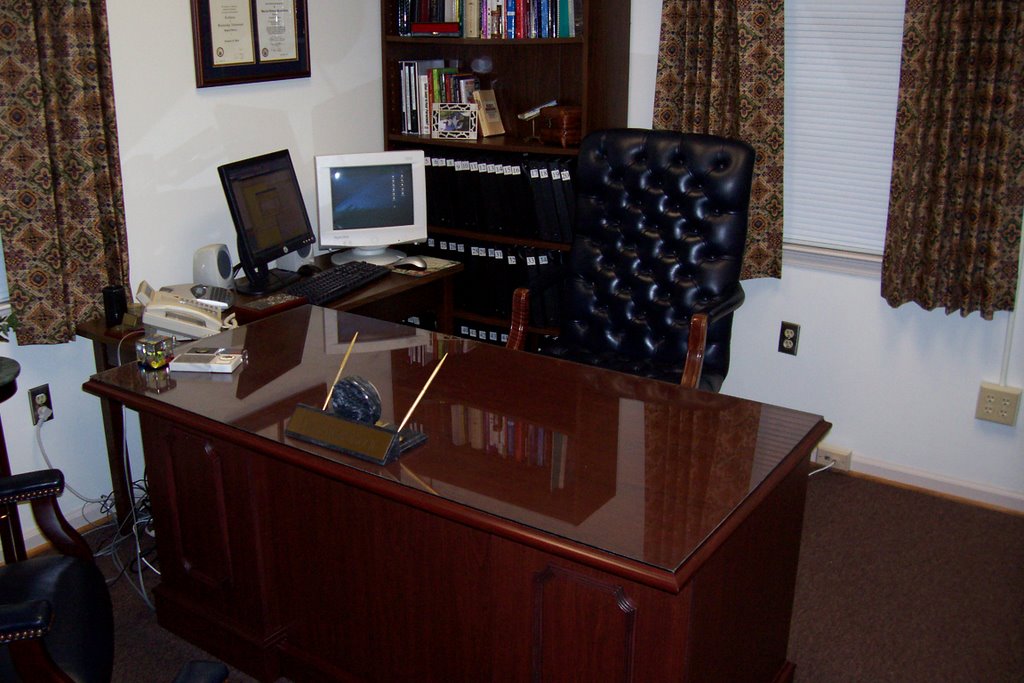
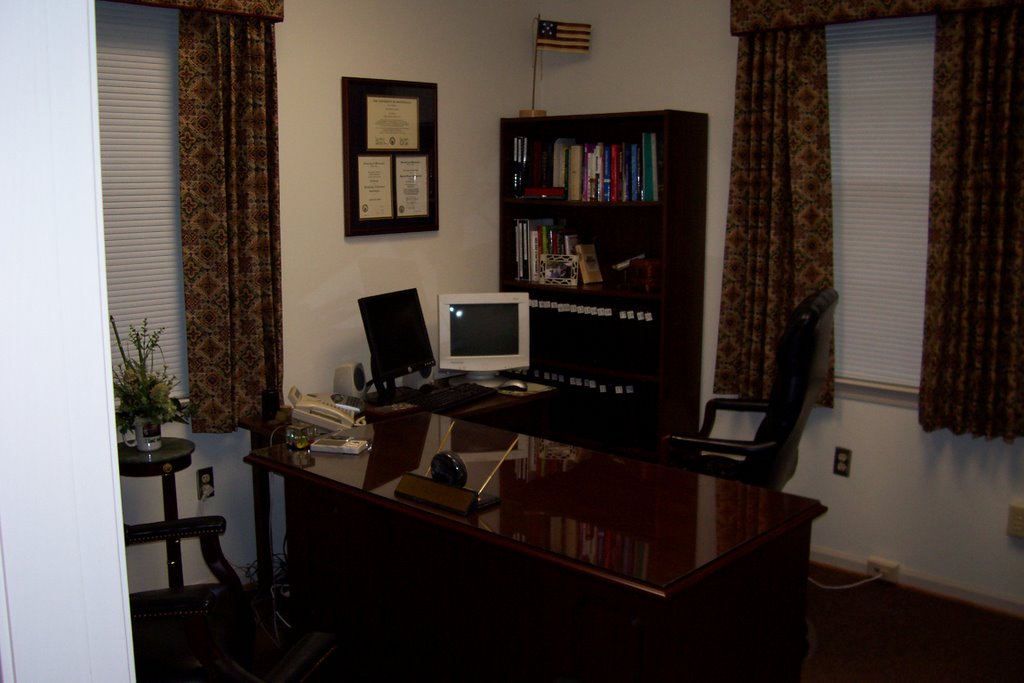
Earlier, I had posted pictures of my new office. Here a few pictures now that curtains have been hung and pictures and plaques hung on the wall.

Also, I am using a bookcase just outside my office as a lending library.


Thursday, July 20, 2006

You never know what today's mail may bring...

Going through today's mail, I opened an envelope containing a complimentary copy of "Pro Principal," a newsletter for school principals. The "cover story" was a feature our use of blogs at Graham Elementary School!

Amy Shannon, the editor for the publication had contacted me some time ago after having read my article in Principal magazine. I was quite surprised to see the article, especially displayed so prominently and with such coverage of our school.

My thanks to Shannon for spotlighting our school system.

Wednesday, July 19, 2006

What if your hard drive crashed today?

If your computer's hard drive crashed today would it mean:

An inconvenience? You would simply load your backup onto another computer and continue to do use your documents. A new hard drive would be purchased, the operating system and programs reinstalled from the CD-ROMS and then your documents re-loaded; or

A catastrophe? All of your documents have been lost forever because even though you know you should do a backup, for one reason or another it just hasn't happened.

If the answer is the later, whether you realize it or not, it impacts the way you work with a computer every day. As long as lack a system for backing up, you cannot trust your computer. You unconsciously avoid getting too attached to anything stored on it, because you realize it could all be gone in an instant.

In reality, data is much safer now than ever before. A decade ago, a fire, flood, or tornado could destroy every record in a school with no hope of retrieval. Today, even though a natural disaster could destroy the contents of an entire building, the data stored on a backup off site is safe.

The content of the "My Documents" folder at school are backed up, and that backup is at my house. Likewise, I have backed up the "My Documents" folder on my home computer. That backup lives at school.

Being able to trust that I am not going to lose digital data gives me the peace of mind which keeps me from feeling the need to print everything. Digital data is much faster that finding paper even in a good paper filing system.

Sunday, July 16, 2006

Two new blogs

A year ago, I established two blogs. One was designed to communicate with teachers and staff in the school where I served as principals. The other was designed to communicate with parents. How easy it was to write a quick post and have it available for the reader in minutes! No Xeroxing, no stuffing paper into mailboxes, and a complete history of all of my posts neatly archived. Who could ask for more?

As I move from my school to the central office, I have already begun to suffer from withdrawal! How will I be able to communicate with teachers throughout the school system? How can I get our message out to parents and community members?

I guess the answer now is the same as it was a year ago--a blog (or two). This evening, TeachTalladega.blogspot.com and TalladegaCitySchools.blogspot.com were born! The biggest difference between these two blogs and the ones I have created in the past is that I am inviting others to become members of these blogs. Central office personnel and principals seem to be the most logical choices. I figure that with all 7 schools posting to these two blogs, there will always be fresh content and people will continue to visit the blogs.

Saturday, July 08, 2006

Two monitors


I have been seeing a great deal lately about the effects on productivity of having two monitors, so we are starting the new job with that setup. In this shot, I have Outlook on one monitor and my web browser on the other.

One example of how this setup is wonderful came Thursday. I was putting together a PowerPoint presentation which consisted of screenshots from the Internet. Normally, this task would have entailed maximizing the browser, hitting “Print Screen,” minimizing the browser, pasting the item in the PowerPoint, and then continuing that process until complete.

With two monitors, I simply open the browser on one and PowerPoint on the other. As I move the mouse, it travels from one screen to the other.

In the pencil/paper world, we often lay two pieces of paper side-by-side. Often, we are referring to one while we write on the other. At other times, we are comparing the two. We would never dream of putting one paper on top of the other and exchanging their tow positions countless times. However, that’s exactly what we have been doing with our computers for a couple of decades. With two monitors, my digital world has caught up with a good idea from our paper world.

Bulk storage


What in the world is this? Is this the most recent version of these policies? Do I really need to keep this?

The job I am starting is the 5th position I have held in schools since beginning my career in 1982. In each case, I found myself asking these kinds of questions about material I would run across. I have found that time answers those questions. The best route is to put it away, and then look at it again some weeks or even months later. By that time, the answers are usually obvious.

“Bulk storage” is a great answer. In my last position, as principal of Graham School, one shelf in a closet served as my bulk storage. Anything to be handled in the future that was too bulky for the tickler files went there. A repeating tasks on my list would remind me to examine that shelf and take action on what I could.

In the new office, that two-door cabinet in the center has been nominated for the task of bulk storage. As I have come across notebooks, etc. for which I had questions, I made the appropriate entry on my to-do list, and added to the physical item to the bulk storage cabinet. The plan is not to even look in that cabinet for several weeks. By that time, I will have worked through my list, asked the proper the people the proper questions. When I do open that cabinet again, the value of each item and where it needs to go should be much more obvious.

More on moving an office


June 6

The last of the bits of painting were completed towards the end of the day. I could now move in one filing and get boxes of file off of the floor.

June 7

The goal for today was to get the office in its final form with the exception of window treatments and diplomas/plaques on the walls. I also had quite a stack of papers that had accumulated during the week.

Here are a couple of shots of the office as it looked at the end of the day. The to-do is plenty long, but the papers are out of site. I want work from my list, not a stack of papers. Part of today was looking at each paper, making decision about what needed to be done, putting the actions in my list, and including in the list where to go to put my hands on the paper.

Along the course of the day, I made stacks of materials to deliver to other schools. I had come across many individual sample books for 1st and 2nd grade. I delivered those to one elementary school so they could be passed on to a teacher for her classroom library. Several thick notebooks which pertained to the high school were delivered there. I even unearthed a copy of the high school’s SACS review from 1968!

I came across multiple copies of materials that were doing nobody any good sitting at the central office. One was a wonderful handout on troubleshooting a computer. I put the copies in the mailboxes of each school.

The pictures show the finished product. Still to be done are getting curtains for the windows and hanging things on walls.

Thursday, July 06, 2006

Moving an office

At one time or another, most all of us move—either from one home to another, one classrooms to another, or one office to another. My major project right is a job change. After nine years as a principal, I have moved to a central office position with the same school system. The change in position entails moving from one office to another. I thought others might be interested in how I handled, and am still handling) the process.

July 1
This was the first official day of my contract. Even though it fell on Saturday, Davonia (my wife) and I were at the new office. The first item of business was to clear everything out of the office and paint the 10x10 office. One challenge was that one entire wall was lined with filing cabinets, so during Day 1, everything was painted except the two walls blocked by filing cabinets.

Lots of stuff went straight to the dumpster and lots of other stuff went into books for me to go through as time permits.

July 2
We moved all of the boxes from the old office to the new one. The two buildings are only a block apart, so we were able to make the move by loading boxes in the car and making several trips. We did move one piece of furniture—a bookcase, which I simply put on a set of hand trucks and rolled down the street. We were able to unbox books and get them directly on shelves.

One thing that made the move easier was to go thought everything in the old office and do the cleaning out on that end. Taking the time to perform the task on the front end meant that I was not moving junk from one place to another.

July 3
The focus for today was two-fold. First was the task of ridding the office of the filing cabinets that were eating up a full 20% of the floor space. The second task involved the computer—getting one set up in the new office and clearing things off of the one I was leaving behind.

The morning was spent unloading, filing cabinets in two areas (a total of 10 filing cabinets), moving the 5 newly-emptied filing from my office to an off-site location, and finally loading the files—5 filing cabinets worth off-site and another 5 filing cabinets worth in another area within our central office.

The computer was a challenge simply because much of the information on it is information the new principal will need. At the same time, I did not want to leave behind memos I had written, a myriad of Outlook tasks and appointments from the past, and access to e-mails from the past.

The process consisted of burning files to several CD-ROMs. Backing up “My Documents” took care of the majority of what needed to be copied. I also burned to a CD-ROM by Outlook .pst file and Outlook archive files and well as the bookmarks from Foxfire.

The next step was to go to the new computer and import my pst file into Outlook. That process went off without a hitch. Of course, that process only brought in the data. Doing all of the setup to get Outlook to look the way I want, archive what and when I want, etc. was something I had to do. Once all was right with Outlook, I synced my Palm and held my breath. It worked! The initial setting I used was for the desktop to overwrite the Palm.

With Outlook safely in place, I returned to the computer in the old office and began the process of deleting files the new principal would not need. A great deal of time was spent going through Outlook to delete appointments, tasks, and contacts that would be of no benefit to my successor. I have many repeating tasks set up in Outlook, and all that are relevant are still there for the new principal. The work I left unfinished is there, along with a complete calendar for the coming year.

Did I mention my new computer is set up with two monitors? In the last few months, I have read in countless sources about the value of two monitors. Right now, I have Outlook on one monitor while I compose this post on the other.

July 5
After taking off July 4, today was the first real day on the job. I got to the office at 6:30 and began going through and throwing away. A pair of meetings encompassed most of the morning and early afternoon.

A new desk arrived mid-morning, and being able to load it got several boxes off of the floor.

That evening, Davonia came up and the final two walls received a much-needed coat of paint.

July 6
Today, I am beginning to see really being able to get back to work on projects. I loaded all of the “My Documents” files onto the new computer. I downloaded and installed Firefox, SpyBot, and SpyBlaster. All of the Firefox bookmarks imported easily.

Where do we go from here?
The one big question mark is the phone system. Several people at the central office have changed locations within the building, but phones have not been rerouted. I am getting calls for the person who was in this office before me. As a quick fix, I am going to change the voice mail message to tell people how to call the person who has just vacated this office, and invite anyone who was really trying to reach me to leave a message.

I still have several boxes to go through. My plan is to spread it all out and determine:
Where is there duplication? (Duplicates get throw out)
Can I find this same thing in digital form? (If so, the hard copy gets thrown out.)
What stuff do I simply not know what to do with. I had found from the four previous jobs I have held that if I just put it away for a couple of months, when I look at it again, I will almost certainly know what should be done with it.

Tuesday, July 04, 2006

More on Blog Settings

When you create your blog, you have a number of options under the "Settings" tab. Here are a few suggestions regarding the choices available to you:
  • "Basic" link- Answer "Yes" to every choice.
  • "Publishing" link- One way to help other people find your log is to check "Yes" to "Notify weblogs.com"
  • "Comments" link:
  1. Who can comment?-Select "Anyone"
  2. Comments Default for Posts?- Select "New posts have comments"
  3. Back links- I have selected "Hide"
  4. Show word verification for comments?- Selecting "Yes" keeps spam from being posted to your comments
  5. Enable comment verification?- Selecting "Yes" sends comments to your e-mail for your approval. This feature prevents inappropriate material from being included in comments.
  • "Archive" link- "Monthly" is a good choice. Answer "Yes" to "Enable post pages."

In the July 2005 issue of PC Today, Vince Cogley gives several suggestions for increasing traffic in your site:

  • Answer "Yes" to "Enable post pages." and also enable your site feed. Enabling the site feed will allow others to "subscribe" to your blog.
  • Answer "Yes" to "Notify weblogs.com"
  • Add your blog to Google's index by going to www.google.com/addurl.html