Sunday, May 13, 2007

Organizing credit card receipts

For many people, handling credit card receipts is an exercise in frustration. As in so many other areas, a good system is the answer to turning something frustrating into something extremely easy. Outlined here are the nuts-and-blots of the system we use at our home.

  1. Label a file folder for each credit card you have. Include store credit cards as well as major credit cards. These folders become part of your reference filing system.
  2. Label a file folder “Credit Card Receipts.” This folder will be placed in a tickler file folder. I like to use a colored folder so that it is easy to locate.
  3. Label a folder “Tax Deductible Receipts.” This file folder may go in your tickler file for the time of year you will be compiling your tax returns.
  4. In the evenings, empty you pockets, briefcase, etc. of any credit card receipts you have collected during the day.
  5. Take the loose receipts and put all of them in the back of the Credit Card Receipts folder. Filing to the back of the folder keeps the folder in chronological order and makes the job of matching items on the statement with their corresponding receipts much easier. Do not worry that receipts from different credit cards are being mixed together.
  6. When the credit card statement comes, throw it in the tickler file for the day you want to handle bills. Saturday is usually a good candidate. When Saturday comes, you will no doubt have several bills to pay, and you will handle them all at one time.
  7. Pull the Credit Card Receipts folder and begin with the first statement. For each line on the statement, pull the corresponding credit card receipt. You should have a receipt for each item on the statement. Any missing receipt is a red flag that you should take seriously. It is a sign of either holes in your system or fraudulent charges. If it is the first, shore up those holes. You will then have a reliable way of determining when you are being charged for something you did not purchase. Are there others in your family who also use credit cards? If so, they must be diligent about getting their receipts into the Credit Card Receipts folder.
  8. As you are matching items in the statement to the receipts, set aside any which will be tax deductible.
  9. Once you have matched all items to the receipts and the statement has been verified as being correct, write the check and tear off the portion to be returned.
  10. Take any of your tax deductible receipts and drop them into the Tax Deductible folder. If you need to write any explanation on any of them, now is the time to do that.
  11. Take the remaining receipts and staple them to the statement.
  12. File the statement in its folder in your reference files.

Should you need to go back and find a receipt, it can be in only one of two places. It can be stapled to the statement in the folder for that credit card. It can be in the Tax Deductible folder. It can be in no other place. Should you need to return an item and need the receipt, simply think in terms of the approximate time the purchase was made and with what card. It will take only a few seconds to scan the statement for that time period and locate the month when the purchase was made. Once you have the correct month, thumbing through the receipts to find the correct one takes only seconds.

Having a good system is almost as easy as having no system at all in terms of the time you will spend to maintain it. A good system is a huge time-saver for all the times you need to find a receipt and the money-saver when you need to dispute fraudulent charges.

Friday, May 11, 2007

Workshp on June 20--Jacksonville, Alabama

I will be conducting a session of "It's About Time" at the Jacksonville State University Inservice Center on June 20. The workshop will be held at the Fort McClellan Center. The workshop is free and is open to all Alabama teachers. To register online, simply click here.

The workshop includes:
  • How to use “tickler files” to keep your desktop clean and your paperwork under control.
  • How to use a daily planner as an effective tool to keep your organized and on top of your day.
  • How to document quickly and easily.
  • How to handle tasks which recur, whether each month or each year.
  • How to handle multiple projects easily.
  • How to organize the files on your computer in a logical manner.
  • How to back up your computer easily.
  • How to gain “chunks” of time by controlling interruptions.
  • How to “batch” similar activities.
  • How to establish priorities, delegate, and learn to just say “no.”
  • How to organize files and folders so you can find what you want.
  • How to back-up your data easily so that a hard drive crash won’t be a catastrophe.
  • How to handle tasks which recur monthly, quarterly, or annually.
  • How to handle documents you must “revisit” and update regularly.
  • How to use e-mail effectively.
  • How to organize correspondence so that you can find that memo in seconds.
  • How to use Google to put most any information at your fingertips quickly.

Sunday, May 06, 2007

The book of your life—Calendars from past years

One look at your calendar for the coming days provides all of the date and time-specific information on your life. This post focuses not on the days ahead, but on days gone by. What does your calendar from yesteryear tell you about the progress of your life?

If you look at your calendar from a year ago, what does it tell you? Of what value is to you? Do you even still have it at all? For many of us, last year’s calendar went into the trash can before the sun set on New Year’s Day. For those who do save their calendars, the pages are full of appointments which now hold little or no value. The events which are significant get lost amid all of the events which are now trivial.

I recommend one simple habit which for me has transformed my past calendars from trivial to significant. At the end of the day, I aim to spend a few moments thinking through the course of the day. My purpose is to identify those events which might be worthy of review months or years into the future. Did I come up with an idea which will make life easier for me or someone else? Did a conversation I had today have a potential impact on future opportunities for me? Did an event of lasting significance happen in national news?

If the answer is “yes,” I create a new all-day event on my BlackBerry and record the significant event. At the same time, I delete appointments and all-day events which pose no long-term significance.

Some many be reluctant to delete past appointments in the event they are asked to reconstruct a time line. In my case, I will have the notes from any meeting, complete with date and time recorded. This documentation is all I need.

Each month, I print a hard copy of the previous month from Outlook. On one sheet of paper, I see what is significant about the month without the noise of the insignificant. This calendar page is filed permanently.

I began this exercise about 4 years ago. It has been extremely rewarding in helping me see the high points in my life and the important events of the times in which I live. The process takes seconds a day. It is of value forever.

Friday, May 04, 2007

Hoaxes revisited

I have written about hoaxes we all receive in e-mails and how to separate fact from fiction in them using a quick Google search. PCWorld has published a list of the Top 25 hoaxes, which I think makes for enjoyable reading. You can read it here.

How many of these have made their way to your in-box?

Monday, April 30, 2007

Handling reading material

Staying on top of things in our field means we must stay on top of professional reading. In addition, to professional journals, we all have the things we simply like to read for pleasure. How can we manage it all?

My last post talked about listening to books on tape as a substitute for some of print material. That still leaves me with a great deal of reading material.

I have a section of my briefcase devoted to reading material. As I am going through the mail at work or at home, magazines go straight into the briefcase. That one simple act keeps all of my awaiting reading material in one place. There is no doubt between what has been read and what has not. Anything in the briefcase is either unread or partially read.

When I have down time, I simply pull out something from the briefcase. That means if I am waiting to see the doctor or dentist or if I am waiting to get my hair cut, I pull out some of my reading material. On the way home, I am frequently stopped by a train—so, out comes reading material. I tend to get to appointments early, and while I am waiting, I have reading material.

In short, I match reading material with time that would otherwise be wasted. It keeps the reading material from building up and keeping me from getting bored.

Saturday, April 28, 2007

Commute time

Like many of you, I have a bit of a commute to work. Mine is 23 minutes, small in comparison to many people, but gargantuan compared to the 3 minute drive to work from my early days in teaching. For the last year, I have turned what had been wasted time into an enjoyable and productive daily experience.

For the past year, I have never been without a book on tape or CD from the public library. The number of books I have experienced during that time numbers several dozen, and that is a conservative estimate. The latest has been The World is Flat. Listening to all 15 or 16 CDs kept me busy for quite a while, and proved to be fastinating listening. Of course, I have always been aware of the availability of audiobooks. Up until the last year, I had simply never made regular trips to the library for them a priority.

In today's world, lifelong learning is essential. Books are the shortcut to that learning. Their authors have carefully honed and summarized a body of knowledge into a coherent message. At the same type, the pace of today's world makes time for reading hard to find. Making commute time do double-duty has been a simple answer, and easy enough I will actually do it.

Thursday, April 12, 2007

Office update: the problem and the fix

I ran the Office Update earlier this week, a good thing. Afterwards, I realized I could not open my saved searches. Each time, I would get an error message. I also could not re-create them. They would not save.

A Google search put me onto this explanation and the solution.

The workaround presented in the article is as follows:

Warning Serious problems might occur if you modify the registry incorrectly by using Registry Editor or by using another method. These problems might require that you reinstall the operating system. Microsoft cannot guarantee that these problems can be solved. Modify the registry at your own risk.

To work around this problem, re-enable the Office Saved Searches feature. To do this, follow these steps:

Exit Outlook.

Click Start, click Run, type regedit, and then click OK.

Locate and then click one of the following registry subkeys:

HKEY_CURRENT_USER\Software\Microsoft\Office\11.0\Outlook\Options\General

HKEY_CURRENT_USER\Software\Microsoft\Office\10.0\Outlook\Options\General

HKEY_CURRENT_USER\Software\Microsoft\Office\9.0\Outlook\Options\General

Note If the General subkey does not exist, follow these steps to create the subkey:

Click the Options subkey, point to New on the Edit menu, and then click Key.

Type General, and then press ENTER

On the Edit menu, point to New, and then click DWORD Value.

Type EnableOfficeSavedSearch, and then press ENTER.

Right-click EnableOfficeSavedSearch, and then click Modify.

In the Value data box, type 1, and then click OK.
Note To disable this feature, type 0 in the Value data box. Or, delete the registry key that is mentioned in step 3.

On the File menu, click Exit.

I followed the directions, and my searches were working again!

I was wondering if this problem was just a bug or if Microsoft did this on purpose. I posed the question to an Outlook discussion group and was directed to this explanation. When you reach that site, Expand Vulnerability Details>Microsoft Outlook Advanced Find Vulnerability. I hope a future patch fixed the security problem while still allowing saved searches. Explaining to someone fairly new to Outlook how to set up a saved search is challenge enough. Having to explain how to change the registry is too much!

Wednesday, April 11, 2007

Creating Outlook Saved Searches

I have three “saved searches” which I have created in Outlook

Task has not been completed and information I am looking for is in the subject line

  • Create a new “Advanced Find.” (Ctrl+Shift+F).
  • Change the “Look for” drop-down box to read “Tasks.”
  • On the “In” drop-down box, choose “subject field only.”
  • Click the “Advanced” tab.
  • On the “Field” drop-down box, choose “Frequently-used fields” and then “Complete.”
  • The “Condition” drop-down box should read “equals” and “Value” should be “No.”
  • Click “Add to List.”
  • From the “File” menu, select “Save Search.”
  • Assign a name to the search.
  • Select a place to save it. Since I use these searches often, I save them to the desktop. Since I use this particular one the most of all, I drug mine to the taskbar at the bottom of the screen so that it is always visible.

    Task has not been completed and information I am looking for is in the note section
    Create a new “Advanced Find.” (Ctrl+Shift+F).
  • Change the “Look for” drop-down box to read “Tasks.”
  • On the “In” drop-down box, choose “subject and notes field.”
  • Click the “Advanced” tab.
  • On the “Field” drop-down box, choose “Frequently-used fields” and then “Complete.”
  • The “Condition” drop-down box should read “equals” and “Value” should be “No.”
  • Click “Add to List.”
  • From the “File” menu, select “Save Search.”
  • Assign a name to the search.
  • Save to the desktop.


    Task has been completed
  • Create a new “Advanced Find.” (Ctrl+Shift+F).
  • Change the “Look for” drop-down box to read “Tasks.”
  • On the “In” drop-down box, choose “subject and notes field.”
  • Click the “Advanced” tab.
  • On the “Field” drop-down box, choose “Frequently-used fields” and then “Complete.”
  • The “Condition” drop-down box should read “equals” and “Value” should be “Yes.”
  • Click “Add to List.”
  • From the “File” menu, select “Save Search.”
  • Assign a name to the search.
  • Save to the desktop.

    The search I use by far the most often is the first one. If someone walks in my office or calls my on the phone, I can click the icon on the taskbar for that saved search, type the person’s name in the “Search for the words(s)” line, and click “Find Now.” Everything I need to talk to that person about, regardless of when it is due, is not displayed.

    With these three saved searches and using the appropriate one for the information I am trying to find, I get my results much more quickly. When we compare the advantage/disadvantages of organizing digitally versus paper/pencil, one area where the digital system wins out is the ability to search data. We need to maximize that capability, and the “saved search” is one of those ways.

Tuesday, April 10, 2007

Outlook Saved Searches

Sometimes, we do not fully appreciate something until we face the prospects of not having it anymore. Such is the case of the “saved searches” I created on Outlook. For about 20 minutes yesterday, I could not access them and could not re-create them. I was able to determine the problem and the fix. In my two posts, I will share how to create saved searches, tehe prolem I encountered, and the solution.

The prospect of not having them and realizing how valuable they are to me prompts me to write this post. If you organize with Outlook, they such might be as valuable to you.

I use several “saved searches” to search my Outlook Task list. Why would I need to search the task list?

  1. To satisfy myself that I had indeed put a particular task on the list, even if the start date was not to occur for months.
  2. To find a particular item that I just know I put on the list but somehow don’t see it.
  3. To find a piece of information that I know I put in the note section of a Task but may not remember how I had worked the subject of the Task.
  4. To find a piece of information either in the subject line or note section of Task that I had completed sometime in the past.

We can at anytime perform a search (Tools>Find>Advanced Find or Ctrl+Shift+F) So, why do I need special “saved searches”? The answers might sound trivial, but when you use this valuable tool as much as I do, saving a few keystrokes and 30 seconds a shot adds up. Before I begin a search, there are generally a few things I know about that search. Having a “saved search” allows me to narrow the search from the beginning, this saving me considerable time. This example should make the explanation clearer.

When I go to search for a piece of information that is somewhere in Tasks, I have a good idea of the following:

  1. Whether it is a piece of information in a task completed in the past or whether the information is contained in a Task not yet completed. Since searching all Tasks takes longer than searching Tasks not yet completed, it would be nice to have a “saved search” that searches for Tasks which have been completed and another for Tasks which have not been completed.
  2. Whether the information is in the subject line of the Task or in the attached note. Searching just the subject line is much quicker. Searching just the subject line of the Tasks not completed really saves time over searching every Task in Outlook.

In my next post, I will discuss how to construct saved searches. In the post which follows that, I will describe the problem caused by an Office Update and how to fix it.

Monday, April 02, 2007

Gone Phishing!

A couple of posts ago, I talked about how easy it is to tell whether an e-mail you are getting is for real or a hoax. Just highlight and copy a hunk of text from the message and paste it into Google. A couple of days ago, I received the message pasted below. My first thought was that I was going to be spending some time trying to figure out who had charged something to my account.

I saved myself quite a bit of time and frustration by taking a couple of seconds to simply practice what I preach. The text I chose to highlight and copy was the "Transcation ID"--which was "2LC956793J776333Y." Pasted that string into Google gave me a whole page of hits , each one making it obvious that the whole thing was not only a hoax, but a phishing scheme. What the culprit wanted was for me to click on a certain link as quickly as possible to "report" the false charge to PayPals. The result would have been I would have been asked for information that would then have resulted in identity theft.


Dear PayPal Member,
This email confirms that you have sent an eBay payment of $43.78 USD to
andrew2091 <mailto:andrew2091@aol.com&YY=24663&order=down&sort=date&pos=0&view=a&amp;head=f> @aol.com <mailto:andrew2091@aol.com&YY=24663&order=down&sort=date&pos=0&view=a&head=f> for an eBay item.
-----------------------------------
Payment Details
-----------------------------------
Amount: $43.78 USD
Transaction ID: 2LC956793J776333Y
Subject: Digimax 130
Note:
If you haven't authorized this charge ,click the link below to dispute transaction
and get full refund
Dispute transaction <http://www.purehavok.com/us/> (Encrypted Link )
*SSL connection:
PayPal automatically encrypts your confidential information
in transit from your computer to ours using the Secure
Sockets Layer protocol (SSL) with an encryption key length
of 128-bits (the highest level commercially available)
-----------------------------------
Item Information
-----------------------------------
eBay User ID: scratchandgnaw2
----------------------------------------------------------------
Andrew Harrell's UNCONFIRMED Address
----------------------------------------------------------------
Andrew Harrell
211 David St.
Springtown, TX 76082
United States
Important Note: Edward Harrell has provided an Unconfirmed Address. If
you are planning on shipping items to Edward Harrell, please check the
TransactioYn Details page of this payment to find out whether you will
be covered by the PayPal Seller Protection Policy.
----------------------------------------------------------------
This payment was sent using your bank account.
By using your bank account to send money, you just:
- Paid easily and securely
- Sent money faster than writing and mailing paper checks
- Paid instantly -- your purchase won't show up on bills at the end of
the month.
Thanks for using your bank account!
------------------------Y----------------------------------------
Thank you for using PayPal!
The PayPal Team
PayPal Email ID PP127

Monday, March 26, 2007

Bless are they who “bcc”

Today I received yet one more of those one-line e-mail messages that was sent to 130 other people. Of course, you know what happens when you print that message or forward that message to someone else, right? The one-line message is preceded by 130 e-mail addresses.

The solution to this problem is so simple. When sending to a message to a large number of people, instead of putting them in the “To” line, put them in the “Bcc” line. Everyone still gets the message, only they will not get the e-mail addresses of everyone else to whom the e-mail was sent. Just a quick solution to another one of life’s little annoyances.

Saturday, March 17, 2007

Run for your life! It's a hoax!

"Want a free computer? Just forward this e-mail to 8 people." Not only did someone send me that e-mail this week, but it's the third time in the last few weeks I have gotten the same one. Shouldn't I forward it to my entire address book just in case it's for real? Well...no. It's a hoax. Two things tell me that:
  1. Common sense. (Come on. Why in the world would anybody be giving away free computers for just forwarding an e-mail?)
  2. A quick little copy and paste into Google. It takes all of five seconds, and armed with this simple technique, you can figure out which e-mails are on the up-and-up and which are hoaxes.

Here is all you need to do:
  1. Highlight a hunk of text from the e-mail and use the Copy command (Control-C).
  2. Go to Google.
  3. Click in the search line and use the paste command (Control-V).
  4. Hit enter.
  5. Sit back and watch the fireworks. You are going to get hits that tell you instantly whether or not you have hooked a hoax.

Aren't Hoaxes Just Simple, Harmless Fun?
If you call wasting your own work time, contributing the problem of junk e-mail in everyone's in-box, and clogging up your employer's server simple, harmless fun, I guess you have a good point.

Other hoaxes are actually more harmful. Take, for example, the Teddy Bear Hoax. Readers were warned about a virus and told how to search for a particular file. If the file was present, the computer was infected. The e-mail would go on to explain how to get rid of the infected file. Finally, the e-mail would ask that people forward the e-mail to everyone else.

It seemed everyone receiving the e-mail was finding that yes indeed, they did have this suspect file on their computer. Well, there was good reason everyone was finding they have that file...everyone is supposed to have that file! It's a part of Windows and serves a very good function! (Now the problem was figuring out how to get the deleted file back again.)

One particular school system found that the Teddy Bear Hoax had been circulated widely before it came to the attention of it's tech support folks. Pretty frantic notices went out for people to stop forwarding the hoax and not to delete the file described in the e-mail.

Being Part of the Solution
Whenever I get one of these suspect e-mails, the drill I follow is:
  1. Under no circumstances add to the problem by forwarding the thing
  2. Use the "copy-Google-paste" routine I described earlier.
  3. Copy the URL of one of the sites that explains the hoax.
  4. Go back to the e-mail and hit "Reply."
  5. Paste the URL into the message.
  6. Just above the link, I generally include the message, "Run for your life! It's a hoax!"
  7. Hit "Send."
By the way, I have some shares of the Brooklyn Bridge I would be willing to sell if anyone is interested.

Wednesday, March 14, 2007

High School Heroes

Mary Paramore is a retired English teacher who taught for many years at Enterprise High School. From time to time, her editorials have been published in the Birmingham News. I have always thought the depth of her thought and expertise with the written word to be true credits to the teaching profession. Of all that she has written, probably nothing is as touching as what appeared in this past Sunday's Birmingham News. She begins as follows:

More than 2,000 years ago, Plato recorded for posterity these words spoken by his teacher Socrates: "a man who is good for anything ought not to calculate the chance of living or dying; he ought only to consider whether in doing anything he is doing right or wrong - acting the part of a good man or of a bad.

Those words give definition for all time to the greatness of soul which lies within the good man and woman. On the first day of March 2007, the teachers, administrators and students of Enterprise High School performed acts which illustrate for all time that they, too, are the possessors of that greatness of soul.

The read the article in its entirety, click here.

Friday, March 02, 2007

Daylight Saving Time Patch and the BlackBerry

The Daylight Saving Time problem is for real! A couple of days ago, I noticed that an appointment I had entered on my BlackBerry for March 11 was showing up an hour too late on Outlook! As I started looking at other appointments, and found that every one of them between March 11 and April 1 was one hour later on Outlook than on the BlackBerry.

If you are syncing your handheld (BlackBerry, Palm, or whaetver) to your computer, you might want to take a look at appointments during that little three-week window. Also, you might want to simply add an appointment for a day in mid-March and see what happens when you sync.

If you find you are a victim of "DST," the first thing to do is look at the appointments from March 11 through April 1 and decide which one is correct. If in doubt, one thing that will help is if you can remember whether you entered a particular appointment on your handheld or on your desktop. Everything I entered on my BlackBerry was correct on the BlackBerry and an hour late on Outlook. Everything I had entered on Outlook was correct on Outlook and an hour too early on the BlackBerry.

Once you know where the errors are, you can download a patch. For BlackBerry users, do this:

  1. Close BlackBerry Desktop software
  2. Disconnect Blackberry from computer.
  3. Go to http://www.blackberry.com/DST2007/patch/index2.shtml
  4. Scroll down until you come to a link labeled "DST Patch Loader" and click the link.
  5. You will get a message asking you to install an Active X Control. Click on the yellow strip at the top of the page to allow this to happen.
  6. Connect your BlackBerry to your computer.
  7. A button will appear that says "Install DST Patch." Click on it.
  8. The patch will download. Be patient. The process will take several minutes and the little "progress bar" may appear to be frozen, but do not worry. Just give it some time.
  9. When the process finishes, you are returned to the the screen that has the button asking you to install the DST Patch. It sure would be nice if you got some sort of message telling you that you were finished, but you don't. I am sure there are going to be many people who hit the button again, but at least YOU won't be doing that.
  10. You can now disconnect your BlackBerry from the computer. You will find that a little hour glass is spinning on the screen. It may spin for 15 minutes. Don't worry. When it finally stops spinning, you are done!

At this point, the appointments on your BlackBerry and those on Outlook will at the least be the same. It does not mean they are correct. You will need to look at each one to determine if it is correct or an hour off. Make corrections as needed. The next time you sync, the corrections will transfer.

Thursday, March 01, 2007

Where do we go from here?

Where do we go from here?

What functions do you want to use on the Blackberry?

Just E-mail and cell phone?

OR

Keep your calendar, tasks, contacts, and memos?

If the answer is the later, you will want to sync your Blackberry to Outlook.

Steps in Syncing Your Blackberry to Outlook

  • Set up an e-mail account in Outlook if you are not already using Outlook.
  • If you had been using Outlook Express, import your addresses and e-mails from Outlook Express to Outlook.
  • Install the Blackberry software.
  • Obtain and follow step-by-step instructions for the Blackberry desktop software.

Tuesday, February 27, 2007

Using the status field


Use the “Status” and “Priority” settings to tell you where you will do the task.

To scroll through the selections, use the “Space” key

Friday, February 23, 2007

Sorting your tasks


Click on “Options” and choose “Due Date” as the way you want to sort your tasks.

Monday, February 19, 2007

Hide Completed Items


Click the track wheel and select “Hide Completed.” This will keep all of your completed tasks from continuing to show in your task list.

Sunday, February 11, 2007

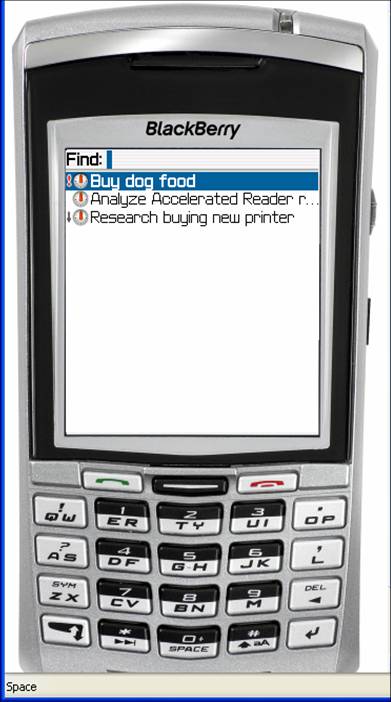
The search function of the Tasks


I have found the task list to be the weakest element of the BlackBerry. With a little thought, however, I have been able to make it work quite well for me. The strength I do find in the task list is its easy search capabilities.

When you go to Tasks and simply start keying in a word, you are automatically searching. With each keystroke, your list grows shorter. Finding any task on the list in a few seconds is a breeze.

Saturday, February 03, 2007

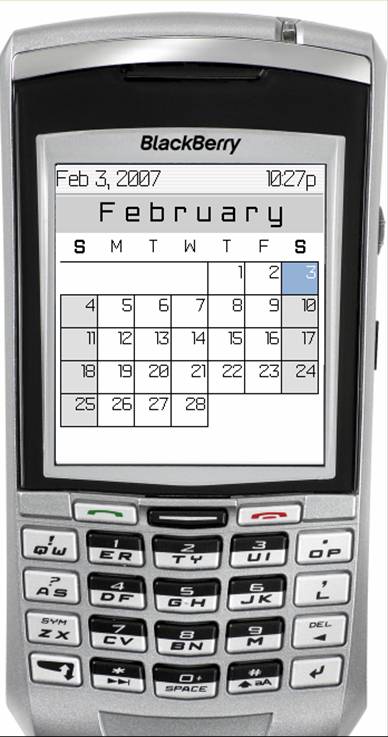
Set the calendar view to "monthly"


After quite a bit of experimentation, I am sold on the "monthly" view. The main reason is that I can see the "big" picture. Even though a cannot see the text of any appointment, I can get a idea of how free or packed any day or week is with a single look at the monthly calendar.

Any day which has an "all-day appointment" is going to appear in bold. A series of dots just to the left of the calendar day lets me know if I have appointments and whether any particular appointment is near the beginning, middle, or end of the day.

When I am looking at the monthly calendar, I am exactly one click away from looking at today's daily view. By default, the cursor is going to be resting on today's square of the monthly calendar. By pressing the return key, I am now looking at today's "day view."

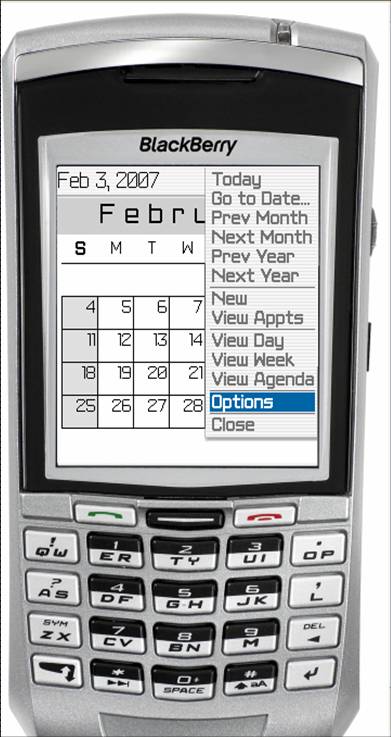
Navigating while looking at the monthly calendar is a breeze. If I roll the track wheel back and forth, I move through the month a day at a time. Here is the neat part--If I hold the "alt" key (lower left corner) and roll the track wheel, I go forward or back a week at a time. This trick makes it easy to move from month to month.

You can make the monthly calendar the default view. While you are looking at the calendar, click the trackwheel and choose "Options." For "Initial View," choose "Month."