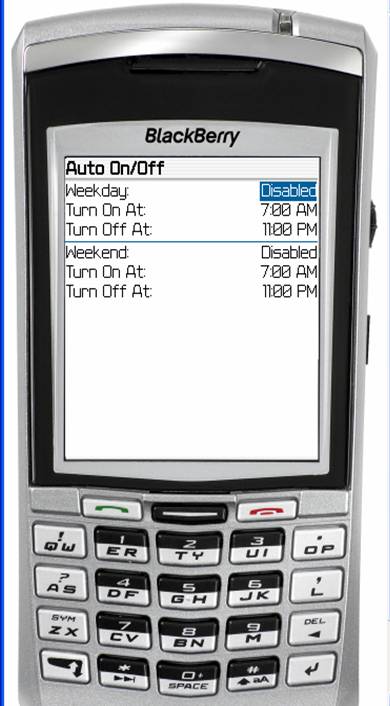
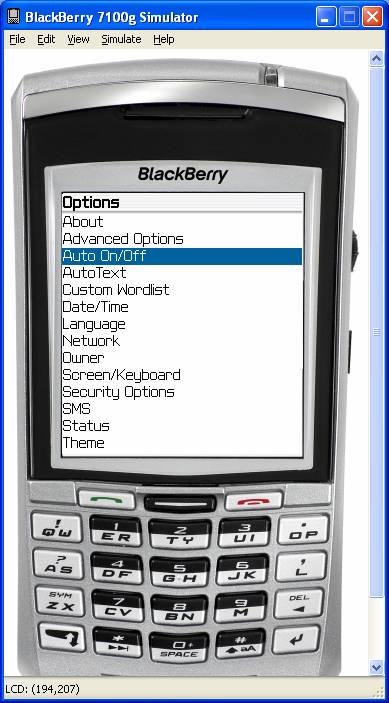
You can have the Blackberry turn itself on and off automatically. Go to "Tools" or "Options" on the home screen. Select "Auto On/Off."
Change “Disabled” to “Enabled.” Select on and off times.
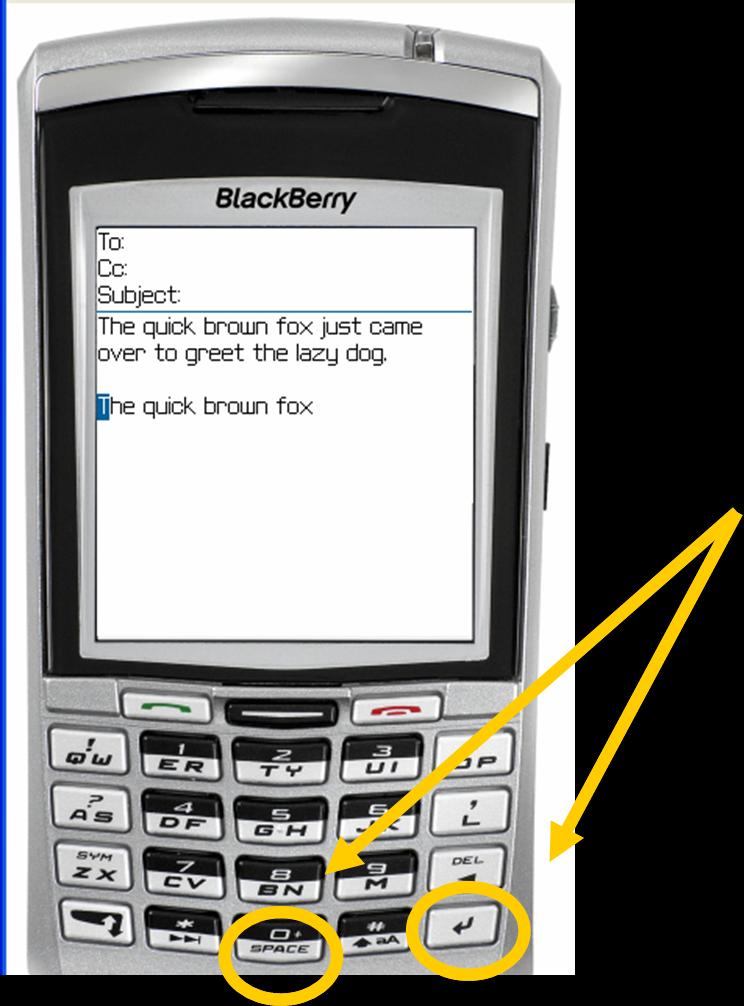
In general, try using either the “Enter” or “Space” key as a substitute for clicking the tracking wheel.
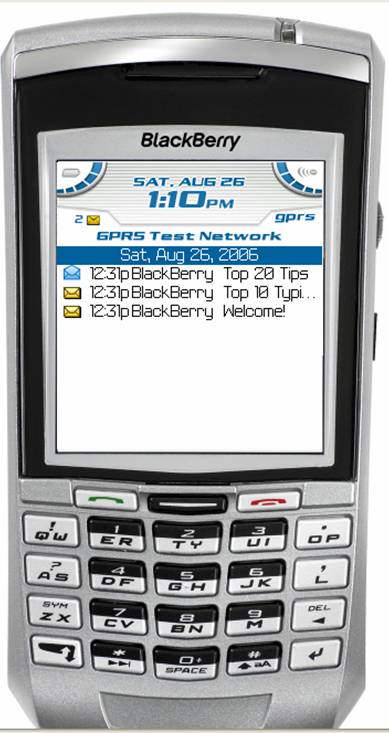 Scan the e-mails on your Blackberry for urgent messages and those you can respond to quickly.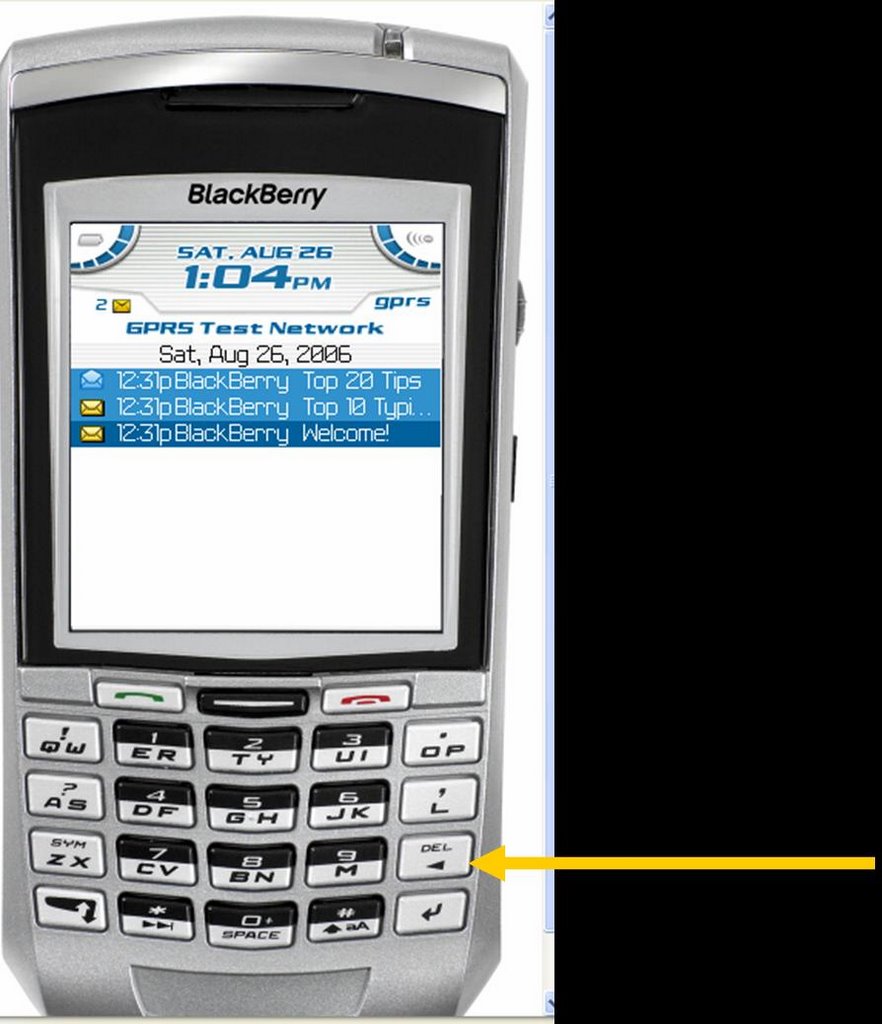
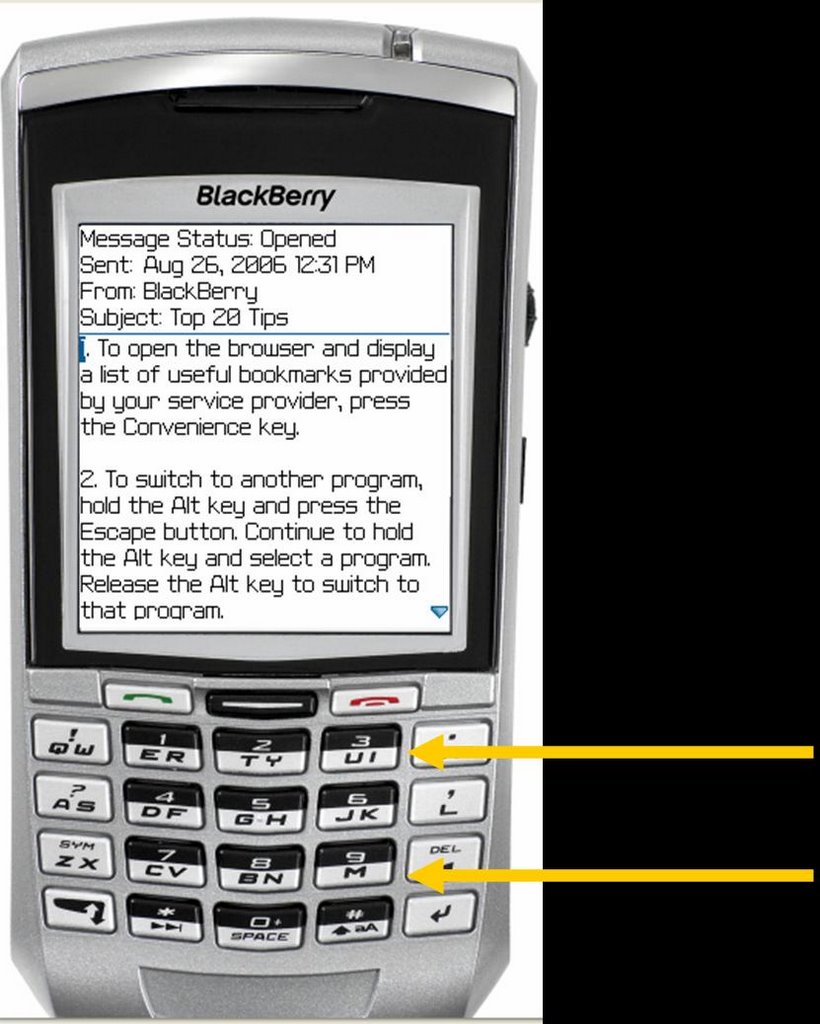
As you read the e-mail, you can scroll the track wheel OR you can hit “M” to jump down a screen or “U” to jump up a screen.
Conveniences are all around us. From microwave ovens to electric pencil sharpeners, we have an abundance of tools that make our lives easier—provided they work. What a handy tool we have in that electric stapler—only it doesn’t work because it’s out of staples. How about that empty tape dispenser in your desk drawer?
This week, I challenge you to look at what’s not working in your world and do something about it. The electric stapler sits unused because it’s out of staples and you haven’t refilled it because you are out of (or can’t find) more. You have been meaning to order more but you keep forgetting. The next time you think about needing staples is—you guessed it—when you go to use that stapler and find it’s still empty.
As you come across these little annoyances, take a second to decide what needs to be done to fix it, and jot it in your planner. Don’t put getting staples on the list for today. Instead pick a day about a week out and start a list of little items to get. A week from now, you can handle that whole list at once.
Fixing the problem is the first step. The second step is deciding how to avoid the problem in the future. Think about this one—at your house, when do you decide you need to buy toothpaste? Is it when the tube runs out and you realize there are no more under the counter? Or, is it when you take the last one from under the counter. In the first case, you have a minor crisis—you need toothpaste NOW. In the second case, you just need to put toothpaste on the grocery list and go on about your business.
Ask yourself the same thing about supplies in your classroom. Do you order more when you are OUT or when your reserve is low? What about textbooks? If a new student enrolled tomorrow, would you have books for him? If not, why not go ahead and put in a request now, so that when you DO get another student—and you will—that you are prepared. You own 7 umbrellas, yet you never seem to have one in the car you when a downpour occurs. What could you do to fix that problem once and for all?
What else in your classroom doesn’t work? What about that regular pencil sharpener where the handle has been loose for 2 years? What would it take to fix that? You have two desks that are awfully wobbly. What would it take to fix them? Realize this is a thought process that seldom occurs to most people. Too many of us simply get so used to all of the things in our lives that don’t quite work that we soon stop thinking about them anymore.
Have you cleaned out your desk lately? If not, put it on your to-do list. Out go the pencils with no points, the dried-up ink pens, the empty packs of Sweet & Low, and a host of papers that never should have been there to start with. You will be amazed at what you find there that you had no idea you had.
Why do people resist thinking through what it takes to fix the little broken things? I think the answer lies in that thinking through what needs to be done creates a long to-do list for people who already have too much to do and try to keep up with all of it in their heads. For those of us who have a “capture tool,” life is easier. We take a second to jot down what needs to happen. We organize our list in a way that groups similar items together. Then, we handle that whole batch all in one sitting.
Get all of those conveniences in your life working and watch some of the stress in your life go away.


The past month has been a busy month, but a very productive one. We are well on our way to getting two blogs established to improve communication in our school system.
TalladegaCitySchools.blogspot.com is a tool to communicate with parents and the community while TeachTalladega.blogspot.com is designed to allow our central office and each school to communicate with everyone else in the school system.
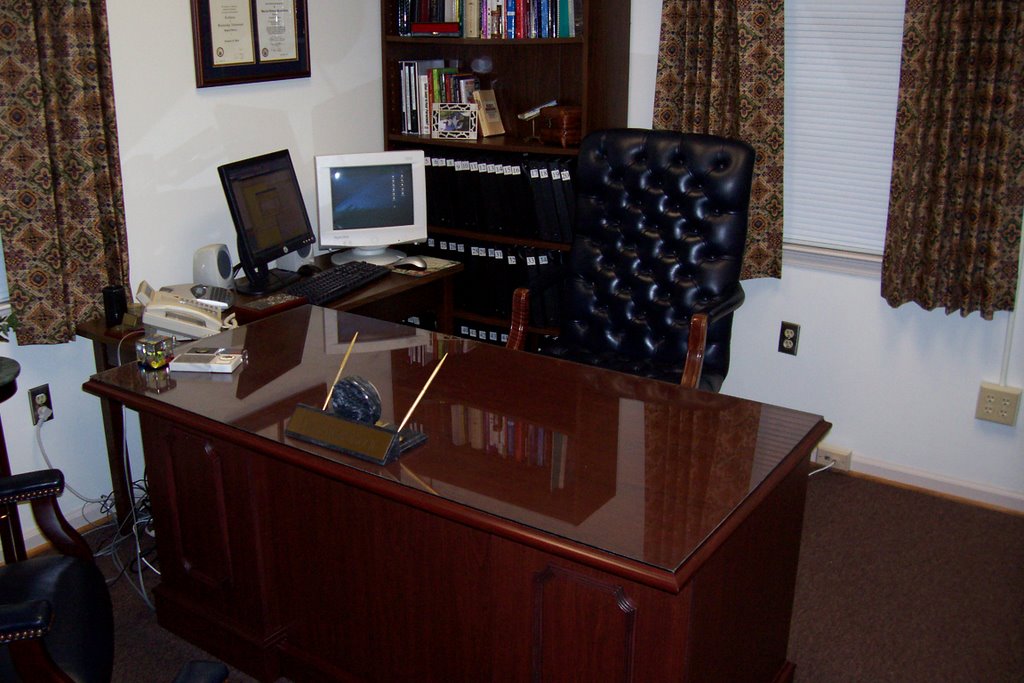
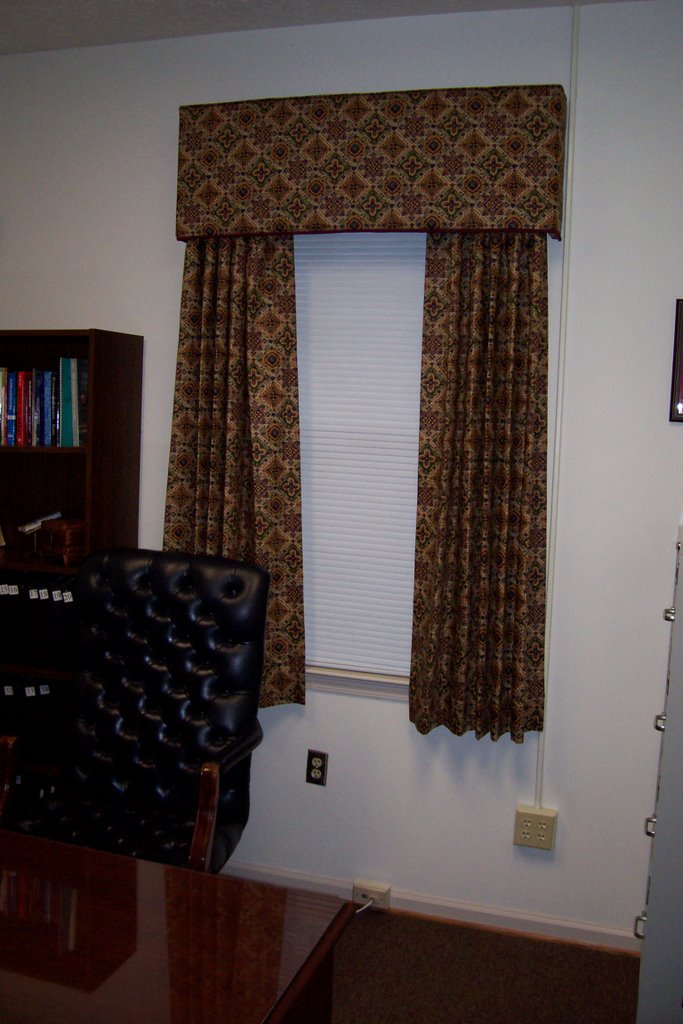
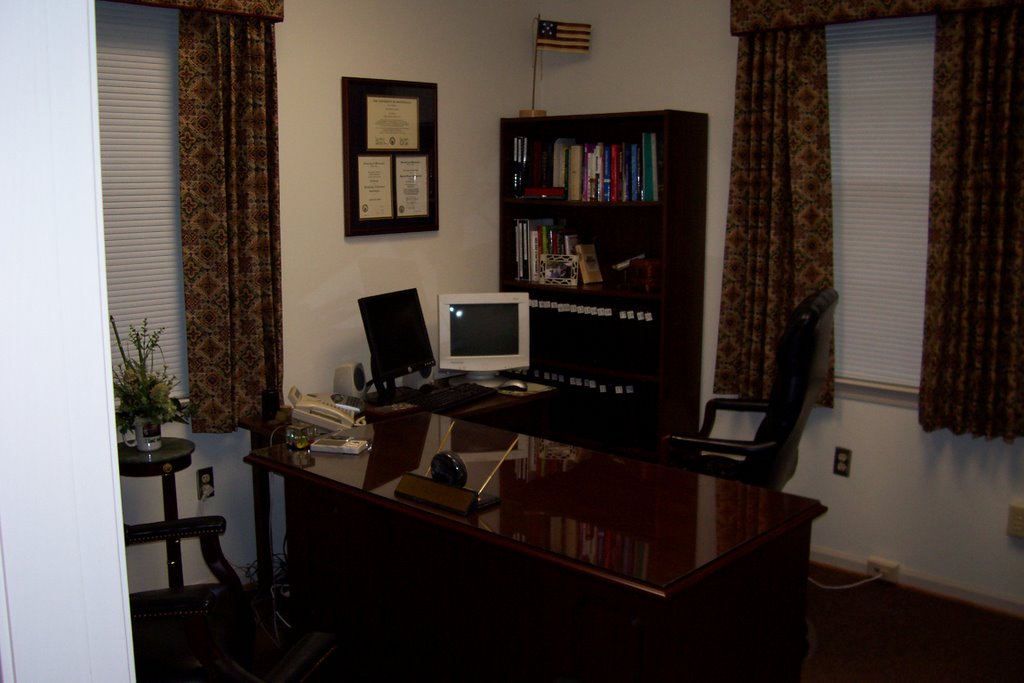
Earlier, I had posted pictures of my new office. Here a few pictures now that curtains have been hung and pictures and plaques hung on the wall.
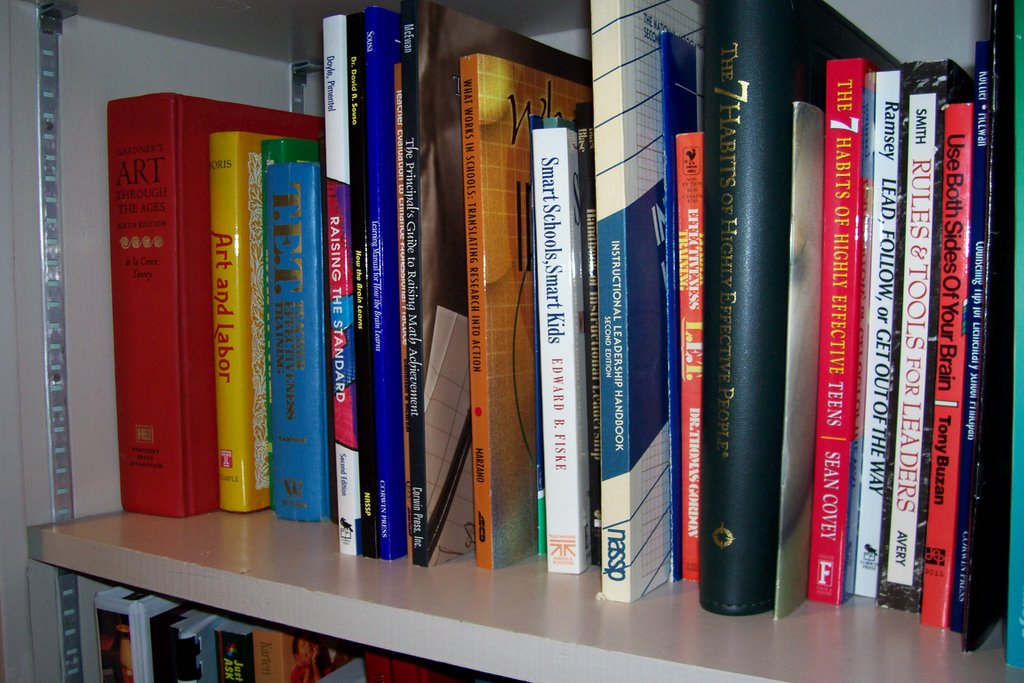
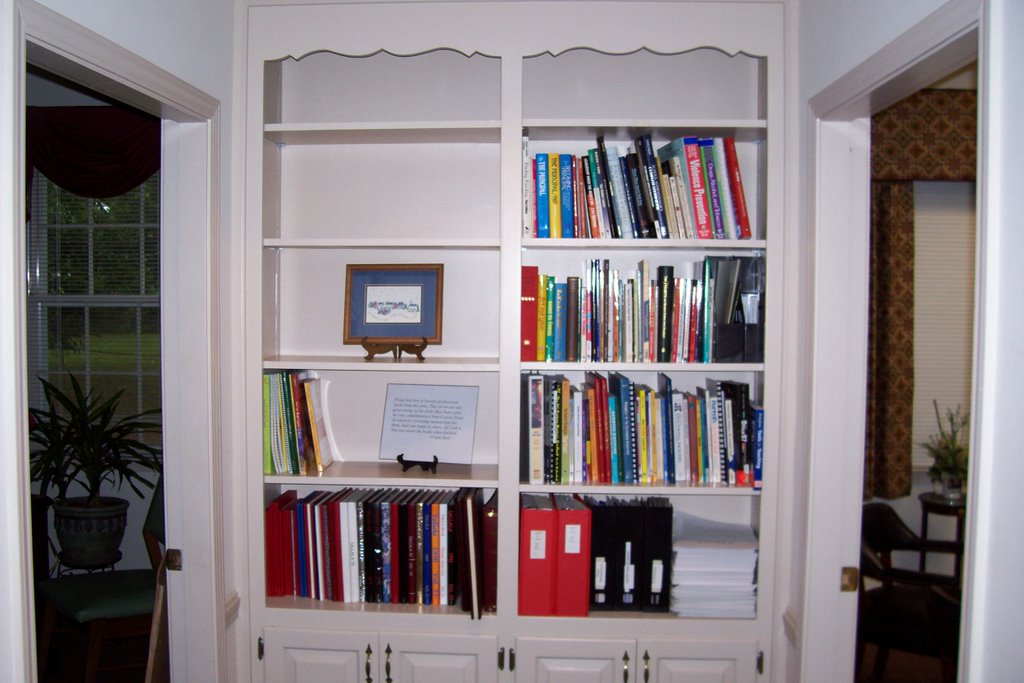
Also, I am using a bookcase just outside my office as a lending library.


What in the world is this? Is this the most recent version of these policies? Do I really need to keep this?
The job I am starting is the 5th position I have held in schools since beginning my career in 1982. In each case, I found myself asking these kinds of questions about material I would run across. I have found that time answers those questions. The best route is to put it away, and then look at it again some weeks or even months later. By that time, the answers are usually obvious.
“Bulk storage” is a great answer. In my last position, as principal of
In the new office, that two-door cabinet in the center has been nominated for the task of bulk storage. As I have come across notebooks, etc. for which I had questions, I made the appropriate entry on my to-do list, and added to the physical item to the bulk storage cabinet. The plan is not to even look in that cabinet for several weeks. By that time, I will have worked through my list, asked the proper the people the proper questions. When I do open that cabinet again, the value of each item and where it needs to go should be much more obvious.
June 6
The last of the bits of painting were completed towards the end of the day. I could now move in one filing and get boxes of file off of the floor.
June 7
The goal for today was to get the office in its final form with the exception of window treatments and diplomas/plaques on the walls. I also had quite a stack of papers that had accumulated during the week.
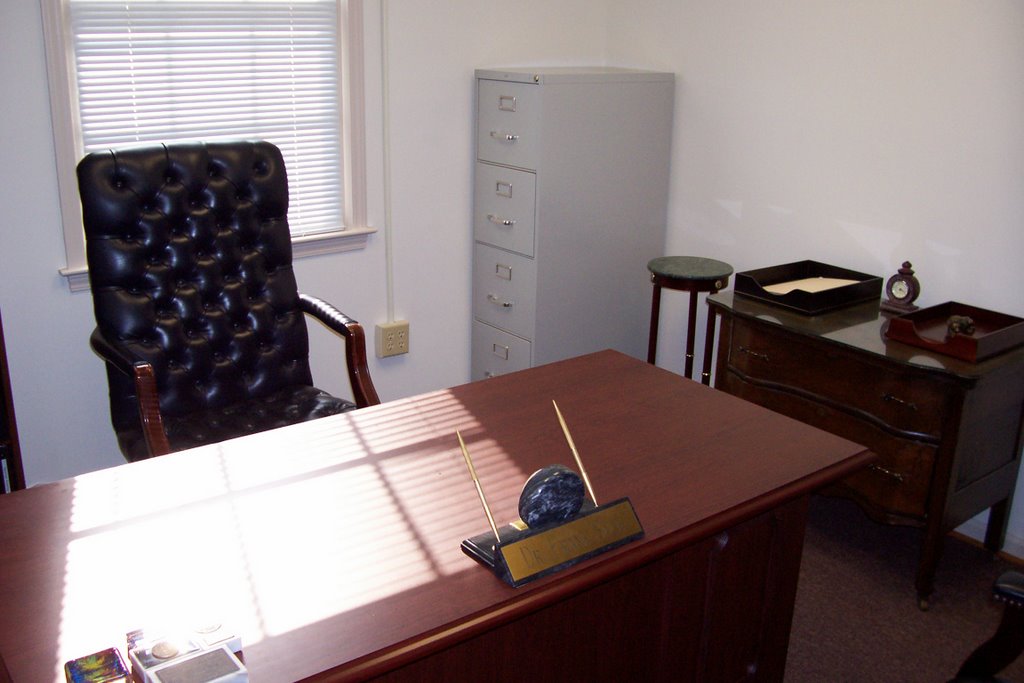
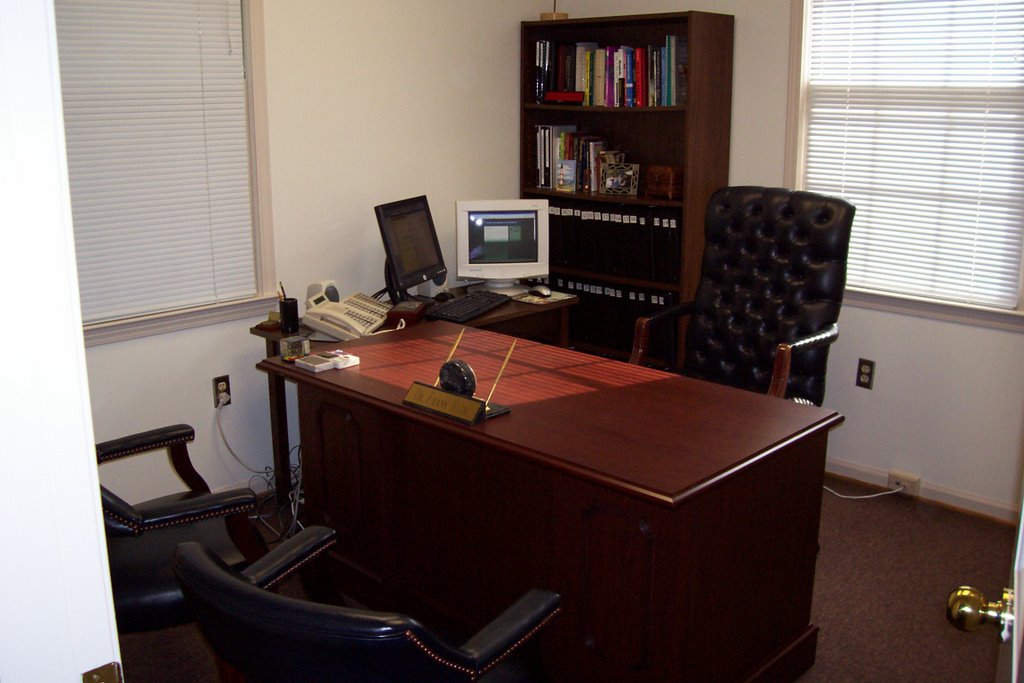
Here are a couple of shots of the office as it looked at the end of the day. The to-do is plenty long, but the papers are out of site. I want work from my list, not a stack of papers. Part of today was looking at each paper, making decision about what needed to be done, putting the actions in my list, and including in the list where to go to put my hands on the paper.
Along the course of the day, I made stacks of materials to deliver to other schools. I had come across many individual sample books for 1st and 2nd grade. I delivered those to one elementary school so they could be passed on to a teacher for her classroom library. Several thick notebooks which pertained to the high school were delivered there. I even unearthed a copy of the high school’s SACS review from 1968!
I came across multiple copies of materials that were doing nobody any good sitting at the central office. One was a wonderful handout on troubleshooting a computer. I put the copies in the mailboxes of each school.
The pictures show the finished product. Still to be done are getting curtains for the windows and hanging things on walls.
I had a terrific in today's sessions. If you attended the "PDA Productivity" and did not get the handout beamed to you, I am posting it here.
The next post I do will be a more on handling multiple projects using your Palm, so please check back.
************************************
PDA Productivity: Getting More Done and Making It Look Easy
Dr. Frank Buck
***This outline is presented as very simple text—no bullets, italics, bold faced-print, etc. The intention is that as you view this online, you will simply “select all” and electronically copy this entire outline. Then go to your Palm desktop or Outlook (whichever you use), create a new task (called something like “Set up my Palm”) and paste this outline into the note section of that task. Feel free to e-mail or beam this outline to a friend who has a Palm but isn’t quite sure how to use it as the productivity tool it could be.
-Frank Buck
Categories for Task List:
Building
Calls
Delegated
Errands
Home
Office
Unfiled (Syncs to “None” on Outlook)
Goals
I have achieved my goal when WHAT is true?
What’s the next step
Next step+Goal statement
Other steps and information related to the project are the in the note section.
Backing-Up Outlook
Your data is kept in a “.pst” file
Backing up on Outlook 97:
Right-click on “Outlook Today”
Choose “properties”
Click “Advanced”
You will see the path to your data
Close Outlook
Copy that .pst file and save it as your backup
Backing up on Outlook 2003
In Outlook, under the File menu, select “Backup”
Click on Options and make you selections
Browse for a pathname and choose “My Documents” as the place where you want the backup to go
Maintain the data by running scanpst every month
What place does paper have? (3 phases of workflow)
Collect-May be best to do on paper until you get really good with the Palm
Process and organize-Do on the Palm
Do the work
Collecting on the Palm (Meeting notes)
Press task button
Enter name of meeting and due date
Create a note
Turn off
During meeting, turn on & off with power button
Palm To-Do Preferences
Sort by Category, Due Date
Uncheck “Show Completed Items” (As you check off things, they disappear.)
Check “Show Due Dates”
Check “Record Completion Date” (Gives you a record of when you really completed things)
Uncheck “Show Priorities”
Check “Show Categories”
Outlook-Getting categories to synch that first time:
Launch “Chapura Settings.”
Click the “Settings” button.
Double-Click “Outlook Calendar” (for example).
In the Chapura dialog box that pops up, click “Categories/Folders.”
Thanks to everyone who came to this afternoon's workshop! I hope you took from the workshop ideas you can use immediately, whether it be organizing your files, backing-up your computer, or expanding the ways you are using Google.
I want today’s experience to more than a “one-shot workshop” for you, and my thinking is that this blog is going to be the best way keep the material fresh and be able to go into more detail than the one hour this afternoon allowed.
If visiting this blog is your introduction to blogging, welcome to what has become a very popular (and easy) way for people to communicate their thoughts with the “world out there.” Tomorrow, I will be doing a workshop on blogging. The idea is that you will leave that workshop knowing how to set up your own blog.
If you have questions about topics from today, please feel free to post a comment and I will be glad to go into more detail. Also, if there are other topics you will like for me to cover in this space, please let me know.
I have been writing posts related to organization and time management for almost two years, so you will find a great deal of material as you browse the previous months. I hope you will take some time over the coming weeks to look over those posts and enjoy new posts as time goes on.
Please check back often!
"Don't say you don't have enough time. You have exactly the same number of hours per day that were given to Helen Keller, Pasteur, Michelangelo, Mother Teresa, Leonardo da Vinci, Thomas Jefferson, and Albert Einstein."
-- H. Jackson Brown
A little organization can go a long way towards making school (and life) more stress-free and enjoyable!
Conveniences are all around us. From microwave ovens to electric pencil sharpeners, we have an abundance of tools that make our lives easier—provided they work. What a handy tool we have in that electric stapler—only it doesn’t work because it’s out of staples. How about that empty tape dispenser in your desk drawer?
This week, I challenge you to look at what’s not working in your world and do something about it. The electric stapler sits unused because it’s out of staples and you haven’t refilled it because you are out of (or can’t find) more. You have been meaning to order more but you keep forgetting. The next time you think about needing staples is—you guessed it—when you go to use that stapler and find it’s still empty.
As you come across these little annoyances, take a second to decide what needs to be done to fix it, and jot it in your planner. Don’t put getting staples on the list for today. Instead pick a day about a week out and start a list of little items to get. A week from now, you can handle that whole list at once.
Fixing the problem is the first step. The second step is deciding how to avoid the problem in the future. Think about this one—at your house, when do you decide you need to buy toothpaste? Is it when the tube runs out and you realize there are no more under the counter? Or, is it when you take the last one from under the counter? In the first case, you have a minor crisis—you need toothpaste NOW. In the second case, you just need to put toothpaste on the grocery list and go on about your business.
Ask yourself the same thing about supplies in your classroom. Do you order more when you are OUT or when your reserve is low? What about textbooks? If a new student enrolled tomorrow, would you have books for him? If not, why not go ahead and put in a request now, so that when you DO get another student—and you will—that you are prepared. You own 7 umbrellas, yet you never seem to have one in the car you when a downpour occurs. What could you do to fix that problem once and for all?
What else in your classroom doesn’t work? What about that regular pencil sharpener where the handle has been loose for 2 years? What would it take to fix that? You have two desks that are awfully wobbly. What would it take to fix them? Realize this is a thought process that seldom occurs to most people. Too many of us simply get so used to all of the things in our lives that don’t quite work that we soon stop thinking about them anymore.
Have you cleaned out your desk lately? If not, put it on your to-do list. Out go the pencils with no points, the dried-up ink pens, the empty packs of Sweet & Low, and a host of papers that never should have been there to start with. You will be amazed at what you find there that you had no idea you had.
Why do people resist thinking through what it takes to fix the little broken things? I think the answer lies in that thinking through what needs to be done creates a long to-do list for people who already have too much to do and try to keep up with all of it in their heads. For those of us who have a “capture tool,” life is easier. We take a second to jot down what needs to happen. We organize our list in a way that groups similar items together. Then, we handle a number of similar items all in one sitting.
Get all of those conveniences in your life working and watch some of the stress in your life go away.
Let’s return to last week’s analogy for a moment. You walk to the curb and take empty the mailbox. When you walk away from that mailbox, it is empty! Better yet, it’s not empty just one day; it’s empty at the end of EVERY day. Wouldn’t it be great if only your e-mail inbox operated like the mailbox by the curb?
The key to getting an empty inbox is to simply make decisions about each and every item there. Therefore, make a practice of only looking at your e-mail when you have the time and energy to make those decisions. You are going to need to go from top to bottom and make small decisions at each turn.
Much of your e-mail requires no action on your part other than briefly scan it and hit the delete key. Candidates include advertisements in which you have no interest, jokes, threads from e-mail discussion groups, and FYI courtesy copies. I find it helpful to sort the e-mail by “conversation.” All mail related to a single subject appears together. If the subject is of no interest, I delete the entire thread at one time.
Some e-mails require only a quick response. I recommend giving that response immediately and then deleting the mail if it is of no further value. What if the response is going to take some time, and possibly some research? In that case, I send a quick response to let the person know I received the message and will be getting back with them. Using Outlook, I drag the e-mail to the Task icon, assign a due date, category, and change the subject line as needed. I then delete the e-mail.
Perhaps someone else really needs to be handling this message. I simply forward the message the appropriate person and delete the e-mail. If I should happen to need it later, I can always go to my “Sent Items” and view what had been forwarded.
Save It
What if the information may be of lasting value? I can save the e-mail by going to the “File” menu and choosing “Save As.” I am able to choose the appropriate place on my computer.
“In” Becomes “Empty”
The point is that a decision is made about each piece of e-mail, and that decision is made the first time the message is read. The basic decision is in which category a message falls: Delete, Do, Delegate, or Save. After handling each item, “IN soon becomes “Empty.”
Imagine for a moment you have just arrived home from work. You walk to the curb and take the mail from your mailbox and walk back in the house. You open the mail and read it. Then, you walk back to the curb and put all of the mail back in the mailbox. Sounds crazy doesn’t it!
The next day, when you walk to the mailbox, you find today’s mail sitting on top of yesterday’s mail. After a couple of more days, will you need to buy a bigger mailbox! Even worse, you will hate that walk to the curb.
This scenario sound crazy, yet it is exactly how all too many people approach their e-mail inbox. They read it, and because they don’t know exactly what to do with it, they leave it. It is not uncommon to see an inbox that contains every piece of e-mail the owner has received since the computer was installed!
Next week, we will look at how to dig out from other and establish some habits that will get your inbox empty every day.
Often, the purpose of an e-mail message is to ask someone else to do something. The ball is not in the other person’s court, but we still have the obligation to follow-up and be sure the other person delivers.
Is E-mail a great time management tool or a great time sink? In little more than a decade, it has gone from being a rare novelty to being commonplace. We all love it, because it’s so easy to send a message to one person or to hundreds of people. All with a single mouse click. We hate it because our e-mail explodes with advertisements, jokes, and a host of other low priority items. We stress about it because we also get good information and don’t know exactly what to do with it.
E-mail is the most efficient means of communication we have in the world of education.
Even if had phones in our classrooms, statistics from the business world show that only something like 20% of calls are completed the first time.
When we use e-mail, we send messages when it is convenient for us. They are read when it is convenient for the other person. It eliminates calls that end with “I’ll get that information and get back with you” and perpetual telephone tag.
Getting Newspaper Coverage
How many feel like your local paper is always there to cover the good things that happen in your school? When I ask this question on workshops, rarely does a hand raise. The truth is that papers are usually glad to print what you give them provided you get it to the right person and you make it easy for them. E-mail is the answer.
Go home, call the paper, and ask for the name and e-mail address of the person to whom you should send school-related material. When you have something, e-mail it. You aren’t going to be spending your planning period driving to the paper and searching for the right person to hand your stuff to. They aren’t going to have to turn around and retype your copy. You will find your story, along with the digital photo you include as an attachment, winds up in the paper.
Committee Work
If you are doing committee work where everyone has their part to prepare and then it’s merged into one document, send it by e-mail to one person who simply pastes it together. Pasting it and then going through to add nice formatting is a lot more fun than taking a stack of papers other people have typed on their computers and printed out that you are now going to sit and type back into your computer.
Old Habits are Hard to Break—Some scenarios to examine:
One experience which we probably all share is being in a public place and having our attention drawn to a conversation too loud to ignore. This happened to me during a recent holiday as I stopped off between appointments to grab a bite of breakfast.
At the table next to me sat two mothers engaged in what was essentially a contest to see which could bad-mouth her child’s teacher the worst. The emotion and volume of their conversation made it hard for me or anyone else at the surrounding tables to tune them out. One particular point, however, got my attention.
“My son got a zero on an assignment,” one mother stated, “and I didn’t find out about it until 5 days later in the weekly folder.” She continued, “If my child makes a zero, I expect to know about it that day!” Her point was clear. Keeping her informed (and on an up-to-the-minute basis) was the responsibility, and total responsibility, of her son’s teacher.
It took every bit of self-control I could muster to keep from turning to her and saying:
“Excuse me, but I couldn’t help overhearing your conversation. I agree with you 100% that if your child makes a zero, you should find out about it that day. But I disagree with you on who should be the bearer of the news. That responsibility belongs to your child. It’s called sitting down around the dinner table and making a discussion of how the school day went part of the conversation. It’s called giving an 8-year old some 8-year-old responsibilities so that when he’s 30 he can hopefully take on some 30-year-old responsibilities. It’s called having some expectations in your household, and being honest with Mom ought to be one of them. Then when the weekly folder does come, if there are surprises in it (like that zero that he somehow forgot to mention), you hold Junior accountable.
“Your child’s teacher is not going to be with him 24-7 to give you an instant update on who he is with and what he is doing in the community. If the only information you are getting on what Junior is doing is from his teacher, you are going to be looking at far worse problems in the next several years than a zero on an assignment.”
As I continued with my meal, a battle was going on inside my head. Part of me was urging me to speak up. After all, there is a young man who needs to accept responsibility for reporting to Mom the bad news, and a teacher who deserves better than being the subject of this conversation in a public place. The other part of me was saying to just to be polite and eat. After all, it’s none of my business—or is it?
As we think back to our own childhood’s, we probably remember fondly the various responsibilities our parents gave to us and for which they held us accountable. Responsibility was a gift they gave to us, and we are better people for it. In this day of “instant everything,” it is so easy to leave the child out of the loop and remove responsibility altogether.
As the situation played itself out, I simply finished my breakfast and paid the check. As I walked out the door, I could not help having felt that by remaining quiet, I had become part of the problem.
We have talked about the value of having a “Repeating Task List” to prevent you from having to rethink the details of those activities that come around every month or every year. I found that many entries on my list had to do with updating documents. One entry would remind me to update and print the “Welcome to School” letter. Another would remind me to update the student handbook. Many of the documents would require no more than simply being pulled up on the computer, printed, and Xeroxed. The list gave me the freedom not to hope I remembered what routine information needed to be updated and sent to other people.
I took this idea one step further. Wouldn’t it be great if all of those routine documents were organized in one place? Here is how you can accomplish exactly that:
1. In My Documents, create a new folder and name it “Monthly Ticklers.” (Right-click and from the menu, choose “New” and then “Folder.”)
2. Double-click on Monthly Ticklers. Inside that folder, create 12 new folders. Name each one with a different month of the year.
3. Identify the documents you will need to update or use at a particular time of the year and drag them to the appropriate monthly folders.
4. On your Repeating Task List, make an entry that says, “Check Monthly Tickler on Computer.” You will need to make this entry 12 times, one for each month.
From now on, as you work through your Repeating Task List, each month you are going to see a reminder that will send you to the Monthly Tickler folder on your computer. I would suggest blocking out some time when you can work through all of the documents in that folder at one sitting. Some months may have few, if any, documents in them.
In all too many schools, intelligent people sit around racking their brains trying to remember what routine documents need to be handled. All too often the reminder comes when others start to ask, “Where is the XYZ form that we always get this time of year?” In the worst cases, those documents are created from scratch because people either can’t remember where (or even if) they have saved the document last time it was used.
Our business is filled with opportunities that require creativity and spontaneity. Our business is also filled with repetitive tasks. We can spend all our time, energy, and creativity on overdue repetitive tasks nipping at our heels. Our alternative is to set up simple systems that handle the routines and remind us our obligations at the appropriate times.
We write letters, memos, and e-mails to others. Others write the same to us. Putting our hands on those pieces of correspondence later can be tough.
This week, we will look at correspondence you write. With a good filing system on your computer, there is little need for you to make a hard copy for yourself of correspondence you send to someone else. You will find exceptions where you need a hard copy when it is part of a file you are required to submit to someone else, but as a general rule, keep your copy in digital form. I say this for several reasons:
1. When you print a hard copy for yourself, you have yet another piece of paper to handle.
2. Files automatically sort themselves alphabetically on your computer.
3. Should you need to see files sorted by date created or modified, you can do so with the click of a mouse.
4. Retrieval is quicker. A click of the mouse is quicker than thumbing through the file drawer.
5. Should you forget exactly where you filed something, you can use the “find” command. Should you forget where you filed something in your metal filing cabinet is somewhat more cumbersome.
The first secret of being able to find correspondence you have written quickly is a combination of having a consistent method of naming documents and having a consistent way to file them. When I write a letter to someone, I name the file with the last name of the person, a hyphen, and several words descriptive of the subject. For example, the letter to Joe Smith regarding a donation he made to the playground fund is going to be titled “Smith—Playground Donation.” When I want to see that file, I don’t have to wonder whether I named it “Donation for Playground,” “Playground Donation,” “Letter to Joe Smith,” etc. The question I ask myself is, “To whom did I write the letter?” Answering that question tells me how I named the file.
The second secret to being able to find my correspondence is being consistent about where I file it. Inside My Documents is a folder entitled “Memos & Letters.” If I write correspondence, it’s going to go there. One thing to notice is that the letter I wrote to Joe Smith is automatically going to appear together with all of the other “Smith” letters.
What about correspondence others send to you? Next week, we will look at how to handle this task with paper correspondence. In a future week, we will look at correspondence that comes to you via e-mail.
When you log in to your blog, you will see a “Settings” tab. After clicking on it, you will see a “Comments” link. This link gives you access to the controls you can exert over comments.
Comments—Show or hide. If you readers to be able to leave to comments, choose “Show.” If not, click “Hide.”
Who can comment?—I would recommend that you select “Anyone.” You have other controls that will prohibit inappropriate comments. To limit comments only to those have their own Blogger blog would be a severe limitation on readers.
Enable comment moderation—I would recommend selecting “Yes” on this feature. A box will appear for you to put your e-mail address. When a reader submits a comment, that comment will be e-mailed to you for approval. If the comment is vulgar or consists of spam, you simply do not approve it. The disadvantage would be if you were going to be away from your computer for several days and comments would sit in your e-mail for some time waiting on approval.
Show word verification for comments—This tool is designed to keep spammers from posting to your blog. Readers will see a group of letters. In order to post, they would have to type the series of letters accurately. Word verification ensures that a real person is composing the comment. If you are using the “Comment Moderation” as discussed above, you would not need “Word Verification.”
People can take just about any good thing and find a bad way to use it—the telephone, the automobile, prescription medicines. The list could go on and on, and the Internet is a candidate for that list. This post and the next address the potential for someone reaching inappropriate material through a blog.
Sure, I realize that anyone sitting unsupervised at a computer and looking for inappropriate material will find it quickly without ever visiting my blog. I do, however, want to remove the possibility that by visiting my blog and clicking on link, a youngster could be seeing something he or she has no business seeing.
There are two points which have concerned me:
You will notice neither of these objectionable items on this blog, the blog I use to communicate with parents (GrahamSchool.blogspot.com) or the blog I use to communicate with staff (GrahamStaff.blogspot.com). Two simple measures prevent someone reading your blog and being a couple of mouse clicks away from trouble. The next post gives step-by-step instructions on what I did to address these two concerns.
First, make a copy of the html code and save it:
Why do this? First of all, if you somehow mess up and want to start all over, you could go to this document and copy/paste it over the html code on your blog. Secondly, you can search for a piece of code easily in Word using the “find” command. You can get a good idea of how far down the page that piece of code, see what lines of code are close to it, etc.
Removing the Navigation Bar
Removing the Blogger icon
That’s it! I doubt the folks at Blogger would be happy about my doing this and even less happy about telling you about it. I am more concerned about being an accomplice to youngsters seeing stuff they shouldn’t than I am keeping folks happy.