Showing posts with label Paper Planner. Show all posts

Sunday, December 15, 2013

Need Paper Planner Pages? Take a Look at These

While I have been organizing my life digitally for well over a decade, there are still many people who prefer paper. A paper planner, when used correctly, is a great tool to put everything which requires your attention into one place. Perhaps a paper system is your choice, but you have not found page formats which suit you. Perhaps you don't want to spend money for commercially-prepared pages. If either of these descriptions are applicable, this post is for you. The Free Resources page of my website lists four forms you can download, print, and use. Since it is on the "Free Resources" page, that's a pretty good indication that the price is right. 

Paper Planner Daily Page
Time ManagementThe layout for this page matches the concepts I teach in my workshops and in my books, Get Organized!:Time Management for School Leaders and Organization Made Easy!: Tools for Today's Teachers. Items should be worded clearly. Like items should be grouped together. You will find a space to list your "Fab 5" for the day. Of course, the page provides a space for appointments. Finally, you have a dedicated space to answer the all-important question, "How did you make today count?" The page size is 8 1/2 X 5 1/2, meaning you will get two pages per sheet.

Put the pages on a paper cutter, punch holes, and you are ready to go. The back of the page is intentionally left blank. This page is where you take notes from meetings, phone calls, etc. Documentation is easy when you have this space available.

Montly Calendars
Click the tab for each month and print. Put the pages on a paper cutter, hole punch, and insert them into any notebook designed for pages which measure 8 1/2 X 5 1/2. Use the back of each page for additional information related to that month.

Goal Planner 
 Goals or projects are different, in that they are accomplished through a series of tasks. We need a place to house all of the tasks and related information for the projects we undertake. We then "farm out" the specific tasks to specific days. Having some Goal Planner sheets in the back of your book gives you control of the big picture.

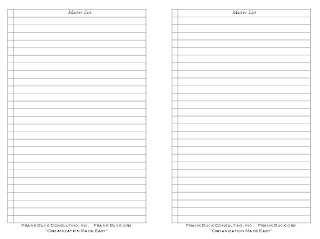
Master List
We all have those tasks we want to accomplish "sometime," but do not want to assign a specific date. The "Master List" is just such a parking place. Put some of these sheets in the back of the planner, and you will never be at a loss for a "parking place" for the random tasks which come to mind.


What tool do you use to stay organized? Is it paper or digital? For those who organize with paper, what commercial pages do you use (if any)? For those who organize digitally, what software do you use?


Sunday, December 08, 2013

Paper Options to Get Organized

During a recent workshop, we talked about digital systems to manage time and get organized. I later received this message from an attendee:

I like a pen/paper planner system. Can you advise about any organizational tools which you find of great utility for principals?

While I prefer a digital system and have maintained my calendar and to-do list digitally since 2001, others prefer the look and feel of paper. My feeling is the best system is the one you will use, and if paper is the preference, the game consists of constructing the best paper system possible.

If you want to purchase a commercial planner, I recommend either Day-Timer and Franklin-Covey. The reason I offer this recommendation is that they have two facing pages for each day. The left-hand page houses appointments and to-dos. The right-hand page serves as the journal, a concept covered in depth during the workshop. Notes from phone calls, parent conferences, meetings, etc. are written on that page.

I have also created planner pages which are free to download, copy, and hole-punch for a notebook. All page sizes are 8.5" X .5".

Single-Day Planning Page
  1. The pages are undated, so enter dates in the blanks provided. 
  2. List the appointments and other day-specific information in the appropriate block.
  3. From tasks left undone from yesterday, those planned for today, or those on the Master List, select the "Fab 5" and enter them in the lines provided. This area is where you will look first. Try to accomplish these tasks early in the day.
  4. In the "Organized Task List" section, list the other tasks for the day. Write tasks you plan to accomplish early in the day towards the top of the list and those things you plan to tackle after school or in the evening towards the bottom.
  5. Use the right-hand page for documentation. If you should fill that page, simply insert a blank page and continue your documentation.
  6. At the end of the day, answer the question at the top of the left-hand page: How did you make today count? Answering this question will force you to think back over the day and determine how well you managed your time and what you truly accomplished. 
  7. If at the end of the day some tasks have not been completed, choose other days and recopy those tasks to the chosen days. You will start each day with a fresh list with tasks listed in the order you want to accomplish them.
To-do list
Batch similar tasks throughout the week. For example, batch errands on the page for the coming Saturday. Batch low-priority items you simply hope to accomplish by the end of the week on Friday's page. As you complete the items from today's list, you can look ahead to Friday's page for some low-priority items to tackle.

Batch items you are expecting from other people on Friday's page. When Friday arrives, you can follow-through as needed.

Master List
This page gives you a place for all of the tasks that you want to accomplish some time in the future, but you don't want to make a commitment to a particular date at this time. Include several pages at the back of the planner. As you plan your day, look back at this list and transfer a few of them to your daily page.

Time management

Goals Planner
Goals or projects are different in that they are accomplished through multiple steps rather than performing one single task. At the back of the planner, insert a Goal Planner for each goal or each project you have. Use the form to list all of the steps you know as well as any other information about the goal or project.

The key to keep multiple projects moving is to select the first step from each of your goals, pick dates for each of the tasks, and enter them on the appropriate daily pages. As you complete the tasks, return to the back of the planner to pick up future next steps and enter them on the daily pages.


Monthly Calendars
In addition to daily pages, we all need to see the "big picture." Print each of the 12 pages. The dates are already completed. Check back towards the end of the year, and a calendar for 2014 will be available.


To download any of the tools in this post, click on the header which introduces it or click on the form itself.

For the readers of this blog, I would be interested in how you are organizing. Is your system paper/pencil? Is your calendar and to-do list digital? If so, what software do you use?

Friday, December 06, 2013

Help for Paper Planners in a Digital World (Part 2)

In the last post, we began a discussion which impacts everyone who uses a paper planner. Tasks are written in the paper planner which have supporting digital material. When you do the task, you must have the digital material at hand. Begin by reading the last post if you have not already done so. When you have finished, return here.

 An item from Dropbox or Evernote needs to be referenced while you are working on a task.
This technique is much the same as needing to reference a document on your hard drive. The trick to get the path name for the entry and paste that link into the spreadsheet.

Open Dropbox on your computer desktop, as opposed to accessing Dropbox from the website. Right-click on the desired file, and choose "Copy as path" from the menu. On the spreadsheet, right-click on the cell where you want the link to appear. From the menu, choose "Hyperlink." Paste the path name into the address box.


In the planner, list the to-do. Beside it, reference the line on the spreadsheet which links to the document. An example might look like the example below:

Revise handout for EdLeaders Network (9)

For Evernote, open the desktop client. Right-click on the desired note. Select "Copy Note Link." On the spreadsheet, right-click on the cell where you want the link to appear. From the menu, choose "Hyperlink." Paste the path name into the address box.


In the planner, list the to-do. Beside it, reference the line on the spreadsheet which links to the document. Below is an example:

Review keyboard shortcuts for Google Calendar (10)


Screenshot of the links generated using the examples in this post
and the post just prior to this one.


Limitations
Since the examples shown in lines 8, 9, 10 involve path names, what is described assumes the user works from one main computer. Even if the spreadsheet could be shared across multiple devices, the links would not work from those devices because that path name applies to one specific computer.

With the examples from Dropbox and Evernote, we could have generated links and choosing to "share" a link. In the case of Dropbox, the link would allow us to download a copy of the document. Changes made to that document would not be saved to Dropbox unless we manually uploaded the document. In the case of Evernote, using the link generated by choosing "Share" from the right-click menu would yield a read-only image.

Depending on the individual situation, this arrangement of choosing to "share" a link rather than access the original may be preferable, but it is not something I would see as desirable.

The final limitation also involves using the spreadsheet across multiple devices. If the spreadsheet is placed in Dropbox, it could be accessed from any device. The question would become whether or not the software on that device would allow you to click a link. Laptops and other desktop computers would allow it. Tablets and mobile phones may or may not. If the link could not be clicked, you would then look to see it you have the ability to highlight and copy the link which you could then paste into a browser.

A Reminder
As stated in the last post, you must not insert lines into the spreadsheet or delete lines. Doing either would alter the numbering of all entries below it. When a link on the spreadsheet is no longer needed, the link can be deleted. That line is now empty, and the next task you need to enter can take its place.

This post is one person's attempt at a solution which could help many. What do you think? Do you have another suggestion for approaching this problem?

Wednesday, December 04, 2013

Help for Paper Planners in a Digital World

Those who have attended my workshops know of my preference for planning digitally. Since 2001, my calendar and to-do list have been housed on my computer and synced to a mobile device. A large part of my reason for going digital had to do with how much information arrives digitally:
  • An email contains information I want to discuss with a co-worker. I can highlight and copy that portion of the email, create a new task, and paste the information into the note section. I write a name for the task (such as "Call Joe"), assign a date, and save.
  • I am shopping for a new car. As I read a helpful review online, I can copy the URL and paste it into the note section of a task related to shopping for a car. After reading other reviews, I may wind up with a dozen URLs pasted into the note section of that same task.
  • When I perform a particular task, I need to have a certain document at hand. In the note section of that task, I can paste the path name to that document. 
  • When I perform a particular task, I need to reference a document stored Dropbox or a note in Evernote. By right-clicking on the item in Dropbox or Evernote and sharing the link, I now have a link I can paste into the note section of the task.
Apply the same scenarios to someone using a paper planner, and you begin to see the problem. "Copy and paste" doesn't work with a paper planner. Writing out a long URL by hand in a planner is tedious and opens all sorts of room for error. Keying that URL later while referencing the hand-writing URL is equally tedious, and it further increases the likelihood of error.

While I favor a digital system, I also favor people using tools which they like. Ultimately, the tool that is going to be used is the tool which is comfortable. For the person who likes a paper planner, the objective becomes structuring a system that will make it work even into today's digital world.

What I propose is one simple spreadsheet. The spreadsheet will house links to the digital items. In the planner, we will reference lines on that spreadsheet. Create a new spreadsheet. Name it something like "Planner Digital Assistant." You will continue to use this same spreadsheet for as long as you use a paper planner, along the side of the spreadsheet, you already line numbers. Those numbers will become to key to linking your planner to the digital info.

Let's work through the examples listed above.

An email contains information I want to discuss to a co-worker.
In Gmail, every email has its own unique URL. If you were to copy and paste that link somewhere and later click on that link, you would be taken to the email. Let's copy that URL and go to our "Planner Digital Assistant" spreadsheet. Paste the URL into cell A1.


In the paper planner, write the task to call the co-worker. Let's call him "Joe." Beside the task, put a "1" inside a set of parentheses. The task looks like this:

Call Joe (601) 555-1234 (1) 

For those who have been to my workshops, you know parentheses mean "Look here for more information." A date inside those parentheses means look at that date in the paper journal, for example. In this case, the number indicates the line number to reference on the spreadsheet.

When you look at the planner and see the task to call Joe along with the phone number, open the spreadsheet, go to line 1, and click the link. You will now be looking at the email you want to reference while talking to Joe.

Internet sites with reviews of cars 
Buying this new car is a project, and therefore a page in the back of the planner will list all of the steps necessary to purchase that car and all information relevant to the purchase.

As you come across each helpful online review, copy its URL and paste it into the next blank line of the spreadsheet (still in Column A). Your research may have uncovered 6 reviews, and you have pasted those URLs into lines 2, 3, 4, 5, 6, and 7.


In the planner, go to the page for that project. Somewhere on that page, write the following information:

Read online reviews of car (2,3,4,5,6,7)

Later, as you look at all of the research you have done and want to re-visit those URLs, you will go to the appropriate lines on your spreadsheet and click one URL after another.

A document from your hard drive is needed when you are working on a task.
Every document has its own path name. To copy the file name for a document, right-click on it, and choose "Copy as path" from the menu. On the spreadsheet, right-click on the cell in Column A on the next blank line. From the menu, choose "Hyperlink." Paste the path name into the address box. (This process works with Excel. For Mac users, I do not know of a way to do the same thing with Numbers.)


In the planner, list the to-do. Beside it, reference the line on the spreadsheet which links to the document. Below is an example:

Write post on the "Planner Digital Assistant." (8)


In the next post, we will examine the final scenario: An item from Dropbox or Evernote needs to be referenced while you are working on a task.

If you are using a paper planning, you can create your spreadsheet. One point is essential to make this system work. You must not insert lines into the spreadsheet or delete lines. Doing either would alter the numbering of all entries below it. When a link on the spreadsheet is no longer needed, the link can be deleted. That line is now empty, and the next task you need to enter can take its place.

This post is one person's attempt at a solution which could help many. What do you think? Do you have another suggestion for how to approach this problem?