Does success make us happy? That's what our culture tends to teach us. In this TEDx Talk, psychologist Shawn Achor argues just the opposite. Happiness, instead, is at the root of productivity.
Motivation, inspiration, and joy in the moment really are the per-cursors to productivity. Enjoy this twelve-minute TEDx Talk.

Monday, April 29, 2013


Friday, April 26, 2013
More Thoughtful or Just Better Organized?
Let's face it. On any given day, people do things for us they did not have to do. While we may be appreciative, how often do we forget to say so? In our busy day-to-day lives, we may not think about it. At least, we don’t think about it when we are seated with a blank note card in front of us!

I am reminded of a participant in a workshop I was conducting. We were talking about tickler files and their various uses. This participant explained that she had been using tickler files for some time. Like many of us, she wanted to get better about writing thank-you notes. Like many of us, it just never happened.
She explained that on one January day, she took 52 blank note cards, one for each week of the year. She scattered them through her tickler files. She had now structured a system that caused a blank note card to appear once each week. That was her trigger…her trigger to stop and use that blank note card to thank somebody for something.
She was already sitting down at her desk. She had the note card in front of her. Now, all she had to do was write the note.
...she was thoughtful and appreciative all along. She had simply become more organized. I suspect people began to think of her as more thoughtful and more appreciative. Actually, she was thoughtful and appreciative all along. She had simply become more organized. She had found a system which eliminated the forgetfulness problem.
What papers are piled on your desk, credenza, stacked in chairs, or lining the floor. You will not need them all today? While they are on full display to serve as reminders of the work we need to be doing, the truth is that system doesn't work. More than likely, on the day you do need a particular document, it will be seven layers down. It's out of sight and out of mind.
I have written about tickler files before. Through all of the advances in technology during my professional life, nothing has been more successful for making sure papers appear in front of me at the right time than tickler files.
If you've never used this tool, you are in for a treat. Empty a hanging file drawer in your desk. Get a box of hanging files and label 31 folders with the numbers 1 through 31, each one representing a day of the month. Take 12 more folders and label them January through December.
Start taking all of the papers piled on every flat surface and ask one simple question of each one: "When do I want to see this paper again?" The answer to the question provides the answer as to where to put it. The folder you will need for the meeting on the 15th goes in folder 15. The tickets to the concert on the 20th go in folder 20. The document you will need when you meet with that out-of-town client in June will go in the June folder.
For the first time since you purchased that desk, you may actually see what the top of it looks like! The uses for tickler files are unlimited. It's easy to get started. All you need is a drawer and folders. It's easy to manage. All you have to do is pull today's file at the beginning of the day. You are now looking at every piece of paper that at some point in the past you had wanted to come back to you today.
For the workshop participant, it meant people began to think of her as more thoughtful. What benefits could this simple tool offer for you?

I am reminded of a participant in a workshop I was conducting. We were talking about tickler files and their various uses. This participant explained that she had been using tickler files for some time. Like many of us, she wanted to get better about writing thank-you notes. Like many of us, it just never happened.
She explained that on one January day, she took 52 blank note cards, one for each week of the year. She scattered them through her tickler files. She had now structured a system that caused a blank note card to appear once each week. That was her trigger…her trigger to stop and use that blank note card to thank somebody for something.
She was already sitting down at her desk. She had the note card in front of her. Now, all she had to do was write the note.
...she was thoughtful and appreciative all along. She had simply become more organized. I suspect people began to think of her as more thoughtful and more appreciative. Actually, she was thoughtful and appreciative all along. She had simply become more organized. She had found a system which eliminated the forgetfulness problem.
What papers are piled on your desk, credenza, stacked in chairs, or lining the floor. You will not need them all today? While they are on full display to serve as reminders of the work we need to be doing, the truth is that system doesn't work. More than likely, on the day you do need a particular document, it will be seven layers down. It's out of sight and out of mind.
I have written about tickler files before. Through all of the advances in technology during my professional life, nothing has been more successful for making sure papers appear in front of me at the right time than tickler files.
If you've never used this tool, you are in for a treat. Empty a hanging file drawer in your desk. Get a box of hanging files and label 31 folders with the numbers 1 through 31, each one representing a day of the month. Take 12 more folders and label them January through December.
Start taking all of the papers piled on every flat surface and ask one simple question of each one: "When do I want to see this paper again?" The answer to the question provides the answer as to where to put it. The folder you will need for the meeting on the 15th goes in folder 15. The tickets to the concert on the 20th go in folder 20. The document you will need when you meet with that out-of-town client in June will go in the June folder.
For the first time since you purchased that desk, you may actually see what the top of it looks like! The uses for tickler files are unlimited. It's easy to get started. All you need is a drawer and folders. It's easy to manage. All you have to do is pull today's file at the beginning of the day. You are now looking at every piece of paper that at some point in the past you had wanted to come back to you today.
For the workshop participant, it meant people began to think of her as more thoughtful. What benefits could this simple tool offer for you?
Wednesday, April 24, 2013
How You can Improve Productivity Through Voice Input
The great things about our phones are portability, large storage capacity, and their ability to put information at our fingertips when we need it, just to name a few. The terrible thing about our smartphones has traditionally been input.
 Let's face it, typing with two thumbs on a piece of glass is no picnic. For every example of a 15-year old who is able to compose a text message with one hand on the phone in his pocket while at the same time looking you in the eye and carrying on a conversation, there are dozens of stories of adults frustrated with trying to compose a three-line email.
I have been a participant in this journey since around 2001 when I started using a Palm synced to my computer. I have housed my calendar, to-do list, contacts, and reference information digitally. Our journey took us through a special alphabet (called "Graffiti") with a stylus on the glass screen. That concept was replaced by small QWERTY keyboards. Steve Jobs felt that a finger on glass was the best method for input. As software which recognizes handwriting on our mobile devices is progressing, the stylus is even making a return.
Yet through it all, none of those methods for input have approached the ease of plain 'ole pencil and paper. That dynamic, however, is changing as voice input is becoming surprisingly accurate and built directly into the operating system.
What capabilities does your device already have?
In our busy lives, we tend to continue with what is familiar. We acknowledge our devices probably have many more capabilities than we are using. At the same time, pressing deadlines and the learning curve involved puts really learning our devices on the back burner.
Getting good with voice recognition is a skill well worth the little bit of time required to master it. Take a look at your device's keyboard and see if you have one of those keys that depicts a microphone.
Is the capability talked about here already present on your mobile phone? How much could your productivity be improved through using voice input? Email
Open a new email message. Press that little microphone key and begin speaking. Your voice will be transformed into text, and will be placed at whatever point the cursor is blinking. Have another thought you want to insert into the middle of the paragraph? Touch the screen to move the cursor to the desired point. Tap the microphone, and begin speaking.
To-Do List
I regularly use voice input to add items to the to-do list on my phone. Tap the icon to open the to-do app, tap the icon to add a new task, tap the microphone, and now I am speaking. When I am done, I tap "OK," and the item is on my list with a start date of today and a due date of tomorrow automatically assigned. If detailed notes related to that task exist, before tapping the "OK," I touch a finger to the note section, and instead of typing the details, I touch the microphone icon again and speak the notes.
Anywhere Else
Anywhere you could type words on the keyboard, you could touch the microphone key and speak. You will see this key on the iPhone, Android devices, and BlackBerry 10. For those running BlackBerry OS7 or before, you can download apps which will give you some of this capability.
Is the capability talked about here already present on your mobile phone? How much could your productivity be improved through using voice input? I believe you will find the little bit of practice required to get used to it and get good at it will be well worth the long-term benefits.

I have been a participant in this journey since around 2001 when I started using a Palm synced to my computer. I have housed my calendar, to-do list, contacts, and reference information digitally. Our journey took us through a special alphabet (called "Graffiti") with a stylus on the glass screen. That concept was replaced by small QWERTY keyboards. Steve Jobs felt that a finger on glass was the best method for input. As software which recognizes handwriting on our mobile devices is progressing, the stylus is even making a return.
Yet through it all, none of those methods for input have approached the ease of plain 'ole pencil and paper. That dynamic, however, is changing as voice input is becoming surprisingly accurate and built directly into the operating system.
What capabilities does your device already have?
In our busy lives, we tend to continue with what is familiar. We acknowledge our devices probably have many more capabilities than we are using. At the same time, pressing deadlines and the learning curve involved puts really learning our devices on the back burner.
Getting good with voice recognition is a skill well worth the little bit of time required to master it. Take a look at your device's keyboard and see if you have one of those keys that depicts a microphone.
Is the capability talked about here already present on your mobile phone? How much could your productivity be improved through using voice input? Email
Open a new email message. Press that little microphone key and begin speaking. Your voice will be transformed into text, and will be placed at whatever point the cursor is blinking. Have another thought you want to insert into the middle of the paragraph? Touch the screen to move the cursor to the desired point. Tap the microphone, and begin speaking.
To-Do List
I regularly use voice input to add items to the to-do list on my phone. Tap the icon to open the to-do app, tap the icon to add a new task, tap the microphone, and now I am speaking. When I am done, I tap "OK," and the item is on my list with a start date of today and a due date of tomorrow automatically assigned. If detailed notes related to that task exist, before tapping the "OK," I touch a finger to the note section, and instead of typing the details, I touch the microphone icon again and speak the notes.
Anywhere Else
Anywhere you could type words on the keyboard, you could touch the microphone key and speak. You will see this key on the iPhone, Android devices, and BlackBerry 10. For those running BlackBerry OS7 or before, you can download apps which will give you some of this capability.
Is the capability talked about here already present on your mobile phone? How much could your productivity be improved through using voice input? I believe you will find the little bit of practice required to get used to it and get good at it will be well worth the long-term benefits.
Monday, April 22, 2013
Google Now
I have been using a mobile device to manage my life since 2001. From the very beginning, input on the device has been the downside. Using two thumbs on a small keyboard does not compare with ten digits on a full-sized keyboard. Typing with two thumbs on a piece of glass presents even more of a challenge.
Voice input has the potential to take that downside and make it irrelevant. Apple's Siri advertisements made millions salivate over the potential voice input could hold.
On my Android, I have experimented with S-Voice, Vlingo, and Dragon Mobile Assistant. What I like much better than any of them is Google Now. I tap the microphone on the home screen of my Android, speak, and get my results quickly.
Voice input has the potential to take that downside and make it irrelevant. My favorite use for Google Now is as a GPS substitute. I do not even have to have an address. Touching the microphone and spreaking the name of the business is all that is needed. Google Now opens Google Maps, displays the street address, and begins giving me verbal driving instructions.
Other common uses I have found include the following:
- Adding calendar events: "Add event...April 25th...9 AM...Hair appointment." (I find I need to keep talking. As soon as you pause, Google Now thinks you are done and processes your results.)
- Adding alarms: "Set alarm for 30 minutes from now." I can also say, "Set alarm for 4:30." If I say, "Set alarm for 4:30. Feed the dogs," the when the alarm sounds, I also see why it was I was setting the alarm.
- Placing phone calls: "Call John Doe."
- Emailing: "Email John Doe...subject...Meeting information...message...Can you meet with me Tuesday morning at 9:00 question mark" Your person, subject, and message will be displayed. Tap to send the message. As you speak your message, you also speak the punctuations. In other words, you say "period" when you want a period in your message.
- Searching the internet: "Tennis racket" returns a Google search for tennis rackets.
- Converting units: "32 degrees Fahrenheit in Celsius."
- Weather: "What's the weather going to be tomorrow?" "What's the weather going to be tomorrow in Chicago?"
Here is a video which introduces the concept of Google Now:
Here is a side-by-side comparison of Google Now and Siri:
Google Now requires you to be running Jellybean on your Android. Instructions on setup are found here.
For iPhone owners, it looks like Google Now is headed your way also. Here is a short video:
What have I missed? Let me know if you have found another use for Google Now. For iPhone users, is anyone using Google Now at present?
Friday, April 19, 2013
Syncing Multiple Google Calendars on the BlackBerry PlayBook
One of the nice things about Google Calendar is the ability to have multiple calendars. I have three:
My phone of choice is an Android. The day I purchased it and logged into Gmail, all three of my Google Calendars appeared and have synced beautifully ever since.
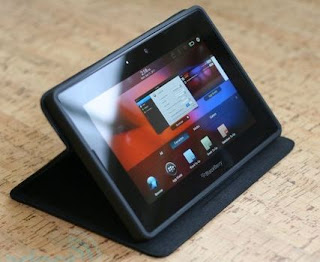 When RIM released the PlayBook 2.0 software update featuring a native calendar, I synced it with my Google Calendar. I wrote about that process in this post. Since I did run into a snag and then found a solution, the post explained both what I did wrong (though it seemed logical to me at the time) along with what I did to get the sync happening.
When in my home office, I rely on the Google Calendar on my desktop computer. When I am anywhere else, I rely on my phone's calendar. I rarely refer to the PlayBook's calendar, and therefore just realized only one of my Google Calendars (the main) one was syncing.
If it's just as easy to have something working 100% as not, I figured a Google search would probably reveal someone else who had the same problem and someone who found a solution. (That last sentence reminds me of a recent post I wrote.) I was correct. After throwing some search terms into Google, in less than 30 seconds, an article exactly on-point on the screen.
In "How to Sync Multiple Gmail Calendars on Your BlackBerry PlayBook," Kerri Neill explains step-by-step what to do. Rather than repeat the directions here, I invite you to read her thoughtful post at the link provided.
The only part of the instructions that caused me a little pause came towards the end: "Once you see a message saying all settings have changed, you can reset your browser settings and you're all set!" I was a little unsure what "resetting my browser settings meant." So, I tried the following steps:
I realize this post is applicable only to a specific subset of readers, those whose tablet is a PlayBook and need to sync multiple Google Calendars. However, for that subset of readers, the instructions I reference may make a huge difference.
- My calendar is the main calendar, telling me where I am supposed to be.
- My wife's calendar lets me know about her commitments. Knowing where she will be at any given time is important information for me to have.
- An "FYI" calendar lets me know about events which may be of interest or may impact decisions I will make.
My phone of choice is an Android. The day I purchased it and logged into Gmail, all three of my Google Calendars appeared and have synced beautifully ever since.
 When RIM released the PlayBook 2.0 software update featuring a native calendar, I synced it with my Google Calendar. I wrote about that process in this post. Since I did run into a snag and then found a solution, the post explained both what I did wrong (though it seemed logical to me at the time) along with what I did to get the sync happening.
When in my home office, I rely on the Google Calendar on my desktop computer. When I am anywhere else, I rely on my phone's calendar. I rarely refer to the PlayBook's calendar, and therefore just realized only one of my Google Calendars (the main) one was syncing.
If it's just as easy to have something working 100% as not, I figured a Google search would probably reveal someone else who had the same problem and someone who found a solution. (That last sentence reminds me of a recent post I wrote.) I was correct. After throwing some search terms into Google, in less than 30 seconds, an article exactly on-point on the screen.
In "How to Sync Multiple Gmail Calendars on Your BlackBerry PlayBook," Kerri Neill explains step-by-step what to do. Rather than repeat the directions here, I invite you to read her thoughtful post at the link provided.
The only part of the instructions that caused me a little pause came towards the end: "Once you see a message saying all settings have changed, you can reset your browser settings and you're all set!" I was a little unsure what "resetting my browser settings meant." So, I tried the following steps:
- I returned to the screen where I had changed "false" to "true" and changed the URL back to "false."
- In my browser, I selected Tools > Options > Content and enabled Javascript by checking the box.
I realize this post is applicable only to a specific subset of readers, those whose tablet is a PlayBook and need to sync multiple Google Calendars. However, for that subset of readers, the instructions I reference may make a huge difference.
Wednesday, April 17, 2013
Friday's Illinois Principals Association Online Academy
I had a great time Friday presenting an online class for the Illinois Principals Association Online Academy. Entitled Time Management: The 5 Keys to Total Control and Peace of Mind, the 3-hour interactive webinar was designed to give practicing administrators practical tools to help them accomplish more, stay on top of their workdays, and experience less stress.

Here are comments from participants:

Here are comments from participants:
- The presentation provided a wealth of information for the tech savvy person as well as the old school paper and pencil person.
- He was wonderful. Loved his style!
- This was wonderful! It was really a great seminar.
- This was a very valuable course. I tend to get caught up in the "no time zone" and feeling as if I don't have time to get to the many piles on my desk. Dr. Buck gave some great organizational tools that I plan to implement!
- Thank you! This is the first Online Academy I have participated in, it won't be my last.
- This was my first Online Academy. I didn't think I would enjoy the Online sessions as much as the in person ones, but I really enjoyed this and found the interactions with the other attendees to be fun and enjoyable, too!
- This webinar got to the heart of how to tame the paper monster! I loved it!
- This was one of the best conferences I have ever attended, in person or otherwise. Definitely worth the time to do!
- I wasn't sure I would like this format, but really did. It provided me with a different way to learn valuable material.
- This was one of the most helpful AA I have ever taken. Lots of great ideas to get organized!!
- I enjoyed the online academy. I was able to get great information and stay within district.
Monday, April 15, 2013
When "Good" Gives Way to "Better"
The world of technology moves quickly, offers tools which make our lives more productive, and often yields tools upon which we come to depend. But what if we wake up one day to find something we have come to depend on ceases to exist?
What it that company stops making that software? What if that website is discontinued? What if they stop making computers with CD-ROM drives? The list of "what ifs" can get long.
Rather than worry about what will happen when it's gone, enjoy it while it's here. So often, the "what if" of the future stops us from using and enjoying tools which can make our lives better right now.
What??? No more Google Reader?
 On March 13, countless thousands of people went to their Google Reader feeds and were confronted with a most disturbing message. If you are not familiar with Google Reader and why it is important, my blog post from March 20 explains it. It's a service I have been using daily for over 4 years. Within days, over 1 million people signed an online petition to keep it.
But just as much of the tech world was expressing outrage over the demise of something good, others were posting their opinions about what could be better. By the end of the day, I had an alternative, and wrote about it in that March 20th post. By the next day, I was not missing Google Reader one bit.
Google Reader is but one example
If you hesitate to adopt a piece of software or service for fear that one day, it will cease to exist, let me put your fears to rest. One day, it will cease to exist. You can count on it. Get used to it. The good news is that when something good disappears, something better takes its place. Our world is too connected for a void to exist without enterprising people knowing about it and working on a way to fill it.Our world is too connected for someone to have invented a better mousetrap and the news not to spread.
Google Reader is but one example of a service which I depended upon that was "here today and gone tomorrow." Rather than worry about what will happen when it's gone, enjoy it while it's here. Trust that somewhere down the road, something even better will come along.
"When you walk to the edge of all the light you have and take that first into the darkness of the unknown, you must believe that one of two things will happen: There will be something solid to stand upon, or you will be taught how to fly."
—Patrick Overton Rebuilding the Front Porch of America
What it that company stops making that software? What if that website is discontinued? What if they stop making computers with CD-ROM drives? The list of "what ifs" can get long.
Rather than worry about what will happen when it's gone, enjoy it while it's here. So often, the "what if" of the future stops us from using and enjoying tools which can make our lives better right now.
What??? No more Google Reader?
 On March 13, countless thousands of people went to their Google Reader feeds and were confronted with a most disturbing message. If you are not familiar with Google Reader and why it is important, my blog post from March 20 explains it. It's a service I have been using daily for over 4 years. Within days, over 1 million people signed an online petition to keep it.
But just as much of the tech world was expressing outrage over the demise of something good, others were posting their opinions about what could be better. By the end of the day, I had an alternative, and wrote about it in that March 20th post. By the next day, I was not missing Google Reader one bit.
Google Reader is but one example
If you hesitate to adopt a piece of software or service for fear that one day, it will cease to exist, let me put your fears to rest. One day, it will cease to exist. You can count on it. Get used to it. The good news is that when something good disappears, something better takes its place. Our world is too connected for a void to exist without enterprising people knowing about it and working on a way to fill it.Our world is too connected for someone to have invented a better mousetrap and the news not to spread.
Google Reader is but one example of a service which I depended upon that was "here today and gone tomorrow." Rather than worry about what will happen when it's gone, enjoy it while it's here. Trust that somewhere down the road, something even better will come along.
"When you walk to the edge of all the light you have and take that first into the darkness of the unknown, you must believe that one of two things will happen: There will be something solid to stand upon, or you will be taught how to fly."
—Patrick Overton Rebuilding the Front Porch of America
Friday, April 12, 2013
Google Reader to Feedly Revisited

The March 20 post came on the heels of a Google announcement which caught the attention of many people. While some see it as a major event, I see it as part of a continuum. Furthermore, this strand of posts chronicles other similar examples, examples of good services which ceased to exists and are replaced by better services. Which we talked about Google and Feedly on March 20, I think it's appropriate to replay much of that content here as the penultimate post in this series.
Enter Google Reader
...all I had to do was look in one place. As of July 1, that one place will be gone. Just over four years ago, I began using Google Reader as my RSS aggregator. I wrote about my start in this post. For over four years, Google Reader has allowed me to identify the sources from which I want to learn, and then it has corralled content from those sources. From there, all I had to do was look in one place. As of July 1, that one place will be gone.
On March 13, many thousands of us clicked on Google Reader and saw the image you see above. In the hours that followed, blog posts were lighting up with anything from disbelief to outrage, to the feeling than the sunsetting of Google Reader was inevitable. How did I learn of these posts? The same way I have learned about so much else for over four years...through Google Reader.
How ironic it was to learn of the demise of Google Reader on Google Reader. What was even more ironic was to learn about alternatives to Google Reader by reading Google Reader. One after another, blog posts began to talk about "Feedly.com." Before the day was out, I was up and running with my own Feedly account.
Getting started
Creating an account at Feedly.com was quick and easy. Immediately, Feedly wanted to access my Google Reader and bring in all of the subscriptions. Instantly, Feedly was displaying all of the unread articles from Google Reader. Clicking on "Saved" revealed all of the articled I had "starred" in Google Reader for later reading.
When I reached the bottom of the page, I saw a small "mark page as read" link. Clicking it and refreshing the page cleared all of the articles and presented me with the next page of fresh, unread ones.
Seeing the announcement that Google Reader was sunsetting struck a note of fear in the hearts of many thousands. But, the same day, I was introduced to something I quickly found that clicking the ribbon icon on any article marked it as "saved." This action was the parallel to "starring" an item in Google Reader. When accessing Feedly, clicking on "Saved" in the left-hand column took me to the items I had marked to save for later reading. Clicking the ribbon icon on a saved article toggled it to "unsaved," causing it to disappear from the list.
Be sure to visit the "Preferences" link in the left-hand column. Experiment with the "Default View." You can choose between magazine, condensed, mosaic, cards, or full articles.I would recommend trying each one to see which you like best.
Mobile App
On my Android phone, I downloaded the Feedly app from Google Play. An app for iPhone is also available. You will want to visit the "Preferences" menu on the mobile app. I accessed it by touching an icon in the upper-left corner of the screen. On the "Advanced Settings" in the Preferences menu, I checked "Auto Mark as Read," so that when I read or scroll past an article, unless I mark it as "saved," it's gone the next time I access Feedly.
You may want to adjust the "Article Font Size." Also, experiment with the "Default View" to see what appearance you like best.
Our mobile devices allow us to function from anywhere. In most cases, however, we work best at our desktop computers. It's hard for a single, small screen to keep pace with my large dual-monitor setup. It's hard for two thumbs on a piece of glass to do what the fingers of two hands can do on a keyboard.
Using Feedly on my phone is proving to be an even better experience than viewing it on my computer. For this reason, reading Feedly becomes something I can do from anywhere. Because I can read just one article or the entire feed during any given session, it becomes a perfect option for filling spare minutes. I can read it while in line at the grocery store or waiting for an appointment.
Passing good content on to others through social networking is important. I am able to that so as easy from my phone as I can on my desktop computer. Icons allow for instant sharing on Facebook or Twitter. Another icon allows me to share an article through other options.
For example, I use Hootsuite on my desktop to organize social media content. I also have a Hootsuite app on my phone. While reading an article in Feedly, I can choose to share an article through Hootsuite. Hootsuite lets me decide whether the article goes to Twitter, Facebook, Linkedin, Google+, or any combination thereof. In addition, I am able to schedule a day and time when the item will be shared.
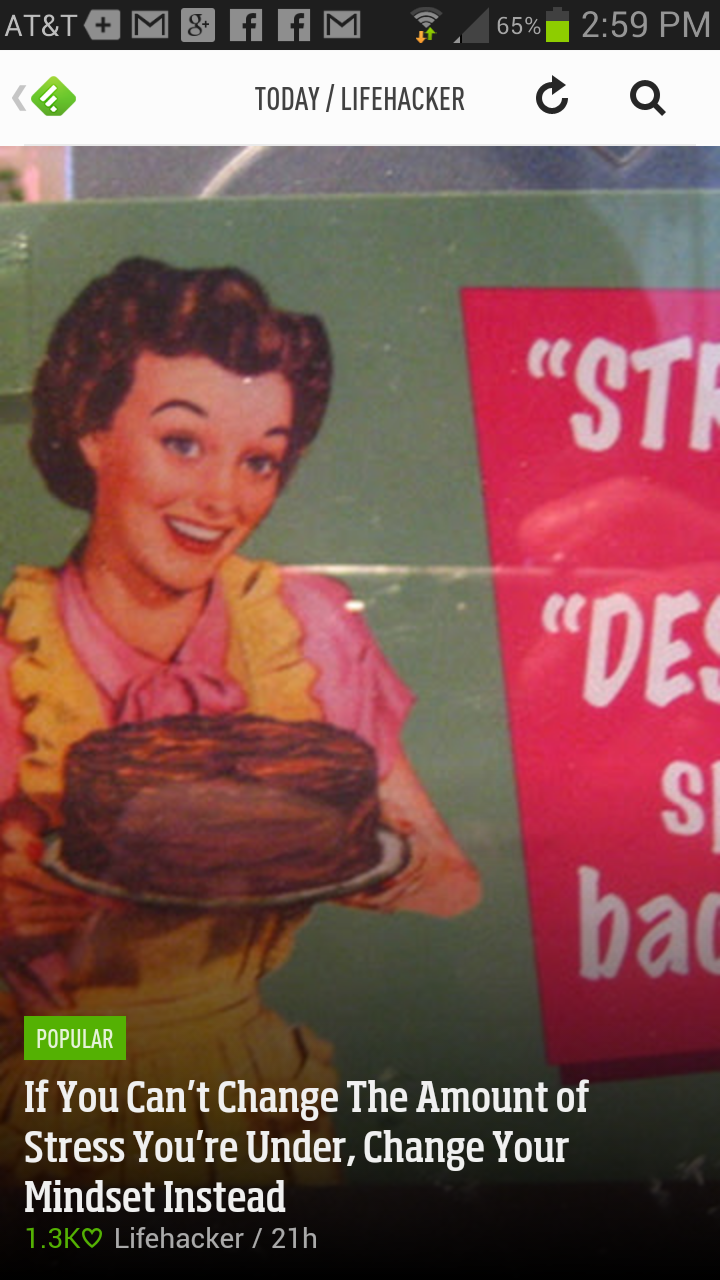 One of the features sure to become a favorite is Feedly's appearance You see beautiful images together with the title and snippet of each article. You skim articles by simply sliding through them with a thumb. Sliding upwards advances to the next article or page. Sliding downwards allows you to move backwards. Tapping on a article opens it.
 Every cloud has a silver lining
The example you see to the right is a screen shot of a Feedly article on my phone. Not only does it give you an idea of how attractive this app displays, but the particular example gives us some good advice. We can change our mindset. The next time one of the services we have used goes belly-up, rather than choose a mindset of bemoaning what we lost, we can anticipate something better will takes its place.
Seeing the announcement that Google Reader was sunsetting struck a note of fear in the hearts of many thousands. But, the same day, I was introduced to something better. As a bonus, because all of the talk in the media about Google Reader sunsetting and the alternatives available, droves of people who had never heard of RSS are being introduced to it. You may be one of them.
Get started today
You may want to print this post. Or, you may open a new browser window so that you can have this post available as you set up your Feedly account. The content will make so much more sense when you read it while viewing Feedly at the same time.
Go to http://Feedly.com and create an account. If you already have Google Reader, you will be prompted to bring its content into Feedly. If not, click on the "add websites" button in the left-hand column. There, you will be given suggestions of sites to add. You can use the search window to enter the title or url of a blog you like. You could enter my name, "Frank Buck," or my url "http://FrankBuck.blogspot.com" to add it to Feedly.
Go to your phone and tablet to download the Feedly app. Log in using your username and password. On any of your devices, visit the "Preferences" menu, as we discussed earlier.
Every day, I learn something new. Often, I learn it from someone I never met. The knowledge is out there and free for the taking. Every one of us can get better at whatever it is we do. Every day, other people are posting great ideas which can help us on our various journeys. Tools such as Feedly allow all the great content to go one place. That deal is too good not to take.
Wednesday, April 10, 2013
From iGoogle to igHome

Good things will go away, and when they do, they are replaced with better things.
In February, I wrote about my experiences with igHome the personalized homepage I am now using.I am talking about it in this post because it fits with the theme of this thread of posts...good services we depend on that later cease to exist.
I had used iGoogle as my homepage for years. One evening, I opened my browser to see an announcement that iGoogle will no longer be available after November 1, 2013. The announcement left me and many others scrambling for an alternative.
 As with the other posts in this thread, there was an alternative, in fact several of them.Within the same day, I found and created an account at Netvibes.com.
While Netvibes was good, what I liked even better is an alternative which seems to have been created to fill the void left by iGoogle. igHome retained the look and feel of of iGoogle. The page even includes the black bar at the top, which takes you to Google Calendar, Gmail, YouTube, etc. The only difference is that with igHome, you can customize that black bar to include links to any sites you want.
You can add your own gadgets by clicking the "Add Gadgets" button in the upper-right corner. There, you can enter a subject in the search window and see whether or not the gadget you want exists. On the left-hand side of the screen, a list of categories is visible. Clicking on any category name reveals a list of suggested gadgets.

The page even includes a link to leave a suggestion for a new gadget. My experience has been that the library of gadgets is rich, and virtually everything I had on my iGoogle page is also available on igHome. I am finding the selections on igHome to be better than what is available of Netvibes.
The creator of igHome is responsive to suggestions. He has a good system in place for taking requests and providing feedback on the status of those requests. For example, I found the Google Calendar gadget would display only the main Google Calendar, whereas I also have a second calendar which tracks my wife's appointments, and a third containing "FYI" events. I asked about the possibility of being able to show multiple Google calendars in igHome. Within just a couple of weeks, that capability was there.
Good things will go away, and when they do, they are replaced with better things.
Do you use a personal homepage, and if so, which one? Anyone else using igHome?
Monday, April 08, 2013
From Tungle to "Schedule Once"
Good things will go away, and when they do, they are replaced with better things.
If your day is filled with one-on-one meetings, scheduling those meetings can consume a considerable amount of time and energy. You play telephone tag with the other person, suggesting dates and times, and then you wait to hear back from the other person. Invariably, your suggestions don't work for the other person. When they respond with their suggestions, those don't work with your schedule. Suggesting dates and times by email doesn't work any better.
 Wouldn't it be good if you knew on the front end when the other person was available? That way, you could suggest times you knew would work for both of you?
"Tungle" was a service which did exactly that, and did it for free. I used it. I suggested it to others. But all of that came to a screeching halt in December 2012. Research In Motion, which operated Tungle, pulled that team to work on the calendar for BlackBerry10.
What I didn't know was that other services were available that did much the same thing. Of course, I didn't really care. I had Tungle, that is, until the announcement that it would soon be sunsetting.
Now, I was actively searching for another source that would fill my needs. What I found was others were searching for a Tungle replacement and writing about their findings. Those who operated other services were actively spreading the word, hoping to attract Tungle users.
What I settled upon is Schedule Once. After a few minutes, I was up and going. All I had to do was make my personal URL available to other people.In fact, you can click that link and see exactly what anybody who wants to schedule a one-on-one meeting with me will see.
What you see on the screen is what other people would see. They click on a day they want to meet with me.

They see a list of the times that day I am available. They click one or more. They get a little form to complete where they can tell you what they want to talk about. You get an email with a link to click.

I see the times they have requested. I move the slider over the one I want and click "schedule in calendar." You both get an email confirmation. The meeting automatically goes on your calendar.
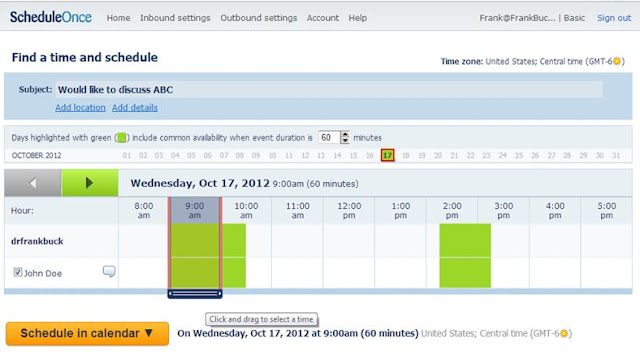
When you create an account, you can set the hours that are "fair game." You will be presented with a screen that presents the default of Monday through Friday 9:00-5:00. But you also get a link that takes you to this screen, where you can set your own times. Here you just click green areas to turn them white or click white areas to turn them green. If you want don’t want people to be able to sign up between noon and 1:00, just turn that white. If you want to reserve Friday afternoon to clean up everything that has happened during the week, click to turn all of it white.


If your day is filled with one-on-one meetings, scheduling those meetings can consume a considerable amount of time and energy. You play telephone tag with the other person, suggesting dates and times, and then you wait to hear back from the other person. Invariably, your suggestions don't work for the other person. When they respond with their suggestions, those don't work with your schedule. Suggesting dates and times by email doesn't work any better.
 Wouldn't it be good if you knew on the front end when the other person was available? That way, you could suggest times you knew would work for both of you?
"Tungle" was a service which did exactly that, and did it for free. I used it. I suggested it to others. But all of that came to a screeching halt in December 2012. Research In Motion, which operated Tungle, pulled that team to work on the calendar for BlackBerry10.
What I didn't know was that other services were available that did much the same thing. Of course, I didn't really care. I had Tungle, that is, until the announcement that it would soon be sunsetting.
Now, I was actively searching for another source that would fill my needs. What I found was others were searching for a Tungle replacement and writing about their findings. Those who operated other services were actively spreading the word, hoping to attract Tungle users.
What I settled upon is Schedule Once. After a few minutes, I was up and going. All I had to do was make my personal URL available to other people.In fact, you can click that link and see exactly what anybody who wants to schedule a one-on-one meeting with me will see.
What you see on the screen is what other people would see. They click on a day they want to meet with me.

They see a list of the times that day I am available. They click one or more. They get a little form to complete where they can tell you what they want to talk about. You get an email with a link to click.

I see the times they have requested. I move the slider over the one I want and click "schedule in calendar." You both get an email confirmation. The meeting automatically goes on your calendar.

When you create an account, you can set the hours that are "fair game." You will be presented with a screen that presents the default of Monday through Friday 9:00-5:00. But you also get a link that takes you to this screen, where you can set your own times. Here you just click green areas to turn them white or click white areas to turn them green. If you want don’t want people to be able to sign up between noon and 1:00, just turn that white. If you want to reserve Friday afternoon to clean up everything that has happened during the week, click to turn all of it white.

Then you see this very important message. You are going to link your
calendar to ScheduleOnce. On this same screen, you see another capability of Schedule Once. While t
handles people scheduling meetings with you, it also handles when you
are trying to schedule a meeting with a group of people and trying to
find a best time for everyone to meet.

Tungle shut down, and I lost something good.The void left me open to finding something better. Good things will go away, and when they do, they are replaced with better things.
Anyone using Schedule Once? What do you like or not like? Anyone using a similar service?
Friday, April 05, 2013
Social Bookmarking: From Delicious to "Google Bookmarks"
Good things will go away, and when they do, they are replaced with better things.
When you and I first began exploring the Internet, one of the concept we learned early was how to "bookmark" or "favorite" a site. That technique kept us from having to re-type the URL each time we went to a commonly-used site. The downside was that making a URL a "favorite" on one computer did nothing on any other computer. Furthermore, if someone else was interested in what sites we have made a "favorites," we have efficient way to share the list which them.

Enter "social bookmarking" and a site called "Delicious." Delicious allowed you to save your "favorites" on a website. You could then go to Delicious from any computer and access all of the items. Delicious allowed you to "tag" each favorite with one or more subjects. You could then search for a tag and find all of your sites to which you had attached that tag.
The only problem was an announcement that Delicious was going to sunset. As it turned out, that did not happen, but droves of people immediately began looking for an alternative. I was one of them. The replacement quickly cam in the form of Google Bookmarks.
If you already have a Google account, log into it, and then go to Google Bookmarks. You will see a line which states, "Bookmark pages more easily. Drag this bookmarklet to the Bookmarks bar of your browser." Follow that little set of instructions. In fact, you will want to perform this same operation on each of your computers, because it provides a quick and easy way to add items to Google Bookmarks.
When you visit a website and decide you wish to add that site to Google Bookmarks, simply click that little bookmarklet. A box appears with the title of the website and URL already completed. All you have to do is add whatever tags you wish. You can also add optional comments. When you save, the box closes, and you have just added that site to your Google Bookmarks.
As you enter a tag, suggestions appear with tags you have already used. This feature is a time-saver and also helps prevent typos in your tags. Want to find all the sites which have been assigned a certain tag? Simply go to Google Bookmarks and click one of the tags in the left-hand column. You will see only the sites to which you had assigned that tag.
Incidentally, I can get to Google Bookmarks with one click. On my igHome personalized homepage, I can set the links on the black bar at the top of the page to anything I wish. I have one of them labeled "Google Bookmarks."
Without a doubt, the day will come when Google Bookmarks will cease to exist. I am also confident that when that say happens, something better will have come along.
Good things will go away, and when they do, they are replaced with better things.
When you and I first began exploring the Internet, one of the concept we learned early was how to "bookmark" or "favorite" a site. That technique kept us from having to re-type the URL each time we went to a commonly-used site. The downside was that making a URL a "favorite" on one computer did nothing on any other computer. Furthermore, if someone else was interested in what sites we have made a "favorites," we have efficient way to share the list which them.

Enter "social bookmarking" and a site called "Delicious." Delicious allowed you to save your "favorites" on a website. You could then go to Delicious from any computer and access all of the items. Delicious allowed you to "tag" each favorite with one or more subjects. You could then search for a tag and find all of your sites to which you had attached that tag.
The only problem was an announcement that Delicious was going to sunset. As it turned out, that did not happen, but droves of people immediately began looking for an alternative. I was one of them. The replacement quickly cam in the form of Google Bookmarks.
If you already have a Google account, log into it, and then go to Google Bookmarks. You will see a line which states, "Bookmark pages more easily. Drag this bookmarklet to the Bookmarks bar of your browser." Follow that little set of instructions. In fact, you will want to perform this same operation on each of your computers, because it provides a quick and easy way to add items to Google Bookmarks.
When you visit a website and decide you wish to add that site to Google Bookmarks, simply click that little bookmarklet. A box appears with the title of the website and URL already completed. All you have to do is add whatever tags you wish. You can also add optional comments. When you save, the box closes, and you have just added that site to your Google Bookmarks.
As you enter a tag, suggestions appear with tags you have already used. This feature is a time-saver and also helps prevent typos in your tags. Want to find all the sites which have been assigned a certain tag? Simply go to Google Bookmarks and click one of the tags in the left-hand column. You will see only the sites to which you had assigned that tag.
Incidentally, I can get to Google Bookmarks with one click. On my igHome personalized homepage, I can set the links on the black bar at the top of the page to anything I wish. I have one of them labeled "Google Bookmarks."
Without a doubt, the day will come when Google Bookmarks will cease to exist. I am also confident that when that say happens, something better will have come along.
Good things will go away, and when they do, they are replaced with better things.
Wednesday, April 03, 2013
From Jott to reQall
Good things will go away, and when they do, they are replaced with better things. That's a principle I am seeing play out time and time again in the world of technology. It's also a principle that we see demonstrated in many areas of life. In this series of posts, we will examine some of the tools which served me well...until they ceased to exist. The over-arching theme is that what is good gets replaces by something that is better.
In December 2007, I posted "Who Do You Want to Jott?" It was a service that let me call a phone number I had stored my phone's contacts as a speed dial, leave a voice message, and have that message show up in my email with everything I had said transcribed into text. When I handled my email, I would also handle the message.
Like the other posts you will read in this thread, I found myself without Jott. Well...not exactly. Jott was still there, but it was no longer free. I started searching the Internet to see if there was something else that did the same thing. I found the answer in this post.
reQall has been serving as an alternative ever since. This video gives you an idea of some practical applicationsl:
If you visit the reQall site today, you will see that they are now transitioning to be more of a Siri-like service. The site shows them to accepting beta testers for the new service they will unveil:
Voice input is something that began for me with Jott. When the service was no longer free for me and others, it was a disappointment. But the disappointment did not last long. Probably nothing has come further in the last several years than the concept of voice input on our mobile devices. An upcoming post on Google Now will illustrate what I mean. Check back in a couple of weeks for that one
Good things will go away, and when they do, they are replaced with better things.
In December 2007, I posted "Who Do You Want to Jott?" It was a service that let me call a phone number I had stored my phone's contacts as a speed dial, leave a voice message, and have that message show up in my email with everything I had said transcribed into text. When I handled my email, I would also handle the message.
Like the other posts you will read in this thread, I found myself without Jott. Well...not exactly. Jott was still there, but it was no longer free. I started searching the Internet to see if there was something else that did the same thing. I found the answer in this post.
reQall has been serving as an alternative ever since. This video gives you an idea of some practical applicationsl:
If you visit the reQall site today, you will see that they are now transitioning to be more of a Siri-like service. The site shows them to accepting beta testers for the new service they will unveil:
Voice input is something that began for me with Jott. When the service was no longer free for me and others, it was a disappointment. But the disappointment did not last long. Probably nothing has come further in the last several years than the concept of voice input on our mobile devices. An upcoming post on Google Now will illustrate what I mean. Check back in a couple of weeks for that one
Good things will go away, and when they do, they are replaced with better things.
Monday, April 01, 2013
This post is a personal one, yet helps illustrate the advantages of having a blog.
Our nephew, B.J. Bonner, was accepted into the NOAA Corps. For the past several months, he and his colleagues have undergone extensive training to prepare them to be officers. Following graduation, the new officers begin their assignments on their respective NOAA ships.
Each officer candidate is allowed to list a top choice, but no candidate is guaranteed this preference will be honored. What you will see in this video is part of a ceremony where each officer candidate finds out the ship assignment, an assignment which will last for the next two to three years.
Davonia and I viewed the video on an email newsletter from NOAA. Naturally, we wanted to save the video, although we did not necessarily want to save the entire newsletter. So, exactly how would we extract and save the video?
I saw an embed code in the newsletter. Highlighting and copying it was the key. After creating a new blog post, the one you are reading now, I pasted the embed code into the new post.
For those who are using Blogger for their platform, but may still be relatively early in the process, when you compose a new post, you see two tabs: "Compose" and "HTML." You want to click the HTML tab and then paste the embed code there. While that embed code looks pretty cryptic, it is what causes the video to display in the blog post.
While you and I may have a Facebook page or a Twitter account, your blog is the one place you "own." I can come back to this post a week from now or a year from now and view this video. I can give someone the URL for this particular post. A person can come to this blog and search for this post using the search box in the sidebar.
What you are seeing in this post is one of the reasons I blog. I can post anything here that is important to me, and know it will always be here for me and others to enjoy.
Our nephew, B.J. Bonner, was accepted into the NOAA Corps. For the past several months, he and his colleagues have undergone extensive training to prepare them to be officers. Following graduation, the new officers begin their assignments on their respective NOAA ships.
Each officer candidate is allowed to list a top choice, but no candidate is guaranteed this preference will be honored. What you will see in this video is part of a ceremony where each officer candidate finds out the ship assignment, an assignment which will last for the next two to three years.
Davonia and I viewed the video on an email newsletter from NOAA. Naturally, we wanted to save the video, although we did not necessarily want to save the entire newsletter. So, exactly how would we extract and save the video?
I saw an embed code in the newsletter. Highlighting and copying it was the key. After creating a new blog post, the one you are reading now, I pasted the embed code into the new post.
For those who are using Blogger for their platform, but may still be relatively early in the process, when you compose a new post, you see two tabs: "Compose" and "HTML." You want to click the HTML tab and then paste the embed code there. While that embed code looks pretty cryptic, it is what causes the video to display in the blog post.
While you and I may have a Facebook page or a Twitter account, your blog is the one place you "own." I can come back to this post a week from now or a year from now and view this video. I can give someone the URL for this particular post. A person can come to this blog and search for this post using the search box in the sidebar.
What you are seeing in this post is one of the reasons I blog. I can post anything here that is important to me, and know it will always be here for me and others to enjoy.
Friday, March 29, 2013
A Cautionary Tale
One of the great "school" movies of all times is Mr. Holland's Opus. Those who have seen it cannot cannot forget the finale. Budget cuts were scheduled to eliminate the program this man had worked his whole career to build. A defeated Glenn Holland walked into an auditorium filled with supporters and a stage teaming with students from days gone by. All had come to pay tribute to a man and a program who had meant much to them.
At one dramatic moment, the doors to the auditorium fling wide and in walks the governor, a figure we had seen much earlier in the movie as a struggling young clarinet player. She takes the podium and begins a stirring tribute to her teacher:
I kept waiting for the moment the governor would announce that under no circumstances would funding for a program which had done so much for so many be cut. I waited...and waited...but that proclamation never came. After all was said and done, Glenn Holland began his retirement, and the music program became history.
What a poor ending! What were the writers thinking? What kind of message does it send when the governor praises the teacher and the program, yet does nothing to save it?
I was expecting the governor to make everything right. I was expecting the "good guys" to win. And I was expecting it all to happen while I sat comfortably in my chair and watched. Surely I would be walking out of the theater affirmed that as long as music programs offer quality and help children grow up whole, those music programs have nothing to fear. Someone will look out for them.
Little by little, I began to realize that this movie ended correctly. The message was clear. As long as good people sit back and do nothing, quality programs will perish with little thought given as to the void which will be left. The challenge clearly issued to every one of us in that movie theater was the challenge to make sure that what happened on that screen would not repeat itself in our communities.
Richard Dreyfuss played the starring role of Glenn Holland. An Academy Award nominee for his performance, these are the remarks that he made at the 38th Anuual Grammy Awards:
This evening is a celebration of music, the artists who create it, and the phenomenon of creativity itself. Now, there are two realities in this movie (Mr. Holland's Opus). One is the life of a teacher, a reality of defeats and victories, like all of our lives, --but one that ends as a celebration. The other reality is the loss of music in the schools in the same America and that is hardly a celebration.
For some strange reason, when it comes to music and the arts, our world view has led us to believe they are easily expendable. Well, I believe that a nation that allows music to be expendable is in danger of becoming expendable itself.
Perhaps we've all misunderstood the reason we learn music, and all the arts, in the first place. It is not only so a student can learn the clarinet, or another student can take an acting lesson. It is that for hundreds of years it has been known that teaching the arts, along with history and math and biology, helps to create The Well Rounded Mind that western civilization, and America, have been grounded on. America's greatest achievements -- in science, in business, in popular culture, would simply not be attainable without an education that encourages achievement in all fields. It is from that creativity and imagination that the solutions to our political and social problems will come. We need that Well Rounded Mind, now. Without it, we simply make more difficult the problems we face.
There's a general feeling growing in this country lately that we simply spend too much money ... that we can't afford to give our children the education we grew up with. This is an insane anxiety that allows us to forget that we are, after all, the richest country on Earth, and that the real question is not what we can't pay for, but rather how can we efficiently pay for the kind of public education we all want and need.
Cutting these programs, then, is like tying our children's hands behind their backs, and I don't think anyone really wants to do that ... we hope for too much for our kids, and for our country. We are parents, most of us, and we are citizens, all of us. Don't let this happen, I urge you."
As "Music in Our Schools Month" draws to a close, the challenge before us is not only to sustain, but expand the kinds of programs which will allow our country and its citizens to thrive in the decades ahead. All around us are people who owe much of what they have accomplished to the creativity, discipline, imagination, appreciation of quality, and preference for quality they learned in a music program somewhere along the way. Whether or not those opportunities will be there in the years to come will be up to us.
At one dramatic moment, the doors to the auditorium fling wide and in walks the governor, a figure we had seen much earlier in the movie as a struggling young clarinet player. She takes the podium and begins a stirring tribute to her teacher:
I kept waiting for the moment the governor would announce that under no circumstances would funding for a program which had done so much for so many be cut. I waited...and waited...but that proclamation never came. After all was said and done, Glenn Holland began his retirement, and the music program became history.
What a poor ending! What were the writers thinking? What kind of message does it send when the governor praises the teacher and the program, yet does nothing to save it?
I was expecting the governor to make everything right. I was expecting the "good guys" to win. And I was expecting it all to happen while I sat comfortably in my chair and watched. Surely I would be walking out of the theater affirmed that as long as music programs offer quality and help children grow up whole, those music programs have nothing to fear. Someone will look out for them.
Little by little, I began to realize that this movie ended correctly. The message was clear. As long as good people sit back and do nothing, quality programs will perish with little thought given as to the void which will be left. The challenge clearly issued to every one of us in that movie theater was the challenge to make sure that what happened on that screen would not repeat itself in our communities.
Richard Dreyfuss played the starring role of Glenn Holland. An Academy Award nominee for his performance, these are the remarks that he made at the 38th Anuual Grammy Awards:
This evening is a celebration of music, the artists who create it, and the phenomenon of creativity itself. Now, there are two realities in this movie (Mr. Holland's Opus). One is the life of a teacher, a reality of defeats and victories, like all of our lives, --but one that ends as a celebration. The other reality is the loss of music in the schools in the same America and that is hardly a celebration.
For some strange reason, when it comes to music and the arts, our world view has led us to believe they are easily expendable. Well, I believe that a nation that allows music to be expendable is in danger of becoming expendable itself.
Perhaps we've all misunderstood the reason we learn music, and all the arts, in the first place. It is not only so a student can learn the clarinet, or another student can take an acting lesson. It is that for hundreds of years it has been known that teaching the arts, along with history and math and biology, helps to create The Well Rounded Mind that western civilization, and America, have been grounded on. America's greatest achievements -- in science, in business, in popular culture, would simply not be attainable without an education that encourages achievement in all fields. It is from that creativity and imagination that the solutions to our political and social problems will come. We need that Well Rounded Mind, now. Without it, we simply make more difficult the problems we face.
There's a general feeling growing in this country lately that we simply spend too much money ... that we can't afford to give our children the education we grew up with. This is an insane anxiety that allows us to forget that we are, after all, the richest country on Earth, and that the real question is not what we can't pay for, but rather how can we efficiently pay for the kind of public education we all want and need.
Cutting these programs, then, is like tying our children's hands behind their backs, and I don't think anyone really wants to do that ... we hope for too much for our kids, and for our country. We are parents, most of us, and we are citizens, all of us. Don't let this happen, I urge you."
As "Music in Our Schools Month" draws to a close, the challenge before us is not only to sustain, but expand the kinds of programs which will allow our country and its citizens to thrive in the decades ahead. All around us are people who owe much of what they have accomplished to the creativity, discipline, imagination, appreciation of quality, and preference for quality they learned in a music program somewhere along the way. Whether or not those opportunities will be there in the years to come will be up to us.

Wednesday, March 27, 2013
The "Extinction Timeline"
It's always interesting to think about what the future will hold. With the changes we see, especially in technology, it should come as no surprise that tools which we use every single day—and possibly have for our entire lives—will be replaced, possibly sooner than we had expected.

Can you remember when the prediction was that one day, record stores would no longer carry "LPs." The stores would be stocked exclusively compact discs. I thought, "No way." Today, many people under 30 have never seen an LP.
A full 10 years into my teaching career, good advice to every student was to always carry a quarter in case of the need to make a phone call. Good luck finding a pay phone today.
What will be the next staple of today's world that will become tomorrow's dinosaur?
The link below will take you to a graph running from 1950-2050. You can look to see what has become extinct in the last 60 years. The real fun comes in looking looking ahead the next 40.
I had to zoom in on the graph in order to really read the text. There is a great deal of food for thought there.

Can you remember when the prediction was that one day, record stores would no longer carry "LPs." The stores would be stocked exclusively compact discs. I thought, "No way." Today, many people under 30 have never seen an LP.
A full 10 years into my teaching career, good advice to every student was to always carry a quarter in case of the need to make a phone call. Good luck finding a pay phone today.
What will be the next staple of today's world that will become tomorrow's dinosaur?
The link below will take you to a graph running from 1950-2050. You can look to see what has become extinct in the last 60 years. The real fun comes in looking looking ahead the next 40.
I had to zoom in on the graph in order to really read the text. There is a great deal of food for thought there.
What predictions do you see that surprise you?
Monday, March 25, 2013
Updates to Google Forms
I have been a fan of Google Forms for quite a few years. Google has made some recent changes as to how the screens appear and where. This video is particularly good from the standpoint of its simple explanations. What you are seeing are screens following the recent changes.
Those who have attended my workshops will notice a slightly different approach. I create my spreadsheet first, listing my questions across the top of each column which then populate the form. This video shows creating the form first and then viewing the spreadsheet. Either approach works. I prefer to "begin with the end in mind," and therefore start by constructing the spreadsheet into which my data will feed.
Those who have attended my workshops will notice a slightly different approach. I create my spreadsheet first, listing my questions across the top of each column which then populate the form. This video shows creating the form first and then viewing the spreadsheet. Either approach works. I prefer to "begin with the end in mind," and therefore start by constructing the spreadsheet into which my data will feed.
Friday, March 22, 2013
Be Quick—But Don't Hurry
For those who follow college basketball, "March Madness" is upon us. No tournament is complete without references to Coach John Wooden and the dynasty he built at UCLA. The program produced 10 NCAA championships in 12 years. While Coach Wooden passed away just under three years ago, his wisdom lives on. One of his gems was, "Be quick—but don't hurry."

Sometimes, the best thing to do is jump into a task and get it done. Sometimes, the best thing to do is step back, relax, and plan. "March Madness" brings to mind a prime example.
One day, with about an hour and a half left before time to go home, I started a project involving the assimilation of a large amount of data, data which had just become available. My goal was to enter the appropriate parts of the data into a spreadsheet, write needed formulas, and forward to completed project to colleagues as soon as possible.
"No better time than the present to just knock out the whole thing," I thought. For the next hour, I put shoulder to the wheel while watching the clock all along. The clock seemed to be going faster than the progress on the task at hand. In addition, two phone calls which had to be made before leaving weighed heavily on my mind.
With 30 minutes until time to leave the office, it became obvious I had severely underestimated the time required for the task. Furthermore, I was not enjoying what I was doing. At this juncture in my life, I have come to the conclusion that being happy doing what I am doing in the moment ought to be a primary focus. Furthermore, I felt frazzled. I found myself feverishly looking for a particular flash drive only to find it was in the pocket of the coat I was presently wearing!
I made a decision which may turn out to be the best decision of the entire weekend. I put the project in the briefcase. That left 30 minutes to plan my weekend and my Monday. I left the office with a clear picture of what needed to be accomplished that evening, the weekend, and the start of the next week.
Saturday morning, I resumed work on that spreadsheet at home, pulling the needed material from the briefcase. The previous afternoon, I was watching the clock and wondering what I had done to deserve such torture. Now, with a clear head and enough time to accomplish my task, I was having fun. I was relaxed.
During my commute to and from work, I made it a habit to listen to recorded books on CD. It was during that time that I listened to one entitled Be Quick—But Don't Hurry. The book was written by a former UCLA basketball player who recounted his days under the legendary John Wooden. The title refers to that piece of advice Wooden often gave his players. Author Andrew Hill, recounting his playing days with Wooden, says, “Life, like basketball, must be played fast–but never out of control.” At first glance, Wooden's often-quoted maxim, "Be quick—but don't hurry" seems contradictory. In actuality, it could not be more accurate.
When we are relaxed and "in our zone," we can be quick. Everything flows. Everything is effortless. The activity is fun. When we hurry, we make mistakes. We stumble, and find ourselves having to re-do and re-think.
The previous afternoon, I was trying to hurry. The next morning, I was quick. The task was the same. The difference is what was work one day became play the next.
Sometimes, the best thing to do is jump into a task and get it done. Sometimes, the best thing to do is step back, relax, and plan. I think that experience made me better at distinguishing the one from the other.
The master in the art of living makes little distinction between his work and his play, his labor and his leisure, his mind and his body, his information and his recreation, his love and his religion. He hardly knows which is which. He simply pursues his vision of excellence at whatever he does, leaving others to decide whether he is working or playing. To him he's always doing both.
- James Michener
Sometimes, the best thing to do is jump into a task and get it done. Sometimes, the best thing to do is step back, relax, and plan. "March Madness" brings to mind a prime example.
One day, with about an hour and a half left before time to go home, I started a project involving the assimilation of a large amount of data, data which had just become available. My goal was to enter the appropriate parts of the data into a spreadsheet, write needed formulas, and forward to completed project to colleagues as soon as possible.
"No better time than the present to just knock out the whole thing," I thought. For the next hour, I put shoulder to the wheel while watching the clock all along. The clock seemed to be going faster than the progress on the task at hand. In addition, two phone calls which had to be made before leaving weighed heavily on my mind.
With 30 minutes until time to leave the office, it became obvious I had severely underestimated the time required for the task. Furthermore, I was not enjoying what I was doing. At this juncture in my life, I have come to the conclusion that being happy doing what I am doing in the moment ought to be a primary focus. Furthermore, I felt frazzled. I found myself feverishly looking for a particular flash drive only to find it was in the pocket of the coat I was presently wearing!
I made a decision which may turn out to be the best decision of the entire weekend. I put the project in the briefcase. That left 30 minutes to plan my weekend and my Monday. I left the office with a clear picture of what needed to be accomplished that evening, the weekend, and the start of the next week.
Saturday morning, I resumed work on that spreadsheet at home, pulling the needed material from the briefcase. The previous afternoon, I was watching the clock and wondering what I had done to deserve such torture. Now, with a clear head and enough time to accomplish my task, I was having fun. I was relaxed.
During my commute to and from work, I made it a habit to listen to recorded books on CD. It was during that time that I listened to one entitled Be Quick—But Don't Hurry. The book was written by a former UCLA basketball player who recounted his days under the legendary John Wooden. The title refers to that piece of advice Wooden often gave his players. Author Andrew Hill, recounting his playing days with Wooden, says, “Life, like basketball, must be played fast–but never out of control.” At first glance, Wooden's often-quoted maxim, "Be quick—but don't hurry" seems contradictory. In actuality, it could not be more accurate.
When we are relaxed and "in our zone," we can be quick. Everything flows. Everything is effortless. The activity is fun. When we hurry, we make mistakes. We stumble, and find ourselves having to re-do and re-think.
The previous afternoon, I was trying to hurry. The next morning, I was quick. The task was the same. The difference is what was work one day became play the next.
Sometimes, the best thing to do is jump into a task and get it done. Sometimes, the best thing to do is step back, relax, and plan. I think that experience made me better at distinguishing the one from the other.
The master in the art of living makes little distinction between his work and his play, his labor and his leisure, his mind and his body, his information and his recreation, his love and his religion. He hardly knows which is which. He simply pursues his vision of excellence at whatever he does, leaving others to decide whether he is working or playing. To him he's always doing both.
- James Michener
Wednesday, March 20, 2013
From Google Reader to Feedly
Reading blogs is a great way to stay on top of what is happening in your field, regardless of what that field may be. The problem becomes that the more good blogs you identify, the more time is required to visit each one. The solution is called "RSS" (really simple syndication). While the concept has been around for quite a few years, the vast majority of people don't know about it.
To use RSS, you select a piece of software called an "aggregator." Using the aggregator, you "subscribe" to the blogs you like. The aggregator continuously checks each of your blogs for you and compiles all of the new content in one place. On a day-to-day basis, all you do is visit the aggregator. All of the new material is there, waiting for you.
Enter Google Reader
Just over four years ago, I began using Google Reader as my aggregator. I wrote about my start in this post. For over four years, Google Reader has allowed me to identify the sources from which I want to learn, and then it has corralled content from those sources. From there, all I had to do was look in one place. As of July 1, that one place will be gone.
On March 13, many thousands of us clicked on Google Reader and saw the image you see above. In the hours that followed, blog posts were lighting up with anything from disbelief to outrage, to the feeling than the sunsetting of Google Reader was inevitable. How did I learn of these posts? The same way I have learned about so much else for over four years...through Google Reader.
How ironic it was to learn of the demise of Google Reader on Google Reader. What was even more ironic was to learn about alternatives to Google Reader by reading Google Reader. One after another, blog posts began to talk about "Feedly.com." Before the day was out, I was up and running with my own Feedly account.
Getting started
Creating an account at Feedly.com was quick and easy. Immediately, Feedly wanted to access my Google Reader and bring in all of the subscriptions. Instantly, Feedly was displaying all of the unread articles from Google Reader. Clicking on "Saved" revealed all of the articled I had "starred" in Google Reader for later reading.
When I reached the bottom of the page, I saw a small "mark page as read" link. Clicking it and refreshing the page cleared all of the articles and presented me with the next page of fresh, unread ones.
I quickly found that clicking the ribbon icon on any article marked it as "saved." This action was the parallel to "starring" an item in Google Reader. When accessing Feedly, clicking on "Saved" in the left-hand column took me to the items I had marked to save for later reading. Clicking the ribbon icon on a saved article toggled it to "unsaved," causing it to disappear from the list.
Be sure to visit the "Preferences" link in the left-hand column. Experiment with the "Default View." You can choose between magazine, condensed, mosaic, cards, or full articles.I would recommend trying each one to see which you like best.
Mobile App
On my Android phone, I downloaded the Feedly app from Google Play. An app for iPhone is also available. You will want to visit the "Preferences" menu on the mobile app. I accessed it by touching an icon in the upper-left corner of the screen. On the "Advanced Settings" in the Preferences menu, I checked "Auto Mark as Read," so that when I read or scroll past an article, unless I mark it as "saved," it's gone the next time I access Feedly.
You may want to adjust the "Article Font Size." Also, experiment with the "Default View" to see what appearance you like best.
Our mobile devices allow us to function from anywhere. In most cases, however, we work best at our desktop computers. It's hard for a single, small screen to keep pace with my large dual-monitor setup. It's hard for two thumbs on a piece of glass to do what the fingers of two hands can do on a keyboard.
Using Feedly on my phone is proving to be an even better experience than viewing it on my computer. For this reason, reading Feedly becomes something I can do from anywhere. Because I can read just one article or the entire feed during any given session, it becomes a perfect option for filling spare minutes. I can read it while in line at the grocery store or waiting for an appointment.
Passing good content on to others through social networking is important. I am able to that so as easy from my phone as I can on my desktop computer. Icons allow for instant sharing on Facebook or Twitter. Another icon allows me to share an article through other options.
 For example, I use Hootsuite on my desktop to organize social media content. I also have a Hootsuite app on my phone. While reading an article in Feedly, I can choose to share an article through Hootsuite. Hootsuite lets me decide whether the article goes to Twitter, Facebook, Linkedin, Google+, or any combination thereof. In addition, I am able to schedule a day and time when the item will be shared.
One of the features sure to become a favorite is Feedly's appearance You see beautiful images together with the title and snippet of each article. You skim articles by simply sliding through them with a thumb. Sliding upwards advances to the next article or page. Sliding downwards allows you to move backwards. Tapping on a article opens it.
Every cloud has a silver lining
Seeing the announcement that Google Reader was sunsetting struck a note of fear in the hearts of many thousands. But, the same day, I was introduced to something better. As a bonus, because all of the talk in the media about Google Reader sunsetting and the alternatives available, droves of people who had never heard of RSS are being introduced to it. You may be one of them.
Get started today
You may want to print this post. Or, you may open a new browser window so that you can have this post available as you set up your Feedly account. The content will make so much more sense when you read it while viewing Feedly at the same time.
Go to http://Feedly.com and create an account. If you already have Google Reader, you will be prompted to bring its content into Feedly. If not, click on the "add websites" button in the left-hand column. There, you will be given suggestions of sites to add. You can use the search window to enter the title or url of a blog you like. You could enter my name, "Frank Buck," or my url "http://FrankBuck.blogspot.com" to add it to Feedly.
Go to your phone and tablet to download the Feedly app. Log in using your username and password. On any of your devices, visit the "Preferences" menu, as we discussed earlier.
Every day, I learn something new. Often, I learn it from someone I never met. The knowledge is out there and free for the taking. Every one of us can get better at whatever it is we do. Every day, other people are posting great ideas which can help us on our various journeys. Tools such as Feedly allow all the great content to go one place. That deal is too good not to take.
Monday, March 18, 2013
Does Work Actually Happen at Work?
Where does work happen? For the knowledge worker, the answer is typically "at the office." However, as technology has made us more connected and allows us to collaborate on projects from different locations, "home" has become an option for many. The topic of working from home versus working at the office has been in the headlines recently as Yahoo! CEO, Marissa Mayer, put an to end the work-from-home program and insists that people come to the office.
In this TEDx Talk, Jason Fried makes the case that the office is the worst place to actually do work. As you listen to his argument, see how many of the bad practices he highlights are alive and well where you work.
Fried's talk centers around the interruptive culture in most offices. Working from somewhere else eliminates them.
On the other hand, when we are in the same location and looking eyeball-to-eyeball, we can hold each other accountable. We can bounce ideas off of each other. We can validate the old saying "Two heads are better than one." How many times have the best and most creative ideas happened when you and someone else were communicating in a face-to-face setting? How often has the motivation to move forward come as a result of human contact?
I found Fried's talk to be filled with points that accurately describe the culture in so many offices. It's a talk to watch again and again as we remind ourselves that smart people often do things which inhibit productivity.
If we value the other peoples' time and structure practices which demonstrate that respect, we really can get work done "at work."
In this TEDx Talk, Jason Fried makes the case that the office is the worst place to actually do work. As you listen to his argument, see how many of the bad practices he highlights are alive and well where you work.
Fried's talk centers around the interruptive culture in most offices. Working from somewhere else eliminates them.
On the other hand, when we are in the same location and looking eyeball-to-eyeball, we can hold each other accountable. We can bounce ideas off of each other. We can validate the old saying "Two heads are better than one." How many times have the best and most creative ideas happened when you and someone else were communicating in a face-to-face setting? How often has the motivation to move forward come as a result of human contact?
I found Fried's talk to be filled with points that accurately describe the culture in so many offices. It's a talk to watch again and again as we remind ourselves that smart people often do things which inhibit productivity.
If we value the other peoples' time and structure practices which demonstrate that respect, we really can get work done "at work."
What did you hear in this that you could implement in your own office?
Friday, March 15, 2013
ClassDojo Simplifies Classroom Mangement Documentation

Classroom management is an essential part of teaching. Without a strategy to show students what behaviors result in a productive environment and a plan to reinforce expectations, a classroom can turn into chaos in no time. Part of a good classroom management plan is a way to document both positive and negative behaviors, report to parents on a regular basis, and use the system to provide both incentives and sanctions to reinforce your expectations. The problem becomes the time and paperwork involved in managing the system.
As a teacher and principal, I saw what was involved in both elementary and secondary settings. After all was said and done, parents sometimes got no more feedback than a grade of "A," "B," "C," "D," or "F." Sometimes that came only at the end of the grading period. At the elementary level, the "weekly folder" included a vehicle for reporting conduct in a current time frame. All of that came with its share of paperwork.
What if we could automate the process so that teachers simply record positive or negative behaviors as they occur with a couple of mouse clicks? What if the software could handle the rest? ClassDojo.com provides exactly that.
At the beginning of the year, the teacher creates classes and enters student names and parent email addresses. More than likely, the school's student information system will allow the printing of a list of those parent email addresses.
When the teacher logs in and clicks on that particular class, an avatar for each student appears together with the number points earned during the week.

To give either a commendation or correction, the teacher simply clicks the name and chooses the behavior being displayed. The teacher can, of course, customize the choices.

As soon as the teacher makes a selection, the student's name appears briefly on the screen along with whether they gained or lost a point and for what reason. Points can be awarded to multiple students, or even the entire class, at one time.

Students are able to establish an account, allowing them to log in and see all points awarded or deducted and their percentage of positive points for the week. After the teacher enters the names of the students at the beginning of the year, a simple report will generate a code for each student.

Likewise, another reports will generate a slip to send home to parents giving them a login:

When a student logs in, here is how his or her report will appear:

By the way, the student is able to customize the avatar, one of those small details which adds a great deal of interest for the student and gives a feeling of having some control.
At the end of the week, each parent receives an email with a link to the report. No more having to send home something paper-based and hope that it actually makes it to the parent!

The report the parent sees is very much like what the student sees:

Having been a principal and seen all of the paperwork with which teachers had to deal, I constantly looked for ways to streamline processes. This site does just that in the area of classroom management. Plus. it adds a bit of fun to the whole process. For a blog devoted to organization and time management, ClassDojo is a perfect fit.
My first thought was to schedule this post for late June, during the summer break. It would coincide with the time teachers are planning for the start of school. But this post appears closer to spring break instead, and for an important reason.
You want to start the year with a good classroom management plan. You want to have thought every detail. You want the plan to flow smoothly. Classroom management is too important to institute something which must shortly be revamped.
The spring offers you the opportunity to pilot the idea on a small scale. Perhaps one teacher could give it a try and see what "kinks" appear. A middle school teacher could try it with just one class. You might leave off the parent component right now. In fact, you might start with just the in-class visuals. Perhaps after a couple of weeks, introduce the student login, so that students can see a report of how they did for the week.
The idea is that when school starts, there should be no question marks about how you will implement this program. You want this idea to make your life simpler,,,less paperwork and better classroom management.
If you are already using ClassDojo.com, I would be interested in hearing from you. Please leave a comment. What do you like about it? What don't you like? What advice would you give someone else who is thinking about using it?
Subscribe to:
Posts (Atom)