Tuesday, September 05, 2006

New ideas, update on office


The past month has been a busy month, but a very productive one. We are well on our way to getting two blogs established to improve communication in our school system.


TalladegaCitySchools.blogspot.com is a tool to communicate with parents and the community while TeachTalladega.blogspot.com is designed to allow our central office and each school to communicate with everyone else in the school system.

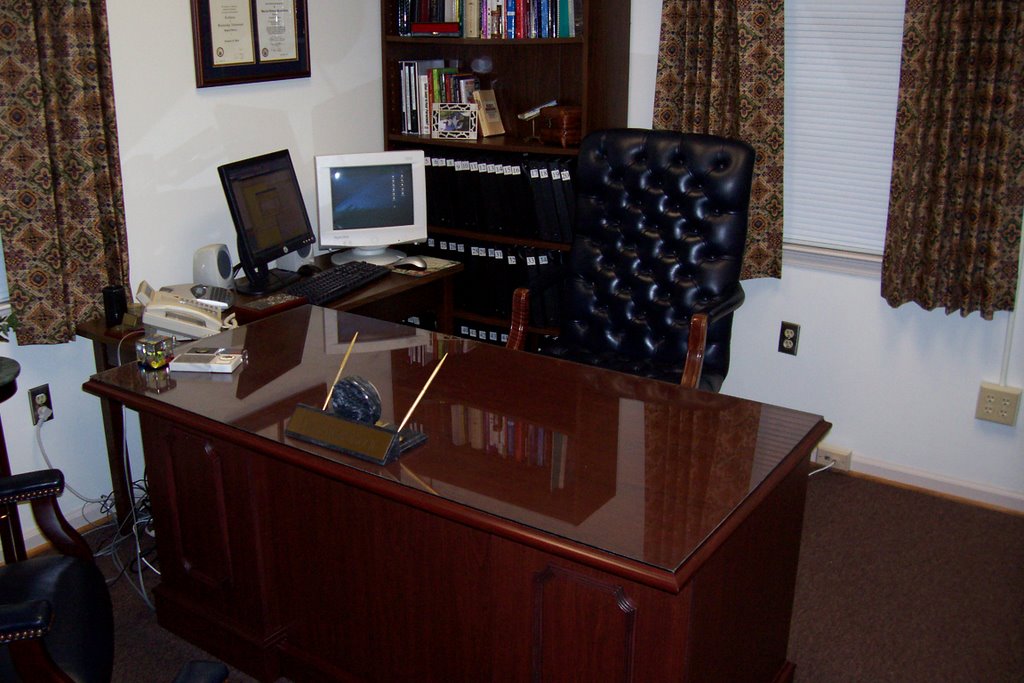
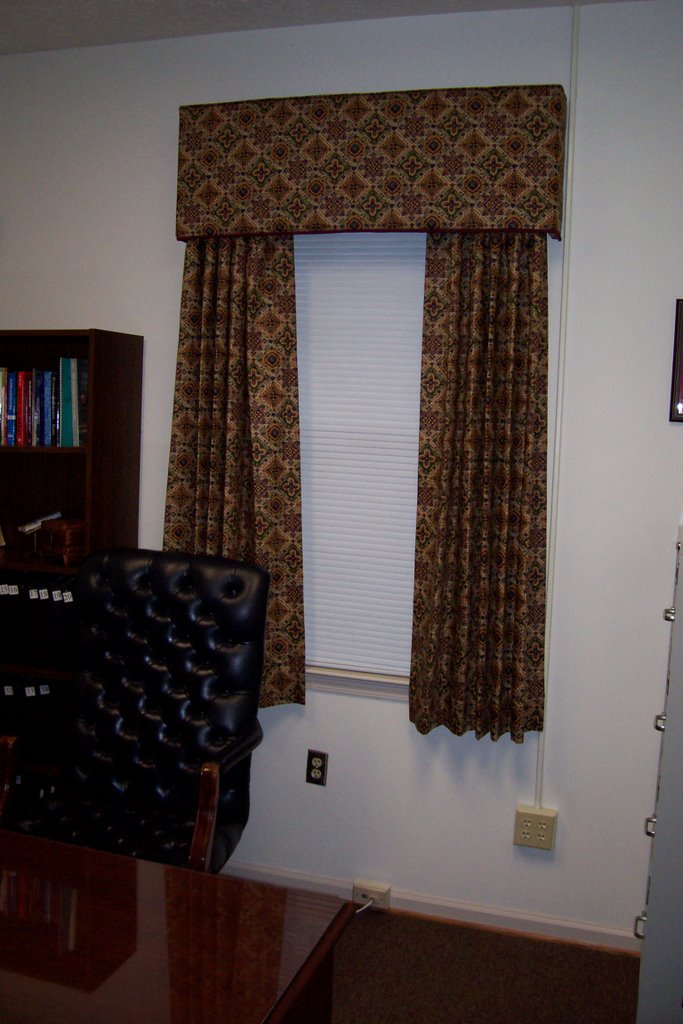
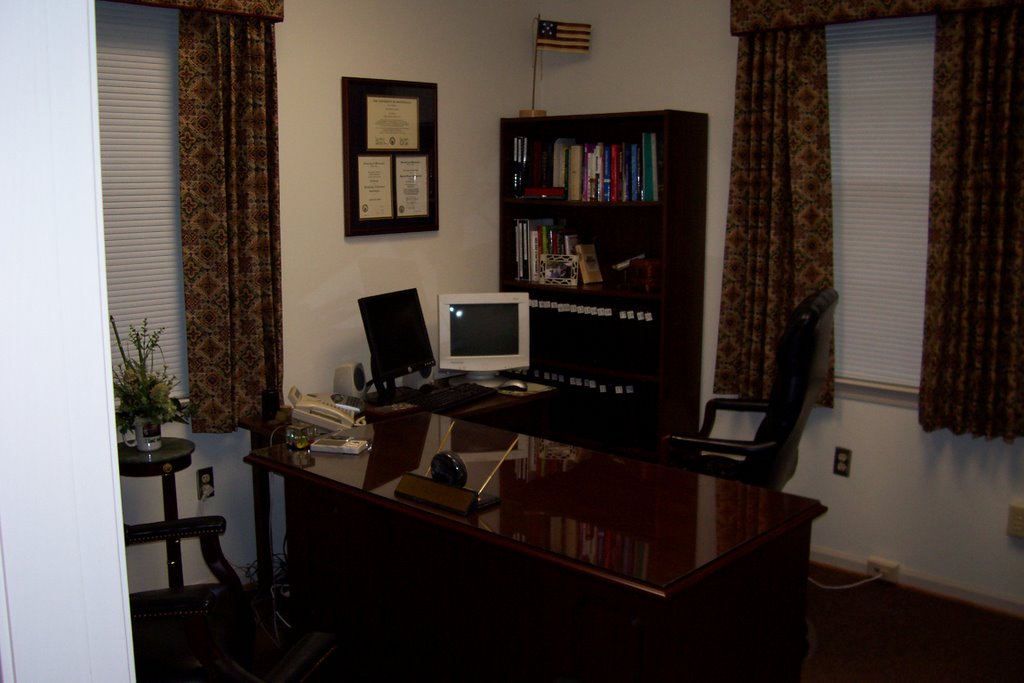
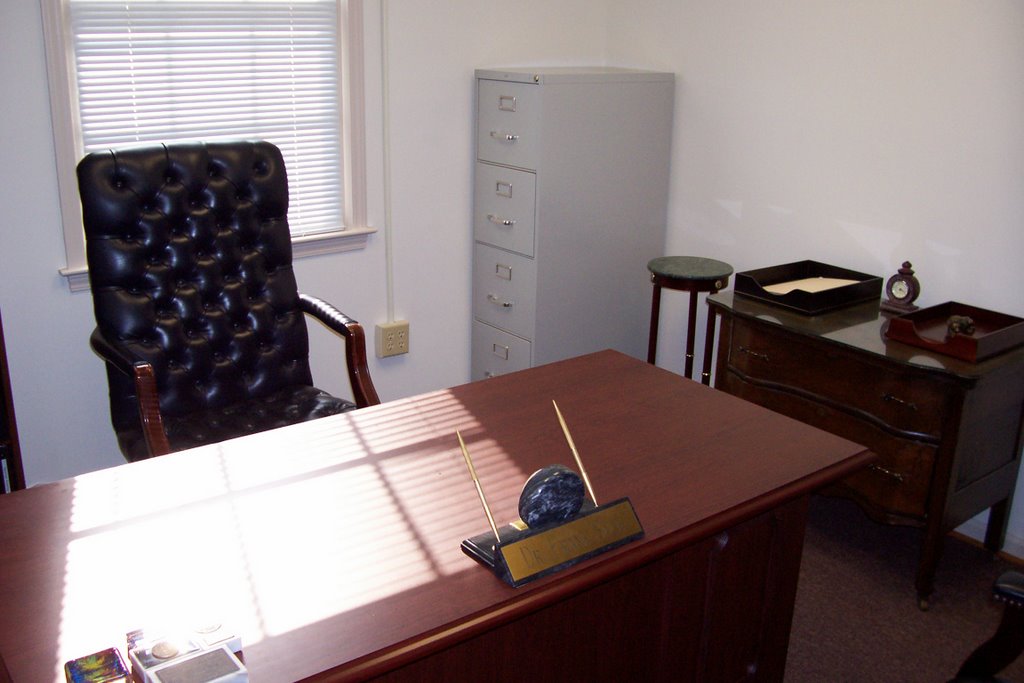
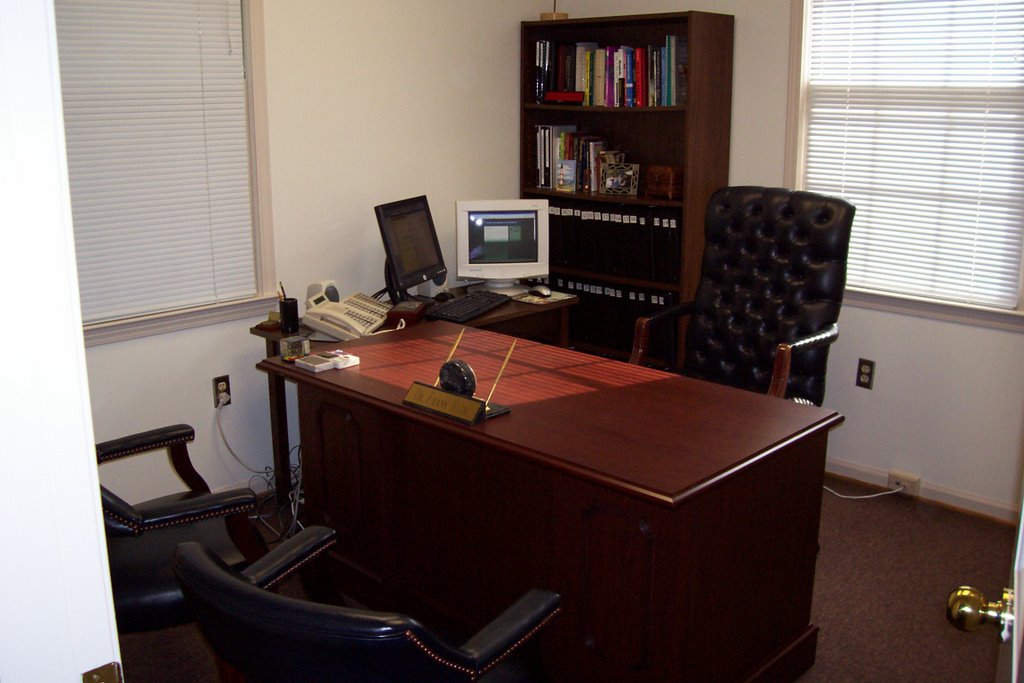
Earlier, I had posted pictures of my new office. Here a few pictures now that curtains have been hung and pictures and plaques hung on the wall.

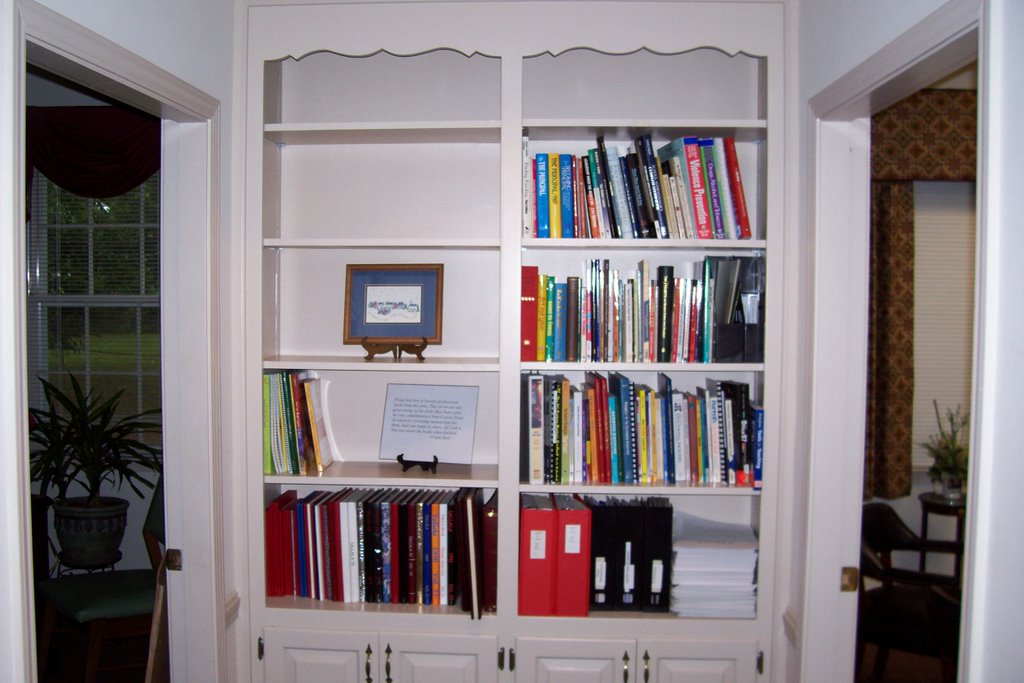
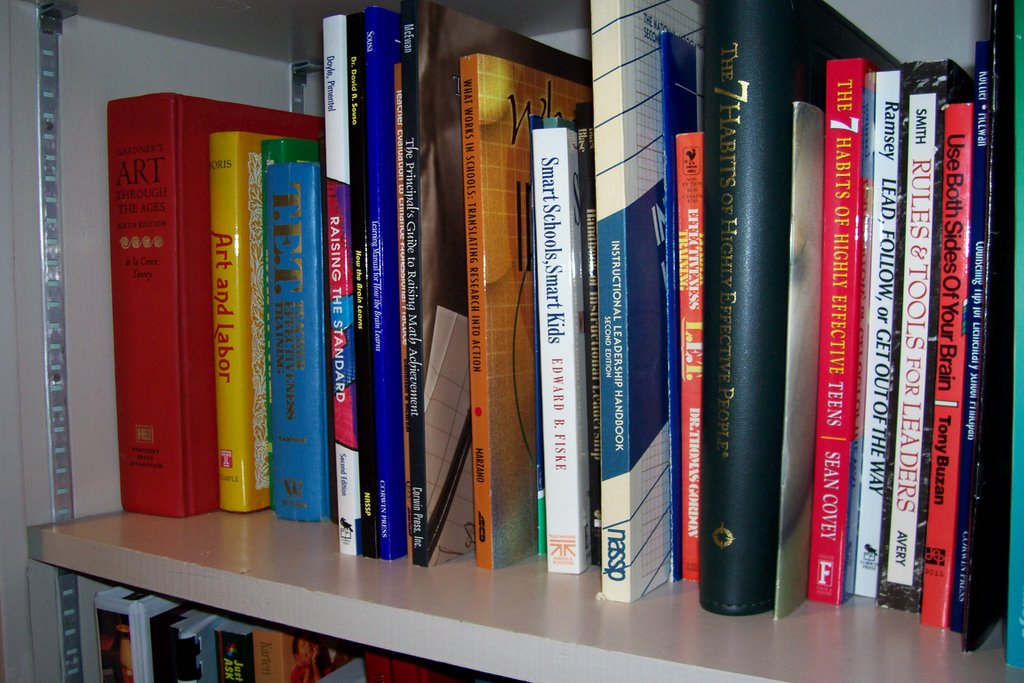
Also, I am using a bookcase just outside my office as a lending library.


Thursday, July 20, 2006

You never know what today's mail may bring...

Going through today's mail, I opened an envelope containing a complimentary copy of "Pro Principal," a newsletter for school principals. The "cover story" was a feature our use of blogs at Graham Elementary School!

Amy Shannon, the editor for the publication had contacted me some time ago after having read my article in Principal magazine. I was quite surprised to see the article, especially displayed so prominently and with such coverage of our school.

My thanks to Shannon for spotlighting our school system.

Wednesday, July 19, 2006

What if your hard drive crashed today?

If your computer's hard drive crashed today would it mean:

An inconvenience? You would simply load your backup onto another computer and continue to do use your documents. A new hard drive would be purchased, the operating system and programs reinstalled from the CD-ROMS and then your documents re-loaded; or

A catastrophe? All of your documents have been lost forever because even though you know you should do a backup, for one reason or another it just hasn't happened.

If the answer is the later, whether you realize it or not, it impacts the way you work with a computer every day. As long as lack a system for backing up, you cannot trust your computer. You unconsciously avoid getting too attached to anything stored on it, because you realize it could all be gone in an instant.

In reality, data is much safer now than ever before. A decade ago, a fire, flood, or tornado could destroy every record in a school with no hope of retrieval. Today, even though a natural disaster could destroy the contents of an entire building, the data stored on a backup off site is safe.

The content of the "My Documents" folder at school are backed up, and that backup is at my house. Likewise, I have backed up the "My Documents" folder on my home computer. That backup lives at school.

Being able to trust that I am not going to lose digital data gives me the peace of mind which keeps me from feeling the need to print everything. Digital data is much faster that finding paper even in a good paper filing system.

Sunday, July 16, 2006

Two new blogs

A year ago, I established two blogs. One was designed to communicate with teachers and staff in the school where I served as principals. The other was designed to communicate with parents. How easy it was to write a quick post and have it available for the reader in minutes! No Xeroxing, no stuffing paper into mailboxes, and a complete history of all of my posts neatly archived. Who could ask for more?

As I move from my school to the central office, I have already begun to suffer from withdrawal! How will I be able to communicate with teachers throughout the school system? How can I get our message out to parents and community members?

I guess the answer now is the same as it was a year ago--a blog (or two). This evening, TeachTalladega.blogspot.com and TalladegaCitySchools.blogspot.com were born! The biggest difference between these two blogs and the ones I have created in the past is that I am inviting others to become members of these blogs. Central office personnel and principals seem to be the most logical choices. I figure that with all 7 schools posting to these two blogs, there will always be fresh content and people will continue to visit the blogs.

Saturday, July 08, 2006

Two monitors


I have been seeing a great deal lately about the effects on productivity of having two monitors, so we are starting the new job with that setup. In this shot, I have Outlook on one monitor and my web browser on the other.

One example of how this setup is wonderful came Thursday. I was putting together a PowerPoint presentation which consisted of screenshots from the Internet. Normally, this task would have entailed maximizing the browser, hitting “Print Screen,” minimizing the browser, pasting the item in the PowerPoint, and then continuing that process until complete.

With two monitors, I simply open the browser on one and PowerPoint on the other. As I move the mouse, it travels from one screen to the other.

In the pencil/paper world, we often lay two pieces of paper side-by-side. Often, we are referring to one while we write on the other. At other times, we are comparing the two. We would never dream of putting one paper on top of the other and exchanging their tow positions countless times. However, that’s exactly what we have been doing with our computers for a couple of decades. With two monitors, my digital world has caught up with a good idea from our paper world.

Bulk storage


What in the world is this? Is this the most recent version of these policies? Do I really need to keep this?

The job I am starting is the 5th position I have held in schools since beginning my career in 1982. In each case, I found myself asking these kinds of questions about material I would run across. I have found that time answers those questions. The best route is to put it away, and then look at it again some weeks or even months later. By that time, the answers are usually obvious.

“Bulk storage” is a great answer. In my last position, as principal of Graham School, one shelf in a closet served as my bulk storage. Anything to be handled in the future that was too bulky for the tickler files went there. A repeating tasks on my list would remind me to examine that shelf and take action on what I could.

In the new office, that two-door cabinet in the center has been nominated for the task of bulk storage. As I have come across notebooks, etc. for which I had questions, I made the appropriate entry on my to-do list, and added to the physical item to the bulk storage cabinet. The plan is not to even look in that cabinet for several weeks. By that time, I will have worked through my list, asked the proper the people the proper questions. When I do open that cabinet again, the value of each item and where it needs to go should be much more obvious.

More on moving an office


June 6

The last of the bits of painting were completed towards the end of the day. I could now move in one filing and get boxes of file off of the floor.

June 7

The goal for today was to get the office in its final form with the exception of window treatments and diplomas/plaques on the walls. I also had quite a stack of papers that had accumulated during the week.

Here are a couple of shots of the office as it looked at the end of the day. The to-do is plenty long, but the papers are out of site. I want work from my list, not a stack of papers. Part of today was looking at each paper, making decision about what needed to be done, putting the actions in my list, and including in the list where to go to put my hands on the paper.

Along the course of the day, I made stacks of materials to deliver to other schools. I had come across many individual sample books for 1st and 2nd grade. I delivered those to one elementary school so they could be passed on to a teacher for her classroom library. Several thick notebooks which pertained to the high school were delivered there. I even unearthed a copy of the high school’s SACS review from 1968!

I came across multiple copies of materials that were doing nobody any good sitting at the central office. One was a wonderful handout on troubleshooting a computer. I put the copies in the mailboxes of each school.

The pictures show the finished product. Still to be done are getting curtains for the windows and hanging things on walls.

Thursday, July 06, 2006

Moving an office

At one time or another, most all of us move—either from one home to another, one classrooms to another, or one office to another. My major project right is a job change. After nine years as a principal, I have moved to a central office position with the same school system. The change in position entails moving from one office to another. I thought others might be interested in how I handled, and am still handling) the process.

July 1
This was the first official day of my contract. Even though it fell on Saturday, Davonia (my wife) and I were at the new office. The first item of business was to clear everything out of the office and paint the 10x10 office. One challenge was that one entire wall was lined with filing cabinets, so during Day 1, everything was painted except the two walls blocked by filing cabinets.

Lots of stuff went straight to the dumpster and lots of other stuff went into books for me to go through as time permits.

July 2
We moved all of the boxes from the old office to the new one. The two buildings are only a block apart, so we were able to make the move by loading boxes in the car and making several trips. We did move one piece of furniture—a bookcase, which I simply put on a set of hand trucks and rolled down the street. We were able to unbox books and get them directly on shelves.

One thing that made the move easier was to go thought everything in the old office and do the cleaning out on that end. Taking the time to perform the task on the front end meant that I was not moving junk from one place to another.

July 3
The focus for today was two-fold. First was the task of ridding the office of the filing cabinets that were eating up a full 20% of the floor space. The second task involved the computer—getting one set up in the new office and clearing things off of the one I was leaving behind.

The morning was spent unloading, filing cabinets in two areas (a total of 10 filing cabinets), moving the 5 newly-emptied filing from my office to an off-site location, and finally loading the files—5 filing cabinets worth off-site and another 5 filing cabinets worth in another area within our central office.

The computer was a challenge simply because much of the information on it is information the new principal will need. At the same time, I did not want to leave behind memos I had written, a myriad of Outlook tasks and appointments from the past, and access to e-mails from the past.

The process consisted of burning files to several CD-ROMs. Backing up “My Documents” took care of the majority of what needed to be copied. I also burned to a CD-ROM by Outlook .pst file and Outlook archive files and well as the bookmarks from Foxfire.

The next step was to go to the new computer and import my pst file into Outlook. That process went off without a hitch. Of course, that process only brought in the data. Doing all of the setup to get Outlook to look the way I want, archive what and when I want, etc. was something I had to do. Once all was right with Outlook, I synced my Palm and held my breath. It worked! The initial setting I used was for the desktop to overwrite the Palm.

With Outlook safely in place, I returned to the computer in the old office and began the process of deleting files the new principal would not need. A great deal of time was spent going through Outlook to delete appointments, tasks, and contacts that would be of no benefit to my successor. I have many repeating tasks set up in Outlook, and all that are relevant are still there for the new principal. The work I left unfinished is there, along with a complete calendar for the coming year.

Did I mention my new computer is set up with two monitors? In the last few months, I have read in countless sources about the value of two monitors. Right now, I have Outlook on one monitor while I compose this post on the other.

July 5
After taking off July 4, today was the first real day on the job. I got to the office at 6:30 and began going through and throwing away. A pair of meetings encompassed most of the morning and early afternoon.

A new desk arrived mid-morning, and being able to load it got several boxes off of the floor.

That evening, Davonia came up and the final two walls received a much-needed coat of paint.

July 6
Today, I am beginning to see really being able to get back to work on projects. I loaded all of the “My Documents” files onto the new computer. I downloaded and installed Firefox, SpyBot, and SpyBlaster. All of the Firefox bookmarks imported easily.

Where do we go from here?
The one big question mark is the phone system. Several people at the central office have changed locations within the building, but phones have not been rerouted. I am getting calls for the person who was in this office before me. As a quick fix, I am going to change the voice mail message to tell people how to call the person who has just vacated this office, and invite anyone who was really trying to reach me to leave a message.

I still have several boxes to go through. My plan is to spread it all out and determine:
Where is there duplication? (Duplicates get throw out)
Can I find this same thing in digital form? (If so, the hard copy gets thrown out.)
What stuff do I simply not know what to do with. I had found from the four previous jobs I have held that if I just put it away for a couple of months, when I look at it again, I will almost certainly know what should be done with it.

Tuesday, July 04, 2006

More on Blog Settings

When you create your blog, you have a number of options under the "Settings" tab. Here are a few suggestions regarding the choices available to you:
  • "Basic" link- Answer "Yes" to every choice.
  • "Publishing" link- One way to help other people find your log is to check "Yes" to "Notify weblogs.com"
  • "Comments" link:
  1. Who can comment?-Select "Anyone"
  2. Comments Default for Posts?- Select "New posts have comments"
  3. Back links- I have selected "Hide"
  4. Show word verification for comments?- Selecting "Yes" keeps spam from being posted to your comments
  5. Enable comment verification?- Selecting "Yes" sends comments to your e-mail for your approval. This feature prevents inappropriate material from being included in comments.
  • "Archive" link- "Monthly" is a good choice. Answer "Yes" to "Enable post pages."

In the July 2005 issue of PC Today, Vince Cogley gives several suggestions for increasing traffic in your site:

  • Answer "Yes" to "Enable post pages." and also enable your site feed. Enabling the site feed will allow others to "subscribe" to your blog.
  • Answer "Yes" to "Notify weblogs.com"
  • Add your blog to Google's index by going to www.google.com/addurl.html

Thursday, June 29, 2006

Handling Blog Comments & Removing the Blogger Navigation Bar, Icon

If you attended "Your Own Blog in 10 Minutes or Less, " please go the November 2005 link in the archives and read the posts from November 16 and November 20. You will see a review of my suggestions for handling comments. You will also see instructions for how to remove the Blogger Navigation Bar and Blogger Icon. This way, students will not be able to click on the "Next Blog" link and possibly see objectionable material.

Handout from PDA Productivity

I had a terrific in today's sessions. If you attended the "PDA Productivity" and did not get the handout beamed to you, I am posting it here.

The next post I do will be a more on handling multiple projects using your Palm, so please check back.

************************************
PDA Productivity: Getting More Done and Making It Look Easy

Dr. Frank Buck

***This outline is presented as very simple text—no bullets, italics, bold faced-print, etc. The intention is that as you view this online, you will simply “select all” and electronically copy this entire outline. Then go to your Palm desktop or Outlook (whichever you use), create a new task (called something like “Set up my Palm”) and paste this outline into the note section of that task. Feel free to e-mail or beam this outline to a friend who has a Palm but isn’t quite sure how to use it as the productivity tool it could be.

-Frank Buck


Categories for Task List:

Building

Calls

Delegated

Errands

Home

Office

Unfiled (Syncs to “None” on Outlook)

*******************

Goals

I have achieved my goal when WHAT is true?

What’s the next step

***************

Next step+Goal statement

Other steps and information related to the project are the in the note section.

*************

Backing-Up Outlook

Your data is kept in a “.pst” file

Backing up on Outlook 97:

Right-click on “Outlook Today”

Choose “properties”

Click “Advanced”

You will see the path to your data

Close Outlook

Copy that .pst file and save it as your backup

Backing up on Outlook 2003

In Outlook, under the File menu, select “Backup”

Click on Options and make you selections

Browse for a pathname and choose “My Documents” as the place where you want the backup to go

Maintain the data by running scanpst every month

***************

What place does paper have? (3 phases of workflow)

Collect-May be best to do on paper until you get really good with the Palm

Process and organize-Do on the Palm

Do the work


Collecting on the Palm (Meeting notes)

Press task button

Enter name of meeting and due date

Create a note

Turn off

During meeting, turn on & off with power button

******************

Palm To-Do Preferences

Sort by Category, Due Date

Uncheck “Show Completed Items” (As you check off things, they disappear.)

Check “Show Due Dates”

Check “Record Completion Date” (Gives you a record of when you really completed things)

Uncheck “Show Priorities”

Check “Show Categories”

******************

Outlook-Getting categories to synch that first time:

Launch “Chapura Settings.”

Click the “Settings” button.

Double-Click “Outlook Calendar” (for example).

In the Chapura dialog box that pops up, click “Categories/Folders.”

Select “Handheld category = Outlook’s ‘Categories’ field.”

Wednesday, June 28, 2006

Thanks for coming to "It's About Time for Technology"

Thanks to everyone who came to this afternoon's workshop! I hope you took from the workshop ideas you can use immediately, whether it be organizing your files, backing-up your computer, or expanding the ways you are using Google.

I want today’s experience to more than a “one-shot workshop” for you, and my thinking is that this blog is going to be the best way keep the material fresh and be able to go into more detail than the one hour this afternoon allowed.

If visiting this blog is your introduction to blogging, welcome to what has become a very popular (and easy) way for people to communicate their thoughts with the “world out there.” Tomorrow, I will be doing a workshop on blogging. The idea is that you will leave that workshop knowing how to set up your own blog.

If you have questions about topics from today, please feel free to post a comment and I will be glad to go into more detail. Also, if there are other topics you will like for me to cover in this space, please let me know.

I have been writing posts related to organization and time management for almost two years, so you will find a great deal of material as you browse the previous months. I hope you will take some time over the coming weeks to look over those posts and enjoy new posts as time goes on.

Please check back often!


"Don't say you don't have enough time. You have exactly the same number of hours per day that were given to Helen Keller, Pasteur, Michelangelo, Mother Teresa, Leonardo da Vinci, Thomas Jefferson, and Albert Einstein."
-- H. Jackson Brown

Tuesday, June 20, 2006

Workshops for AETC June 28-29

I will be presenting 4 workshops at the Alabama Educational Technology Conference next week in Birmingham. Workshops, times, and locations are as follows:

June 28 3:30
It’s About Time for Technology (East Hall Room K/L)
This workshop explores organizing your computer, a simple way to back up documents, using e-mail effectively, and numerous time-management techniques which involve using the computer.

June 29 12:30
Your Own Blog in 10 Minutes or Less (East Hall Room A/B/C)
I will create a blog from scratch so that participants will be able to go home and do the same. Participants will see examples of the blogs I have created this one, GrahamSchool.blogspot.com, and GrahamStaff.blogspot.com). Finally, I will talk about issues such as how to handle comments and how to keep people who view your blog from being one click away from seeing inappropriate material.

June 29 1:45
Paper or Palm (East Hall Room A/B/C)
This workshop is designed for the person thinking about using a digital organizer or who has limited experience. We look at the basic features of the Palm, examine the Palm Desktop and Outlook, and give some basic strategies for organizing your life.

June 29 3:00
PDA Productivity
(East Hall Room A/B/C)
Want to get more done and make it look easy? This workshop is designed for the person who has a Palm (or other handheld organizer). In fact, the handout for this workshop exists only digitally. I beam the handout to the first arrivals. They, in turn, beam it to others who enter the room. We explore strategies for using the Palm as a powerful tool to organize your life.

Wednesday, May 31, 2006

School Administrator Magazine Article

This article appeared in School Administrator magazine over a year ago. I did not know that the article also existed in cyberspace until today. The thrust is a discussion of using portfolios as a portion of the principal's evaluation.

Managing School the Easy Way

Experienced teachers will tell us that school success and intelligence do not always go hand-in-hand. Often, very bright young people don’t remember to do assignments, lose their work, and spend inordinate amounts of time frantically looking for things in a messy desk.
At the same time, other students breeze through school. They seem to make school look easy, but not because they are necessarily smarter than their peers. They have acquired some very easy, very teachable habits. Here are some ideas to make our students days in school a little easier:

  • Write down the things you have to do as soon as they occur to you. The student who tries to keep everything in his or her head is headed for trouble. Even young people today have many activities on which they must focus their attention—homework, athletic practices, family activities, and chores are just some of the obligations our children have. The easy thing to do is let pencil and paper do the remembering. Get it on paper and you can get it off your mind! An assignment book or student planner is the perfect tool for this purpose. The big advantage of using such a book is that all commitments are in one place.

  • Break big projects down into little parts. As adults, we remember fondly the English teacher who assigned the term paper (due 2 months hence), and then said, “I want you to turn in your topic this Friday, and outline the next Friday, a dozen note cards the next Friday...” That teacher knew that left to our own devices, we would put off the seemingly overwhelming task until the last minute and then throw something together. She made us break the big job into manageable parts. What are the big projects for our students? Perhaps making the Accelerated Reader “100 Club,” earning the badge in scouting, or making a sports team are a student’s goals. For each one, there is a very next step. When the little steps are defined and handled, the big projects fall into place.

  • Empty the bookbag totally every night. For some students, the bookbag is a big black hole into which papers go and are never seen again. When the student finally cleans out the bookbag in May, one can only imagine what lurks at the bottom of the bag. That permission slip he never could find, the homework paper she was sure she did, and that half-eaten banana are among the treasures at the bottom of the bookbag.

  • Learn to deal with papers. So much of the information exchanged between the home and the school happen through written communication. Report cards, Tuesday folders, notes from teachers, field trip permission forms, and newsletters are examples of information which comes via paper. Some students seem to have no problem getting papers home and back on time. Other students never seem to be able to get anything home. Papers get wadded up in pockets, stuck inside textbooks or notebooks, or placed inside desks. By the time the student gets home, where to find that paper is anybody’s guess (assuming she remembers she had a paper to delivery at all)! Having a simple plan puts an end to a great deal of unnecessary stress.

  • Students need a place at school to put the papers for Mom or Dad, and put them there every time. Some classes may have a special folder which goes home each night. This week’s page in the planner is an ideal place to trap loose papers. When the student opens the planner at home, he is looking right at the papers, an instant reminder that they need to be handed off to Mom or Dad.

  • Students need a spot at home where papers for Mom or Dad go. The last thing a parent needs when getting home from a busy day at work is to have a fistful of papers shoved at him. Nor does she need to go on a safari through the home looking for papers which may have been put who knows where. Conducting an excavation inside a bookbag is no fun either. Children don’t have it any easier. They don’t always know when parents are ready to focus on papers from school. Having one spot to put everything for Mom or Dad’s review at their convenience makes life easier for all concerned.

  • Get everything ready the night before. Forgotten items, missed school busses, and frazzled nerves can so often be traced back to one simple problem—assuming Rome can be built between the time the alarm clock goes off and the school bus pulls up. Morning is a terrible time to do that last bit of homework, finish that poster, or get those papers signed. Without fail, that book we just knew was on the coffee table is nowhere to be found and it’s already time to pull out of the driveway. Get it all ready the night before and mornings become more peaceful.

A little organization can go a long way towards making school (and life) more stress-free and enjoyable!

Saturday, April 15, 2006

What's not working?

Conveniences are all around us. From microwave ovens to electric pencil sharpeners, we have an abundance of tools that make our lives easier—provided they work. What a handy tool we have in that electric stapler—only it doesn’t work because it’s out of staples. How about that empty tape dispenser in your desk drawer?

This week, I challenge you to look at what’s not working in your world and do something about it. The electric stapler sits unused because it’s out of staples and you haven’t refilled it because you are out of (or can’t find) more. You have been meaning to order more but you keep forgetting. The next time you think about needing staples is—you guessed it—when you go to use that stapler and find it’s still empty.

As you come across these little annoyances, take a second to decide what needs to be done to fix it, and jot it in your planner. Don’t put getting staples on the list for today. Instead pick a day about a week out and start a list of little items to get. A week from now, you can handle that whole list at once.

Fixing the problem is the first step. The second step is deciding how to avoid the problem in the future. Think about this one—at your house, when do you decide you need to buy toothpaste? Is it when the tube runs out and you realize there are no more under the counter? Or, is it when you take the last one from under the counter? In the first case, you have a minor crisis—you need toothpaste NOW. In the second case, you just need to put toothpaste on the grocery list and go on about your business.

Ask yourself the same thing about supplies in your classroom. Do you order more when you are OUT or when your reserve is low? What about textbooks? If a new student enrolled tomorrow, would you have books for him? If not, why not go ahead and put in a request now, so that when you DO get another student—and you will—that you are prepared. You own 7 umbrellas, yet you never seem to have one in the car you when a downpour occurs. What could you do to fix that problem once and for all?

What else in your classroom doesn’t work? What about that regular pencil sharpener where the handle has been loose for 2 years? What would it take to fix that? You have two desks that are awfully wobbly. What would it take to fix them? Realize this is a thought process that seldom occurs to most people. Too many of us simply get so used to all of the things in our lives that don’t quite work that we soon stop thinking about them anymore.

Have you cleaned out your desk lately? If not, put it on your to-do list. Out go the pencils with no points, the dried-up ink pens, the empty packs of Sweet & Low, and a host of papers that never should have been there to start with. You will be amazed at what you find there that you had no idea you had.

Why do people resist thinking through what it takes to fix the little broken things? I think the answer lies in that thinking through what needs to be done creates a long to-do list for people who already have too much to do and try to keep up with all of it in their heads. For those of us who have a “capture tool,” life is easier. We take a second to jot down what needs to happen. We organize our list in a way that groups similar items together. Then, we handle a number of similar items all in one sitting.

Get all of those conveniences in your life working and watch some of the stress in your life go away.

Sunday, April 09, 2006

Getting from “In” to “Empty”

Let’s return to last week’s analogy for a moment. You walk to the curb and take empty the mailbox. When you walk away from that mailbox, it is empty! Better yet, it’s not empty just one day; it’s empty at the end of EVERY day. Wouldn’t it be great if only your e-mail inbox operated like the mailbox by the curb?

Decisions, Decisions
The key to getting an empty inbox is to simply make decisions about each and every item there. Therefore, make a practice of only looking at your e-mail when you have the time and energy to make those decisions. You are going to need to go from top to bottom and make small decisions at each turn.

Delete It
Much of your e-mail requires no action on your part other than briefly scan it and hit the delete key. Candidates include advertisements in which you have no interest, jokes, threads from e-mail discussion groups, and FYI courtesy copies. I find it helpful to sort the e-mail by “conversation.” All mail related to a single subject appears together. If the subject is of no interest, I delete the entire thread at one time.

Do It
Some e-mails require only a quick response. I recommend giving that response immediately and then deleting the mail if it is of no further value. What if the response is going to take some time, and possibly some research? In that case, I send a quick response to let the person know I received the message and will be getting back with them. Using Outlook, I drag the e-mail to the Task icon, assign a due date, category, and change the subject line as needed. I then delete the e-mail.

Delegate It
Perhaps someone else really needs to be handling this message. I simply forward the message the appropriate person and delete the e-mail. If I should happen to need it later, I can always go to my “Sent Items” and view what had been forwarded.

Save It
What if the information may be of lasting value? I can save the e-mail by going to the “File” menu and choosing “Save As.” I am able to choose the appropriate place on my computer.

If the e-mail is something I need to save for documentation purposes, I go to the “Memos & Letters” folder I have created in “My Documents.” I name the file with the author’s last name, a hyphen, and a few words descriptive of the subject. I choose to save the message as a text file. After saving, I can then delete the e-mail.

Perhaps the e-mail is a lesson plan. I would then save it with other lesson plans already stored electronically.

“In” Becomes “Empty”
The point is that a decision is made about each piece of e-mail, and that decision is made the first time the message is read. The basic decision is in which category a message falls: Delete, Do, Delegate, or Save. After handling each item, “IN soon becomes “Empty.”

Sunday, April 02, 2006

Handle your E-mail—ALL of it

Imagine for a moment you have just arrived home from work. You walk to the curb and take the mail from your mailbox and walk back in the house. You open the mail and read it. Then, you walk back to the curb and put all of the mail back in the mailbox. Sounds crazy doesn’t it!

The next day, when you walk to the mailbox, you find today’s mail sitting on top of yesterday’s mail. After a couple of more days, will you need to buy a bigger mailbox! Even worse, you will hate that walk to the curb.

This scenario sound crazy, yet it is exactly how all too many people approach their e-mail inbox. They read it, and because they don’t know exactly what to do with it, they leave it. It is not uncommon to see an inbox that contains every piece of e-mail the owner has received since the computer was installed!

Next week, we will look at how to dig out from other and establish some habits that will get your inbox empty every day.

Tuesday, March 28, 2006

E-mail yourself?

Often, the purpose of an e-mail message is to ask someone else to do something. The ball is not in the other person’s court, but we still have the obligation to follow-up and be sure the other person delivers.

A simple technique for follow-up is to send yourself a copy of the message. Every e-mail program has in addition to the “to” and “cc” lines a line called “bcc,” which stands for “blind courtesy copy.” The difference between the “cc” and “bcc” is significant. When you put an address in the “cc” line, all other recipients can see that this person received a copy. When you put an address in the “bcc” line, the person receives copy of the message, but no other recipient will know it.

When I delegate a task to someone else via e-mail, I put myself in the “bcc” line. The next time I check my e-mail, a copy of that e-mail arrives in my inbox and serves as a reminder to follow-up.

What do you do with that reminder? I use Outlook synced to my Palm as a means of organizing my life. I simply drag the e-mail over the task icon (which automatically creates a new task in Outlook with all of the appropriate information filled in. I assign a due date, assign a category of “Delegated” and save. I then delete the e-mail message. Now, a reminder to follow-up on the task appears with other “delegated” items on my task list.

For those who do not use all of the features of Outlook, leaving the e-mail in your inbox is an option. Since the message shows you as the sender, you will know that it was a delegated item. After a reasonable period of time has passed, you may simply forward the message to the person again or pick up the phone to follow-up that way. When the other person completes the assignment, you simply delete the e-mail.

Wednesday, February 22, 2006

E-Mail—Time Management Tool or Time Sink?

Is E-mail a great time management tool or a great time sink? In little more than a decade, it has gone from being a rare novelty to being commonplace. We all love it, because it’s so easy to send a message to one person or to hundreds of people. All with a single mouse click. We hate it because our e-mail explodes with advertisements, jokes, and a host of other low priority items. We stress about it because we also get good information and don’t know exactly what to do with it.

E-mail is the most efficient means of communication we have in the world of education.
Even if had phones in our classrooms, statistics from the business world show that only something like 20% of calls are completed the first time.

When we use e-mail, we send messages when it is convenient for us. They are read when it is convenient for the other person. It eliminates calls that end with “I’ll get that information and get back with you” and perpetual telephone tag.

Getting Newspaper Coverage
How many feel like your local paper is always there to cover the good things that happen in your school? When I ask this question on workshops, rarely does a hand raise. The truth is that papers are usually glad to print what you give them provided you get it to the right person and you make it easy for them. E-mail is the answer.

Go home, call the paper, and ask for the name and e-mail address of the person to whom you should send school-related material. When you have something, e-mail it. You aren’t going to be spending your planning period driving to the paper and searching for the right person to hand your stuff to. They aren’t going to have to turn around and retype your copy. You will find your story, along with the digital photo you include as an attachment, winds up in the paper.

Committee Work
If you are doing committee work where everyone has their part to prepare and then it’s merged into one document, send it by e-mail to one person who simply pastes it together. Pasting it and then going through to add nice formatting is a lot more fun than taking a stack of papers other people have typed on their computers and printed out that you are now going to sit and type back into your computer.

Old Habits are Hard to Break—Some scenarios to examine:

  1. A teacher wants to reschedule a committee meeting, so she writes a note, and has a student take it from room to room. That might have been the most efficient way to do it—before e-mail. Now, we can e-mail that same message to as many people as needed in much less time and without having to interrupt other classes.
  2. Central office sends a memo and wants you to share the information with everyone. Do you put it on a bulletin board and hope everyone stops and notices there is something new there? Do you Xerox a copy for everyone and stuff the boxes? Or, do you encourage the central office to send it via e-mail to a contact person, who then simply clicks “Forward,” clicks a “group” into which the faculty and staff has been placed, and then clicks “Send.”
  3. A new student enrolls (or a student withdraws). Who needs to know that? In a typical elementary school, the answer would include the music teacher, PE teacher, librarian, counselor, or lunchroom manager. In your school, how do you let them all know? In all too many schools, these people are not notified at all. The solution is simple. First, identify who needs to know about entries and withdrawals. Secondly, create an e-mail group which includes each of those people. Part of the standard procedure for enrolling or withdrawing a student will now include sending an e-mail message to that group.
  4. Students misbehave from time to time and, from time to time, a teacher made need to send a discipline referral to the school office. Before computers, all of the teachers had discipline referral cards. The teacher wrote all of the details about what the student did. The administrator simply made on note on the form as to the consequence being assigned and was finished. Now, the discipline records are on computer. Someone must take the teacher’s written narrative and key it into the computer. If the number of referrals to the office is very large at all, this process can become a time sink. A possible alternative is to have teachers submit discipline referrals via e-mail. The administrator can then electronically copy and paste the teacher’s comments into the student administrative software.

    Over the next several weeks, I will share some other e-mail practices which work for me and help keep e-mail a timesaver and not a time sink.